

Send a Gmail email when a Zoho Billing payment is received
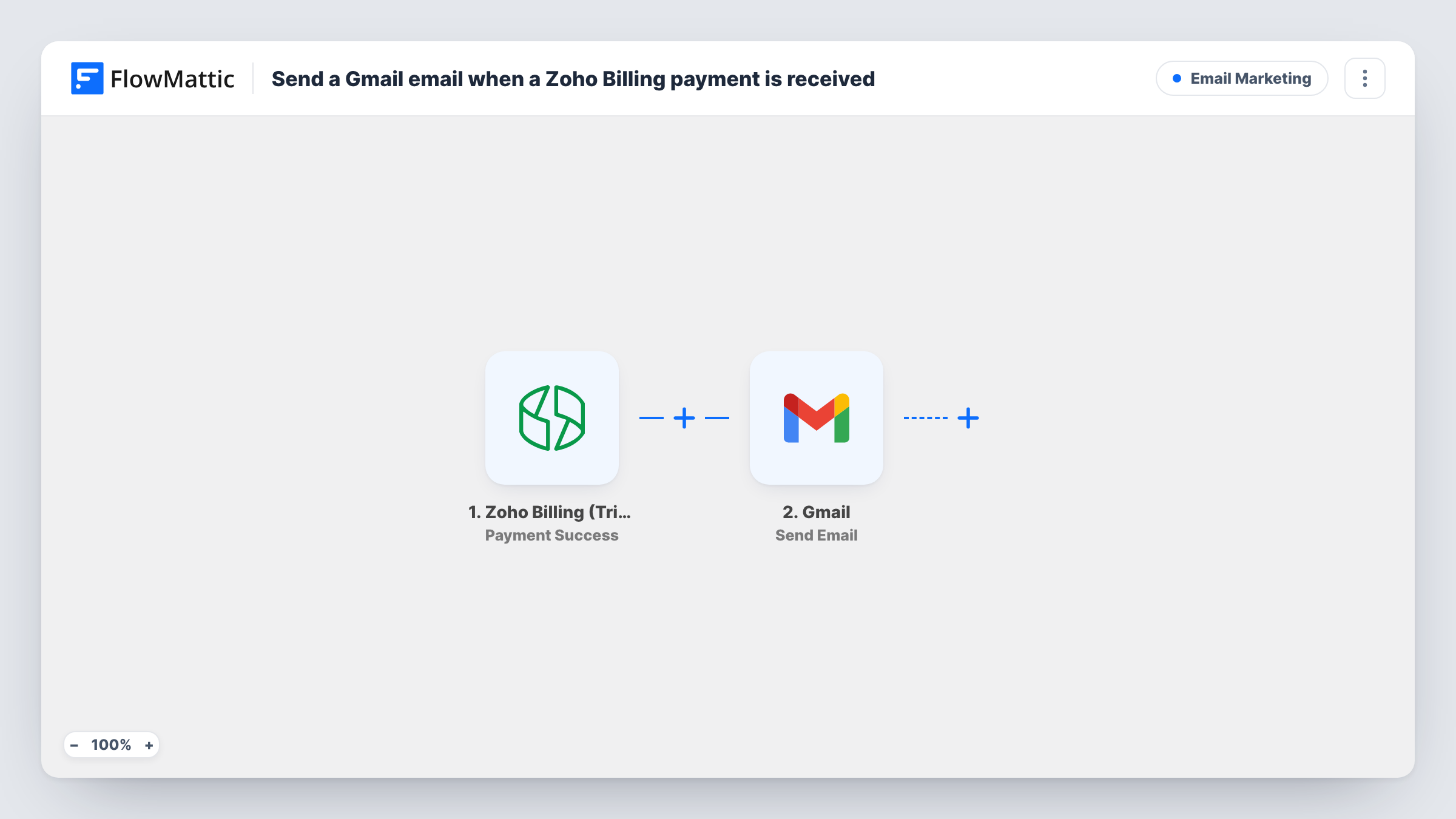
When a payment succeeds in Zoho Billing, FlowMattic sends an email from your Gmail account, written and addressed the way you set it up, such as a thank-you to the customer or a note to your team.
 Zoho Billing (Trigger)
 Gmail
2 steps Setup ~5 min Used on 3.4k sites Free to import
What this workflow does
Zoho Billing records each payment, but you may want a personal message to go out from your own mailbox when money arrives. Writing those by hand is easy to forget on a busy day. This workflow sends one through Gmail for every successful payment.
The Zoho Billing (Trigger) app starts a run when Zoho Billing reports a payment success. The payment details are passed to the next step, where FlowMattic uses the Send Email action in Gmail.
The email is not written for you. The template ships with an empty Gmail step, so after import you set the recipient, subject and message. Map the customer's email from the payment if the note is for them, or type your own address if it is an internal alert. Make a test payment, or wait for a real one, so FlowMattic can show you which payment details are available to drop into the text.
The email is sent from the Gmail account you connect, so replies come back to that inbox. Task History lists every email sent and any error Gmail returned.
Personal thank-you from the founder
A small subscription business wants each paying customer to get a short thanks from the owner's Gmail address, in addition to Zoho Billing's receipt.
Payment alerts for the accounts team
Send the email to your bookkeeper instead of the customer, with the amount and customer name, so they know a payment came in.
Next steps after a deposit
A consultancy takes project deposits through Zoho Billing. The Gmail message tells the client how to book their kickoff call.
How this workflow runs
What happens at each step once the workflow is on, and what you need before you import it.
 Zoho Billing (Trigger) Payment Success
Starts a run each time Zoho Billing records a successful payment. Connect your Zoho Billing account on import; the payment and customer details become available to map.
- Gmail Send Email
Sends an email from your connected Gmail account. Choose the recipient, then write the subject and body, mapping in payment details from Zoho Billing where you need them.
What you need
- FlowMatticCore
- Zoho Billing (Trigger) AccountAccount
- Gmail AccountAccount
After importing, map your own data. To keep the template universal, not every step is pre-filled. Open each step in the builder and connect your accounts and fields (channels, lists, sheets, recipients) before you switch the workflow on.
Make it yours
Changes worth making after you import it.
- Add a Filter after the trigger with an amount greater than a figure you choose if you only want an email for larger payments. Decimals are cut off in that comparison, so 49.99 counts as 49.
- Use a Router with two routes to email both the customer and your team, each with its own Gmail step and message.
- Keep the wording different from Zoho Billing's own receipt so customers don't read it as a duplicate.
Questions about this workflow
Who receives the Gmail email by default?
Nobody until you set it. The Send Email step has no recipient in the template, so map the customer's email from Zoho Billing or type an address before turning the workflow on.
Does this replace the receipt Zoho Billing sends?
No. The workflow doesn't change your Zoho Billing settings. Its email is sent separately from your Gmail account.
Will failed or declined Zoho Billing payments send an email?
No. The trigger is Payment Success, so only successful payments start a run.
Which Gmail address does the email come from?
The Gmail account you connect in the Send Email step. Replies from customers go to that inbox.
More Email Marketing workflows
Other ready-to-import templates from the same category.





Import this workflow into your WordPress site
Download the JSON, import it from the Workflows screen and connect your accounts. Every run stays on your server, with no per-task fees.
30-day money-back guarantee Unlimited workflows and runs Self-hosted