

Add new Formdesk respondents to a MailerLite subscriber group
When someone submits a Formdesk form, FlowMattic creates or updates them as a MailerLite subscriber and places them in the group you choose, so new respondents start getting your emails.
 Formdesk
 MailerLite
2 steps Setup ~5 min Used on 611 sites Free to import
What this workflow does
Formdesk forms are often where a first contact happens: a quote request, an event sign-up, a feedback form. If those people should hear from you again, copying them into your email list by hand is slow and easy to skip. This workflow adds each respondent to MailerLite as soon as the form arrives.
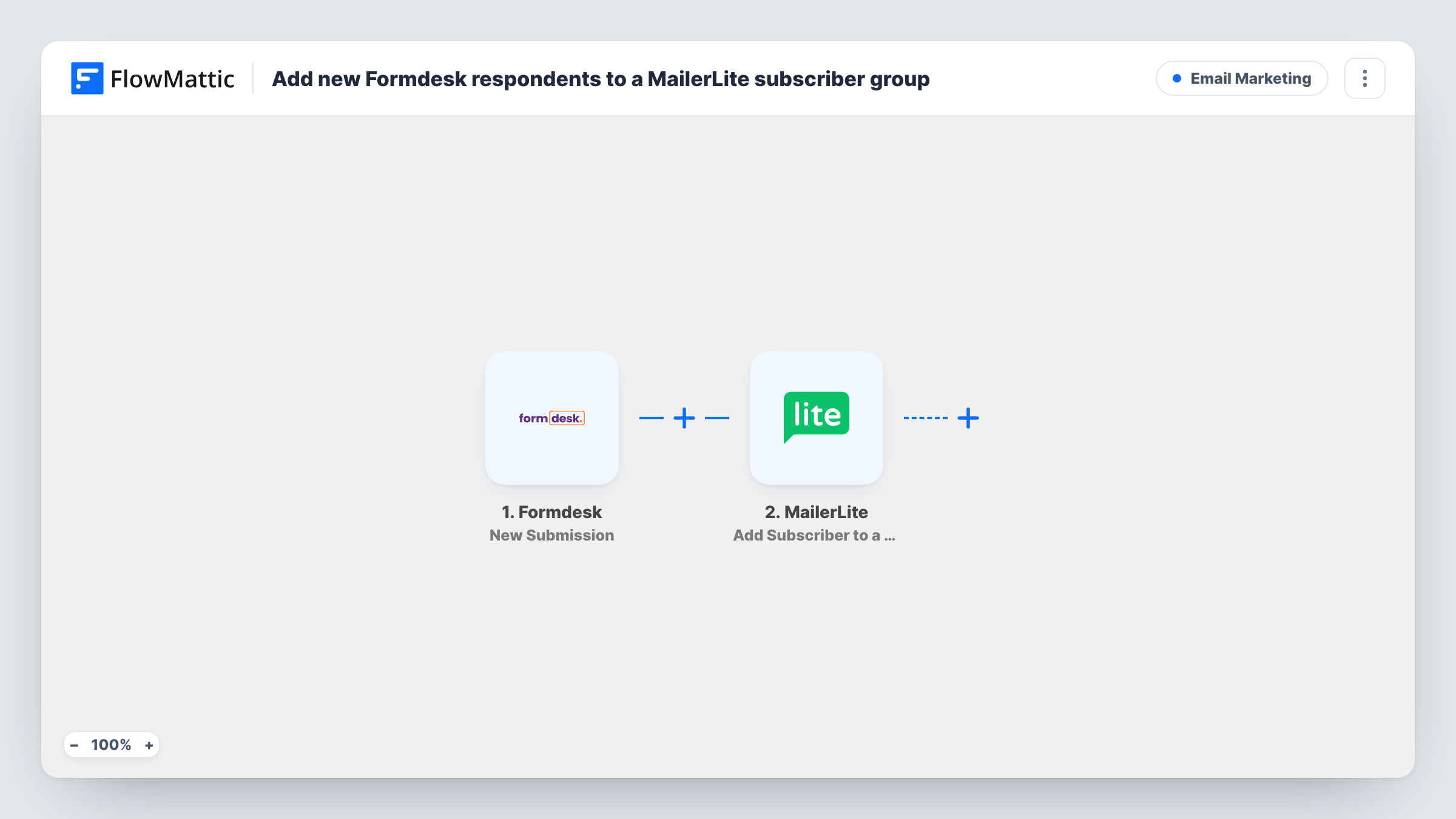
The Formdesk trigger runs for each new submission and passes the answers on. The MailerLite Create or Update Subscriber step then adds the respondent, or updates them if MailerLite already has that email address, and puts them in a group.
Nothing in the MailerLite step is set when you import it. After import, connect your MailerLite account, pick the group the respondents should join, and map the email address and any name or custom fields from the Formdesk answers. A group of its own for each form keeps these people easy to target with their own emails or automation in MailerLite.
Every new submission runs the workflow, so consider whether everyone who fills in the form has agreed to hear from you. Submit a test entry and check Task History to see the answers Formdesk sent and MailerLite's reply.
Quote requests into a follow-up sequence
A builder's Formdesk quote form adds each enquirer to a MailerLite group that sends a short series about past projects while the quote is prepared.
Event sign-ups on one list
An association collects workshop registrations in Formdesk and keeps every registrant in a MailerLite group for reminders and the follow-up survey.
Feedback respondents for product news
People who answer a customer feedback form join a MailerLite group that gets early news about the changes their answers asked for.
How this workflow runs
What happens at each step once the workflow is on, and what you need before you import it.
 Formdesk New Submission
Runs for every new submission to your Formdesk form and passes the answers on, such as the respondent's email address and name.
- MailerLite Create or Update Subscriber
Creates the respondent as a MailerLite subscriber, or updates them if the email already exists, and places them in a group. It ships unmapped: pick the group and map the email and name fields after import.
What you need
- FlowMatticCore
- Formdesk AccountAccount
- MailerLite AccountAccount
After importing, map your own data. To keep the template universal, not every step is pre-filled. Open each step in the builder and connect your accounts and fields (channels, lists, sheets, recipients) before you switch the workflow on.
Make it yours
Changes worth making after you import it.
- Give each Formdesk form its own MailerLite group, so you can send each set of respondents emails that fit the form they filled in.
- If your form has a consent checkbox, put a Filter between the Formdesk trigger and the MailerLite step that continues only when it is ticked. Which form field holds the consent is up to your form.
- Map extra Formdesk answers, such as company or city, into MailerLite fields, so you can segment the group later.
Questions about this workflow
Will a returning Formdesk respondent be added to MailerLite twice?
The step creates or updates, so an email MailerLite already holds is updated rather than added twice. The person is also placed in the group you picked.
Which Formdesk answers reach MailerLite?
Only the ones you map. The template leaves the MailerLite step empty, so after import you choose the group and match the Formdesk fields to the subscriber's email, name and any custom fields.
Will earlier Formdesk submissions be added?
No. Runs begin with the first submission after you switch the workflow on. Export older entries from Formdesk and import them into MailerLite if you want them in the group.
More Email Marketing workflows
Other ready-to-import templates from the same category.






Import this workflow into your WordPress site
Download the JSON, import it from the Workflows screen and connect your accounts. Every run stays on your server, with no per-task fees.
30-day money-back guarantee Unlimited workflows and runs Self-hosted