

Add new Funnelish buyers to an ActiveCampaign list for follow-up
Every new Funnelish order creates or updates the buyer as an ActiveCampaign contact and subscribes them to the list you choose, ready for your post-purchase emails.
 Funnelish
 ActiveCampaign
3 steps Setup ~5 min Used on 3.4k sites Free to import
What this workflow does
Funnelish runs your sales funnels and checkout, but the follow-up after a purchase usually happens in ActiveCampaign: onboarding emails, delivery details, upsell sequences. Without a link between them, buyers have to be exported and imported before any of that can start. This workflow puts each buyer on an ActiveCampaign list when they order.
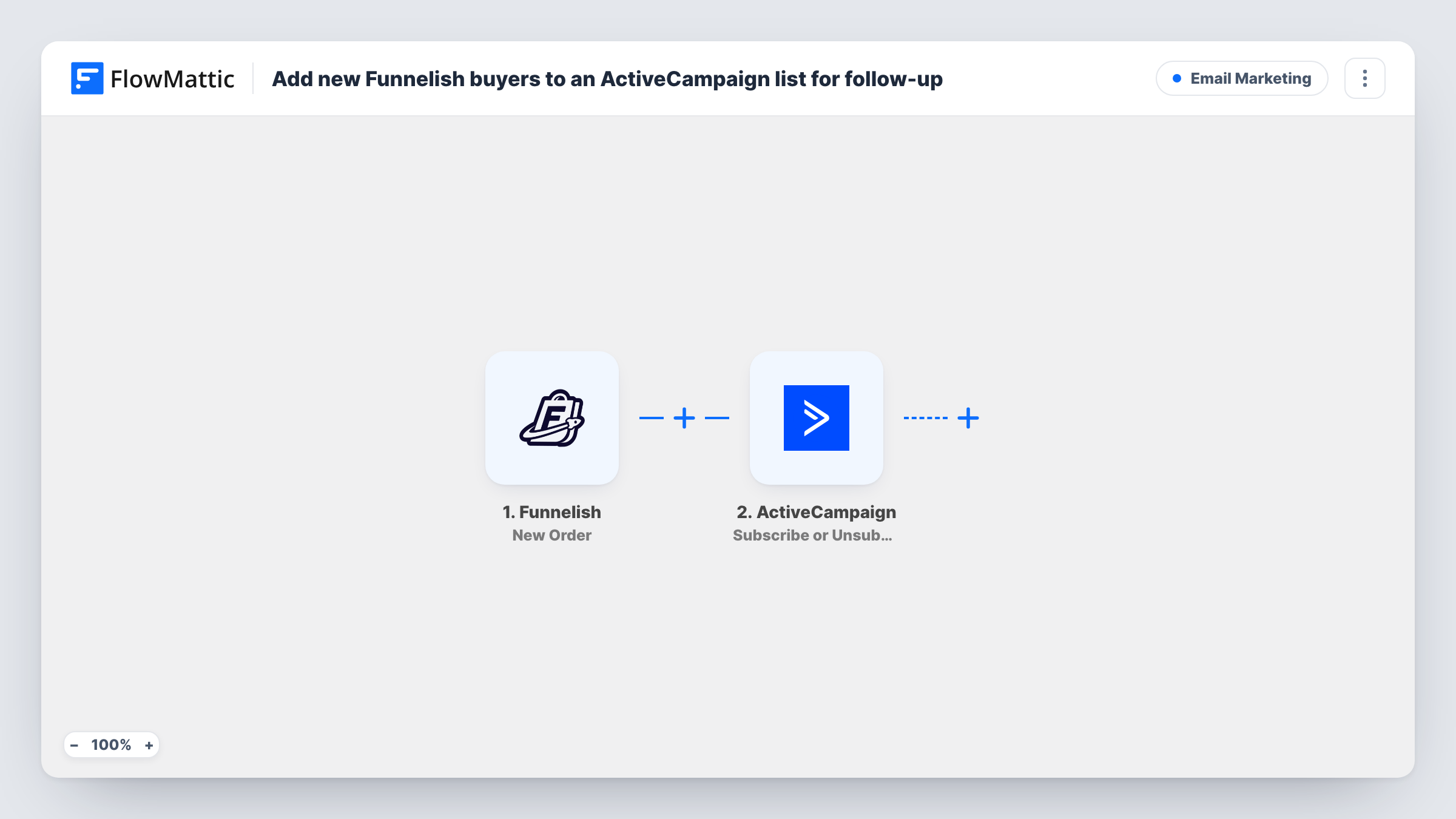
The Funnelish trigger, New Order, fires when a new order is created. FlowMattic receives the order and customer details, such as the buyer's email and name and what they bought.
Two ActiveCampaign steps follow. Create or Update Contact makes a new contact, or updates the existing one if the email is already in your account, so there's always a contact for the next step. Subscribe or Unsubscribe Contact From List then subscribes that contact to a list. Both arrive unmapped: after import, connect ActiveCampaign, map the Funnelish email and name into the contact step, then pick the list and point the list step at the contact the previous step returned. That action can unsubscribe as well as subscribe, so confirm in a test run that the buyer was subscribed.
The trigger is per order, not per new customer, so someone who buys again runs the workflow again. ActiveCampaign keeps one contact for the address, and the list step runs again for the same list. Place a test order and check Task History for what ActiveCampaign returned.
Course buyers into an onboarding list
A creator selling an online course through Funnelish puts every buyer on an ActiveCampaign list whose automation sends login help and the first lesson reminder.
Physical product follow-up
A supplement brand subscribes each Funnelish buyer to a list that sends usage tips while the parcel is on its way.
Upsell sequence for front-end buyers
A marketer who sells a low-priced front-end offer adds buyers to a list that presents the next offer a few days later.
How this workflow runs
What happens at each step once the workflow is on, and what you need before you import it.
 Funnelish New Order
Starts a run for each order your Funnelish funnels take. The buyer's details and the order data are passed to the ActiveCampaign steps.
- ActiveCampaign Create or Update Contact
Creates the buyer as an ActiveCampaign contact, or updates the contact that already has that email. Map the Funnelish email, name and any other fields after import.
- ActiveCampaign Subscribe or Unsubscribe Contact From List
Subscribes the contact from step 2 to the ActiveCampaign list you choose. Map the contact returned by the previous step; because this action can also unsubscribe, check a test run to see which it did.
What you need
- FlowMatticCore
- Funnelish AccountAccount
- ActiveCampaign AccountAccount
After importing, map your own data. To keep the template universal, not every step is pre-filled. Open each step in the builder and connect your accounts and fields (channels, lists, sheets, recipients) before you switch the workflow on.
Make it yours
Changes worth making after you import it.
- Start your post-purchase automation in ActiveCampaign from joining this list, so buyers enter it as soon as the workflow subscribes them.
- Use one list per Funnelish funnel if each product needs different follow-up, and import a copy of this workflow per funnel.
- To send buyers of one product to a different list, put a Router between the Create or Update Contact step and the list step, with routes on distinct product names and a list step on each route.
Questions about this workflow
What happens when a returning customer places another Funnelish order?
The workflow runs again. ActiveCampaign updates the existing contact rather than creating a duplicate, and the list step runs once more for the same list.
Do I need an ActiveCampaign list before setting this up?
Yes. Create the list in ActiveCampaign first, then pick it in the third step after import.
Can the Funnelish order details be stored on the ActiveCampaign contact?
You can map order values into contact fields in the Create or Update Contact step, if you have matching fields in ActiveCampaign. Check a test order to see which values arrive.
More Email Marketing workflows
Other ready-to-import templates from the same category.






Import this workflow into your WordPress site
Download the JSON, import it from the Workflows screen and connect your accounts. Every run stays on your server, with no per-task fees.
30-day money-back guarantee Unlimited workflows and runs Self-hosted