

Add new LeadGen App leads to a Mailchimp audience for follow-up
Each lead LeadGen App receives is added to your Mailchimp audience, or updated if that address is already a member, so new leads are on the list your follow-up emails go to.
 LeadGen App
 Mailchimp
2 steps Setup ~5 min Used on 431 sites Free to import
What this workflow does
Collecting a lead is only the first step; the follow-up is what you set it up for. If your follow-up emails go out from Mailchimp, every LeadGen App lead has to reach your audience first. This workflow moves each one across as LeadGen App receives it.
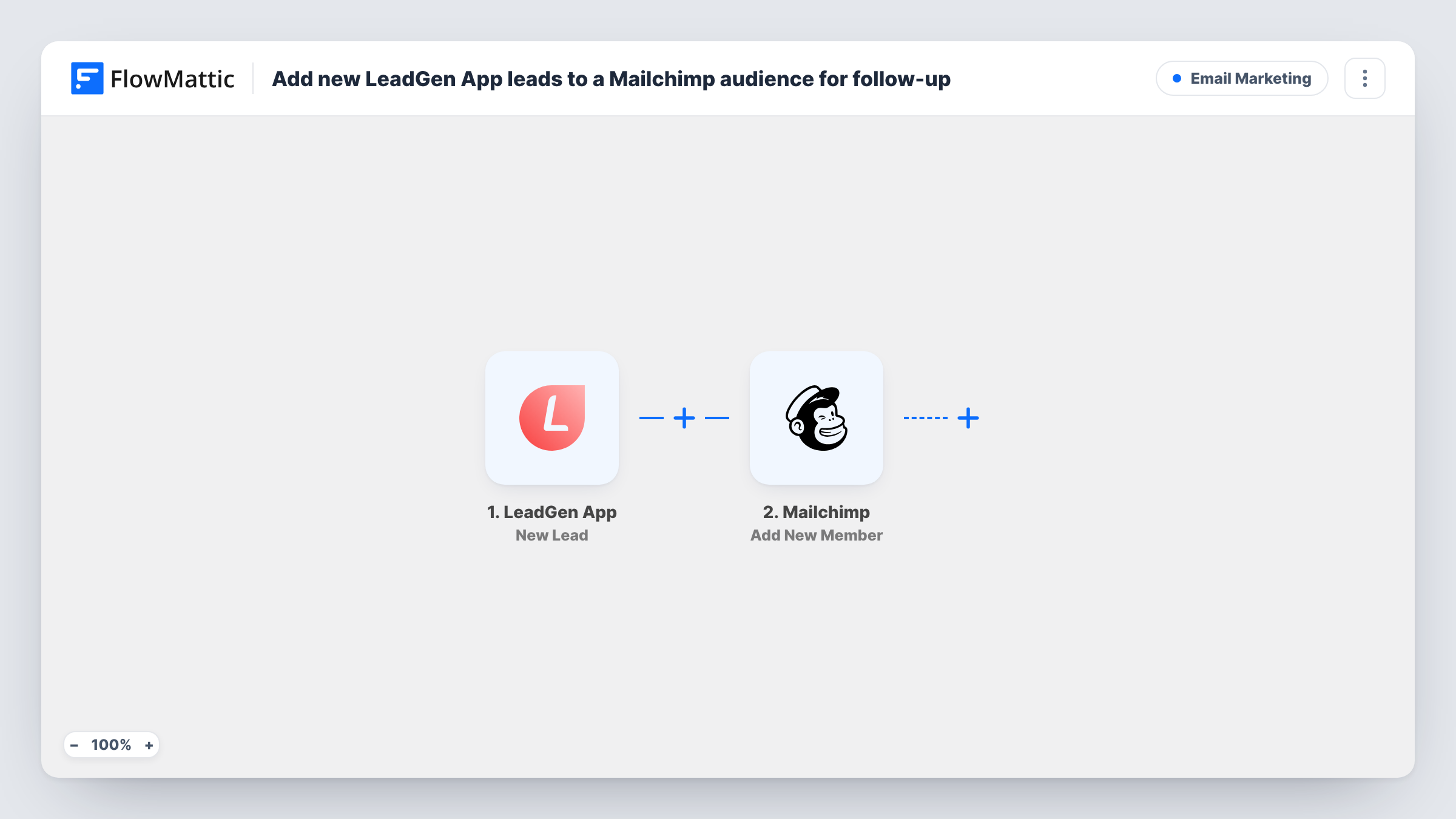
The LeadGen App trigger fires on each new lead. The lead's answers come into FlowMattic with it. The Mailchimp step then runs Add New Member against the audience you choose. A new address becomes a member; an address that is already on the list is updated instead of being added twice.
Mailchimp needs an email address, so the LeadGen App form behind the lead has to ask for one. Map that answer to the member email, and add name fields if you collect them. What happens after the lead joins, such as a welcome email or a customer journey, is up to how your Mailchimp audience is set up.
Lead magnet follow-up
Visitors request a checklist through a LeadGen App form, and each one joins the Mailchimp audience whose welcome automation delivers it.
Consultation enquiries
A consultant's LeadGen App quiz captures prospects, who are then added to a Mailchimp audience that receives a short series about working together.
Seasonal promotion list
A shop runs a LeadGen App form for a seasonal offer. Every entrant lands in the Mailchimp audience used for the promotion emails.
How this workflow runs
What happens at each step once the workflow is on, and what you need before you import it.
 LeadGen App New Lead
Each lead arriving in LeadGen App starts a run. The lead's form answers, including the email if your form asks for it, can be mapped into Mailchimp.
- Mailchimp Add New Member
Adds the lead to your chosen Mailchimp audience, or updates the member when the address is already there. Connect Mailchimp and map the lead's email plus any name answers.
What you need
- FlowMatticCore
- LeadGen App AccountAccount
- Mailchimp AccountAccount
After importing, map your own data. To keep the template universal, not every step is pre-filled. Open each step in the builder and connect your accounts and fields (channels, lists, sheets, recipients) before you switch the workflow on.
Make it yours
Changes worth making after you import it.
- Make sure the LeadGen App form behind this workflow collects an email address. Without one, the Mailchimp step has nothing to add.
- If your form has a consent question, add a Filter after the trigger that continues only when the lead agreed, so only those leads join the audience.
- Want to mark where the lead came from? Add Mailchimp's Add Member Tag step after Add New Member and map the same email, using a tag such as the form name.
Questions about this workflow
What happens if a LeadGen App lead is already a Mailchimp member?
Add New Member updates that member rather than creating a duplicate. Fields you map can be overwritten by the new lead's values, blanks included, so map only what you want refreshed.
Do LeadGen App leads without an email reach Mailchimp?
No. Mailchimp members are identified by email, so a lead with no address can't be added. Task History records Mailchimp's response for that run.
Can LeadGen App leads go to different Mailchimp audiences?
As imported, every lead goes to the one audience you pick. Add a Router with a route per form, using a field that names the form if one is sent, and a Mailchimp step on each route.
Does the workflow send the follow-up email itself?
No. Its single action is placing the LeadGen App lead in your audience. Set up the welcome email or journey in your Mailchimp account to send the follow-up.
More Email Marketing workflows
Other ready-to-import templates from the same category.




Import this workflow into your WordPress site
Download the JSON, import it from the Workflows screen and connect your accounts. Every run stays on your server, with no per-task fees.
30-day money-back guarantee Unlimited workflows and runs Self-hosted