

Add new leads from Continually to Google Sheet
Catch each lead that Continual.ly posts to a FlowMattic webhook URL and add it as a new row in Google Sheets, so your prospects collect in one spreadsheet your team can sort and share.
 Webhook
 Google Sheets
2 steps Setup ~5 min Used on 1.1k sites Free to import
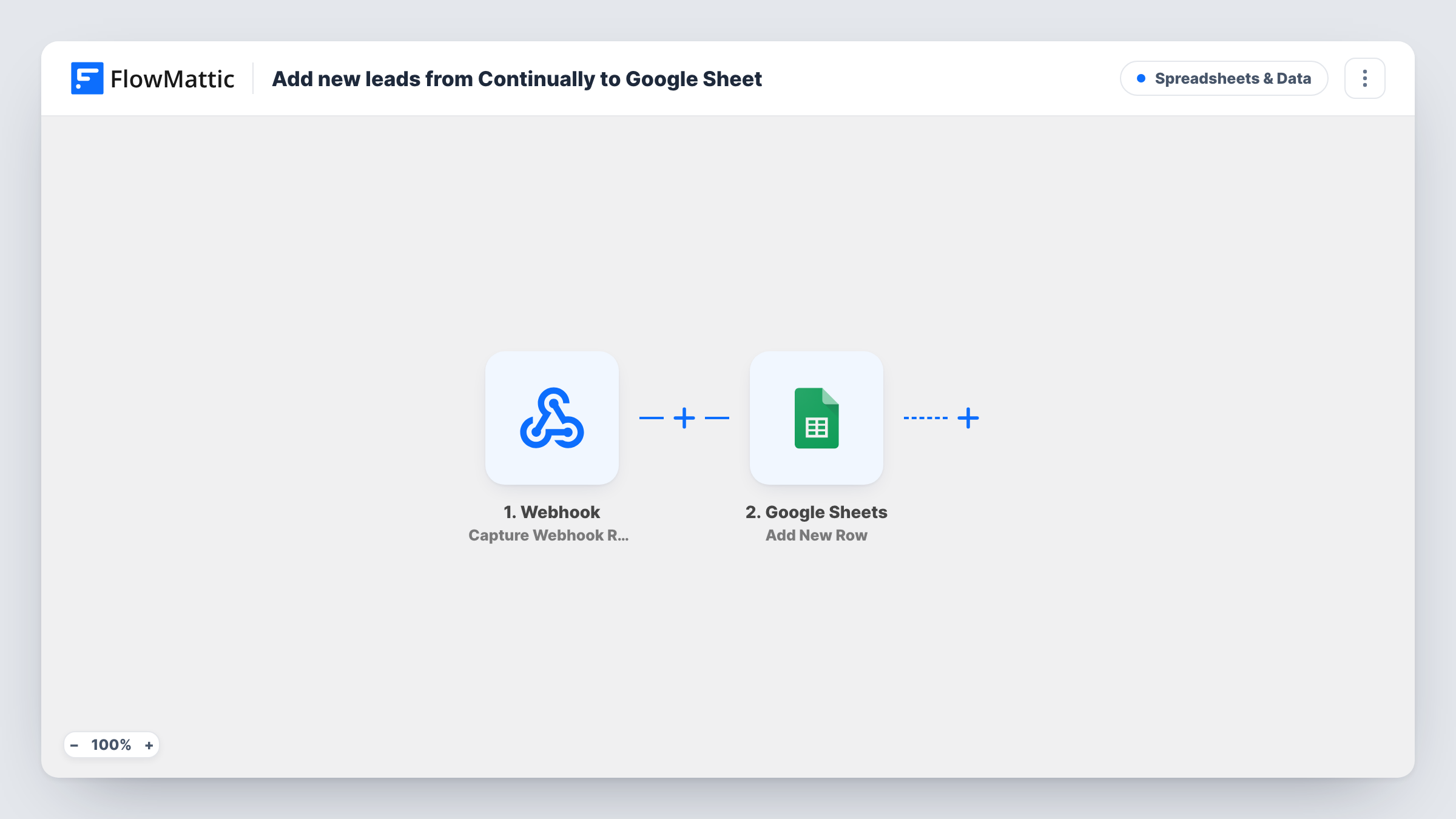
What this workflow does
Leads that stay inside a chat tool are easy to lose track of, and copying them into a spreadsheet by hand takes time you would rather spend replying to them. This workflow writes each Continual.ly lead into a Google Sheets row as soon as the lead data reaches FlowMattic.
A Webhook trigger starts the flow with a unique URL from FlowMattic, and Continual.ly must be set up to post each new lead to it. FlowMattic's own Continual.ly trigger, External API Request, works the same way, so the generic Webhook trigger does the job. Whatever fields Continual.ly sends in that request become data you can map.
The second step uses the Add New Row action in Google Sheets. You pick the spreadsheet and the sheet, then match each column to a field from the webhook, such as the lead's name, email or the message they left. Every request that hits the URL adds one row, and Task History keeps a record of each run.
A shared lead list for a small sales team
Your reps work from one Google Sheet. Each lead Continual.ly sends to the webhook lands there as a row, so nobody needs a Continual.ly login to see who got in touch.
Weekly lead review
You meet once a week to look at new prospects. The sheet holds every lead posted during the week, ready to sort by date or by the fields you mapped.
A backup of chat leads outside the chat tool
Keep a copy of every lead in a spreadsheet you own, so the contact details stay with you even if you change chat tools later.
How this workflow runs
What happens at each step once the workflow is on, and what you need before you import it.
 Webhook Capture Webhook Response
Gives you a unique webhook URL and waits for data. Set Continual.ly to post each new lead to this URL. Each request starts one run, and its fields become available to map in the next step.
- Google Sheets Add New Row
Adds a new row to the Google Sheets spreadsheet you choose, holding the lead data from the webhook. Connect your Google account, pick the sheet and map each column to a field from the request.
What you need
- FlowMatticCore
- Google Sheets AccountAccount
After importing, map your own data. To keep the template universal, not every step is pre-filled. Open each step in the builder and connect your accounts and fields (channels, lists, sheets, recipients) before you switch the workflow on.
Make it yours
Changes worth making after you import it.
- Send one test lead from Continual.ly after you paste in the webhook URL. FlowMattic captures the request, so you can see the real field names before you map the sheet's columns.
- Add a Filter after the webhook that continues only when the email field is not empty, so requests without contact details never become rows.
- Want leads in your CRM as well? Add a FluentCRM or other CRM step after Google Sheets and map the same webhook fields into it.
Questions about this workflow
Why does this use a Webhook trigger instead of a Continual.ly trigger?
FlowMattic's only Continual.ly trigger, External API Request, is itself a receiver that waits for Continual.ly to send data. The Webhook trigger does the same thing, so you point Continual.ly at the webhook URL and the result is equivalent.
Which Continual.ly fields reach Google Sheets?
Whatever Continual.ly includes in the request it posts to the webhook URL. Send a test lead after import and map the fields you see in the captured data to your columns.
Will a lead that comes in twice get two rows?
Yes. Add New Row creates a row for every request, and the workflow does not look for an existing row first. Sort the sheet by email to spot repeat leads.
Are leads from before I set this up added to the sheet?
No. Only requests that reach the webhook URL after the workflow is turned on create rows. Older leads stay where they are.
More Spreadsheets & Data workflows
Other ready-to-import templates from the same category.




Import this workflow into your WordPress site
Download the JSON, import it from the Workflows screen and connect your accounts. Every run stays on your server, with no per-task fees.
30-day money-back guarantee Unlimited workflows and runs Self-hosted