

Add new participant to the booking when contact form 7 submission received
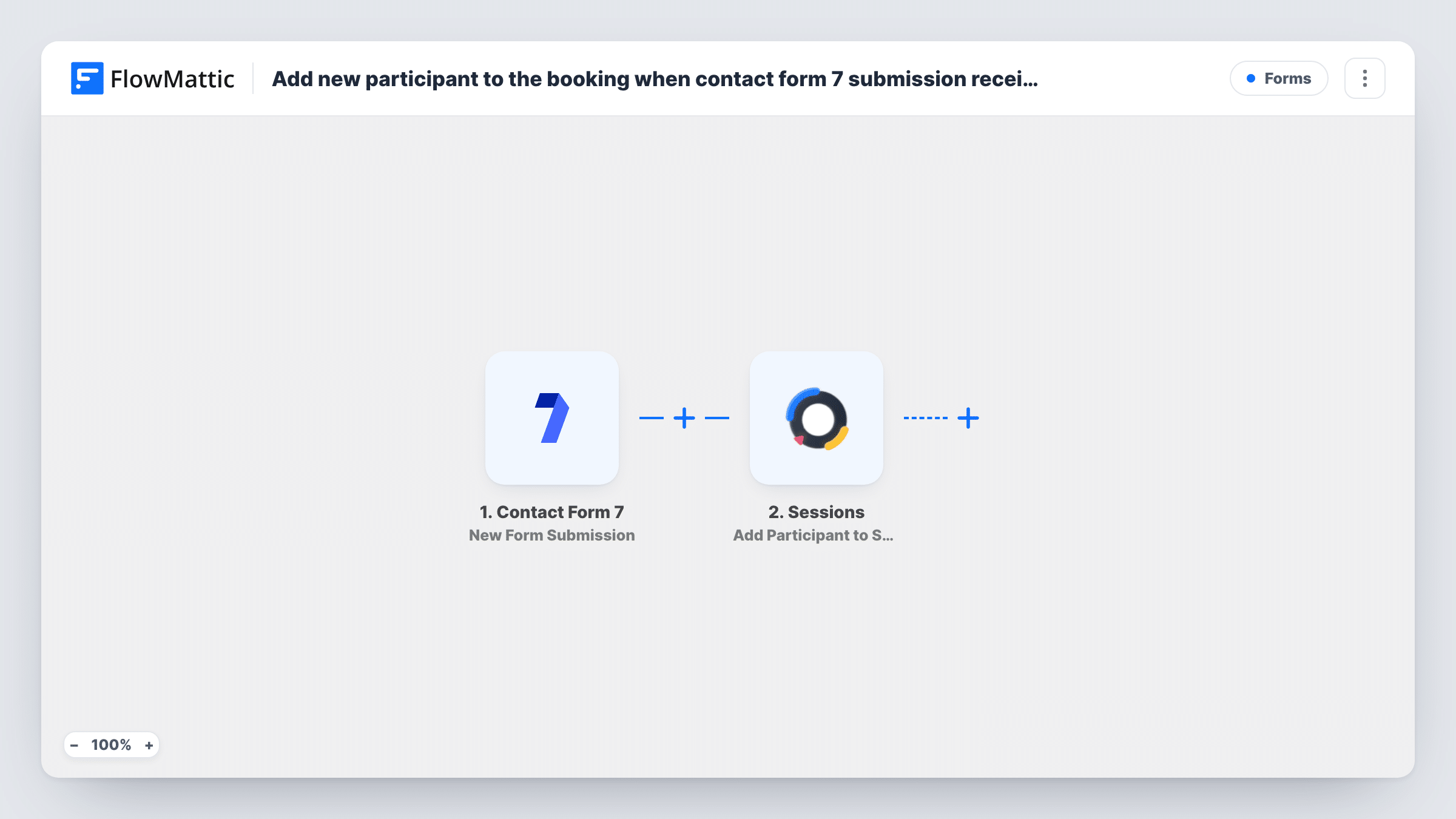
When someone submits your Contact Form 7 form, this workflow adds them as a participant to a session in Sessions, so a sign-up form on your WordPress site fills the session for you.
 Contact Form 7
 Sessions
2 steps Setup ~5 min Used on 2.7k sites Free to import
What this workflow does
A short registration form on your own site is a simple way to let people join a call, class or webinar. The work comes after: copying each name and email into your meeting tool. This workflow turns each form entry into a session participant.
The Contact Form 7 trigger picks up each registration as it is sent. FlowMattic then calls Sessions with Add Participant to Session, which adds the person to a session in your account. After import, open the step, set which session people join and map the visitor's details from the form.
Every submission of the form runs the workflow, so use a form that exists only for this session. If someone submits twice, the step runs twice; Task History shows how Sessions answered each time. The booking in the title is a session participant: nothing else is created in Sessions.
Free webinar registration page
A landing page on your site carries a short Contact Form 7 form. Each person who fills it in is added to the webinar session in Sessions.
Group coaching call sign-ups
Members register for this month's group call through a form on your members page, and each registrant becomes a participant in that session.
Internal training sessions
Staff sign up for a training slot through a form on your intranet site, and Sessions holds the participant list for the trainer.
How this workflow runs
What happens at each step once the workflow is on, and what you need before you import it.
 Contact Form 7 New Form Submission
Runs every time a visitor sends your chosen Contact Form 7 form. Every field in that form becomes available to map into Sessions.
- Sessions Add Participant to Session
Adds the visitor as a participant in a Sessions session. Connect your Sessions account, set the session in the step and map the visitor's details from the form submission.
What you need
- FlowMatticCore
- Contact Form 7 PluginPlugin
- Sessions AccountAccount
After importing, map your own data. To keep the template universal, not every step is pre-filled. Open each step in the builder and connect your accounts and fields (channels, lists, sheets, recipients) before you switch the workflow on.
Make it yours
Changes worth making after you import it.
- Make the email field required with email* in the Contact Form 7 form tag, so every participant reaches Sessions with an address.
- Running several sessions? Use a Router with one route per value of a dropdown in your form, each with its own Add Participant to Session step set to a different session.
- Add Contact Form 7's quiz or acceptance tag to the form if you want people to confirm they will attend before the entry goes through.
Questions about this workflow
Which Sessions session do Contact Form 7 visitors join?
The one you set in the Add Participant to Session step after import. As shipped, every submission goes to that same session.
Does Sessions email the new participant?
That depends on your Sessions settings. The workflow only adds the participant; check in Sessions whether invitations go out when someone is added.
What if someone submits the Contact Form 7 form twice?
The step runs again for the second entry. Task History records how Sessions responded, so you can check whether a duplicate was refused or added.
Does Contact Form 7 still send its usual mail?
Yes. The workflow listens for submissions and leaves the form's mail settings untouched.
More Forms workflows
Other ready-to-import templates from the same category.





Import this workflow into your WordPress site
Download the JSON, import it from the Workflows screen and connect your accounts. Every run stays on your server, with no per-task fees.
30-day money-back guarantee Unlimited workflows and runs Self-hosted