

Add new Picreel leads to a Mailchimp audience for follow-up
Each new lead captured by a Picreel popup is added to the Mailchimp audience you pick, or updated if that address is already there, ready for your follow-up emails.
 Picreel
 Mailchimp
2 steps Setup ~5 min Used on 827 sites Free to import
What this workflow does
Picreel popups and exit-intent offers collect email addresses from visitors who are about to leave. Those leads are only useful once they are in the list you actually email. Exporting them by hand means delays, and some people never get the discount or guide they signed up for.
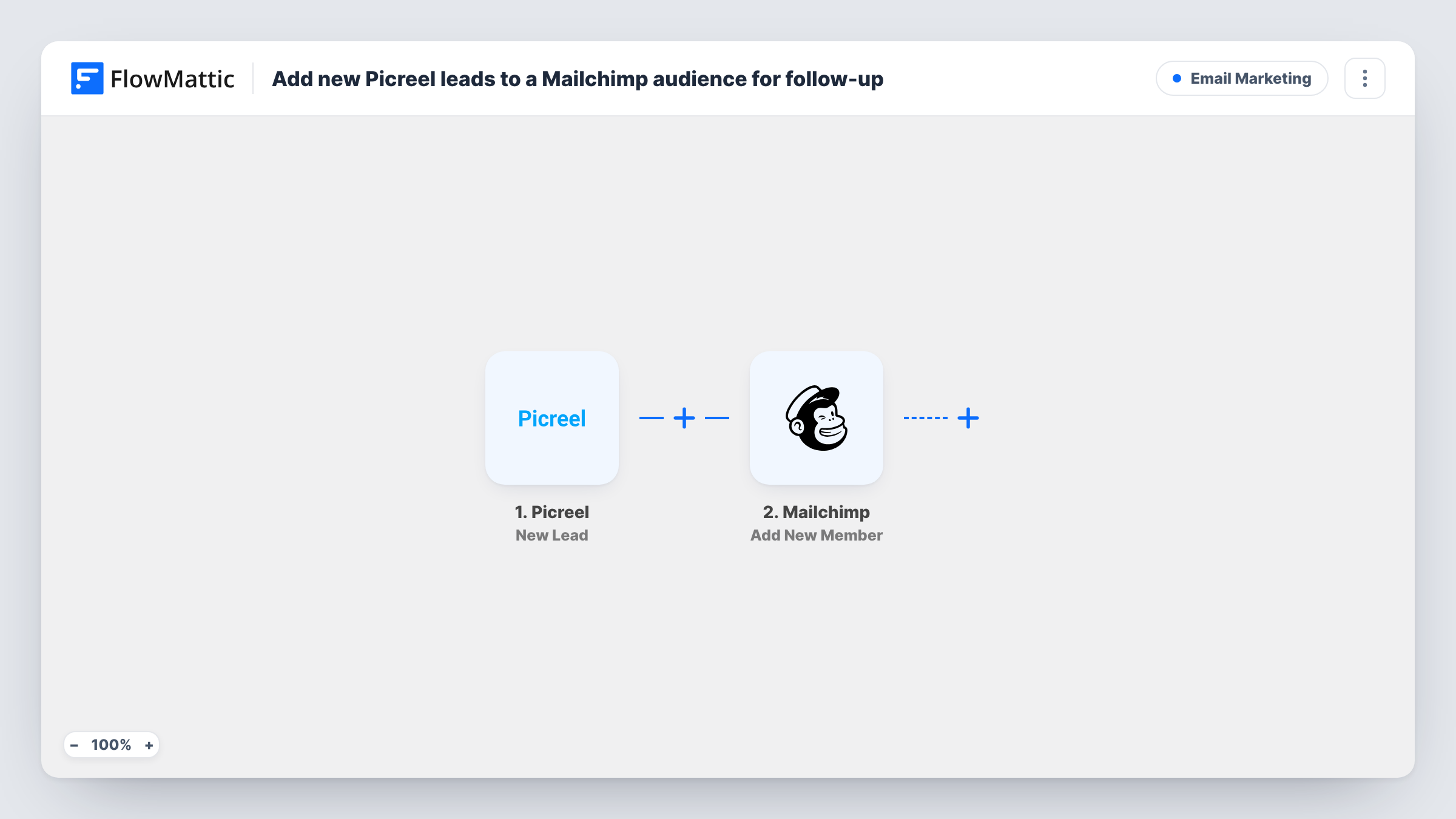
The Picreel trigger fires when a new lead is created. FlowMattic takes the lead's details and passes them to Mailchimp. Its Add New Member action adds the person to the audience you choose, or updates their details when that address is already a member.
Once the lead is in Mailchimp, your own automations and campaigns take over. You can send a welcome email, deliver the promised offer, or include them in your next newsletter. FlowMattic only handles the hand-off, and each run shows in Task History so you can check what was sent to Mailchimp.
Exit-intent discount code
A Picreel popup offers a code to visitors about to leave. Each lead joins your Mailchimp audience, where a welcome automation emails them the code.
Lead magnet on a blog
Readers request a checklist through a Picreel popup. They are added to the audience you use for your newsletter, so they hear from you again.
Waitlist for a product launch
Visitors sign up through a Picreel overlay on a coming-soon page and are collected in a Mailchimp audience you email on launch day.
How this workflow runs
What happens at each step once the workflow is on, and what you need before you import it.
 Picreel New Lead
Fires when Picreel creates a new lead from one of your popups. The lead's details, including the email address, are passed on for mapping.
- Mailchimp Add New Member
Adds the lead to the Mailchimp audience you choose, or updates them if the address is already a member. Map the Picreel email field and any name fields you collect.
What you need
- FlowMatticCore
- Picreel AccountAccount
- Mailchimp AccountAccount
After importing, map your own data. To keep the template universal, not every step is pre-filled. Open each step in the builder and connect your accounts and fields (channels, lists, sheets, recipients) before you switch the workflow on.
Make it yours
Changes worth making after you import it.
- Add Mailchimp's Add Member Tag action after this step with a tag such as picreel, so you can tell these leads apart from other sign-ups when you build segments.
- Add Mailchimp's Add Member Event action after the member step to record a custom event for each Picreel lead. A customer journey in Mailchimp can then start from that event.
- Capture a test lead through your Picreel popup after import, then check that the email field is mapped in the Mailchimp step before going live.
Questions about this workflow
What happens if the Picreel lead is already in my Mailchimp audience?
Add New Member adds new people and updates existing members, so a repeat sign-up updates the existing contact instead of creating a duplicate.
Does the workflow send an email to the Picreel lead?
No. Its only job is putting the lead into your Mailchimp audience. Set up a welcome automation or campaign in Mailchimp to email them.
Are existing Picreel leads copied into Mailchimp?
No. Only leads created after you turn the workflow on are added.
Can Picreel leads go to more than one Mailchimp audience?
Yes. Add another Add New Member step and choose a different audience in it. Both steps run for every lead.
More Email Marketing workflows
Other ready-to-import templates from the same category.





Import this workflow into your WordPress site
Download the JSON, import it from the Workflows screen and connect your accounts. Every run stays on your server, with no per-task fees.
30-day money-back guarantee Unlimited workflows and runs Self-hosted