

Add new Wyng respondents to a MailerLite group for nurturing
Each new Wyng form entry is created or updated as a MailerLite subscriber, then assigned to the MailerLite group you choose, so respondents start receiving the emails you send to that group.
 Wyng
Wyng
 MailerLite
3 steps Setup ~5 min Used on 2.0k sites Free to import
What this workflow does
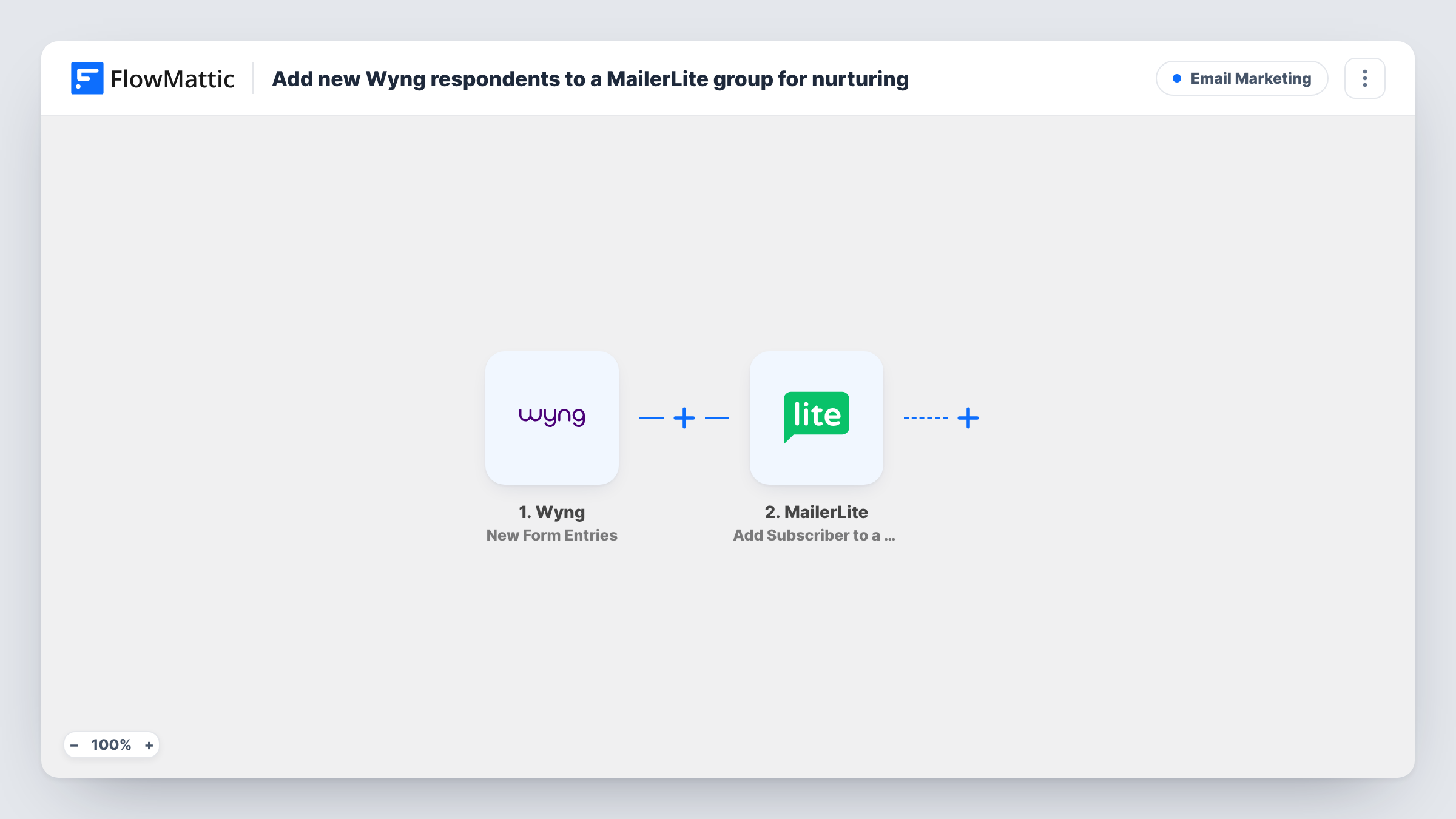
Wyng campaigns, such as quizzes, contests and preference forms, collect email addresses from people who are interested enough to answer. This workflow gets those people into MailerLite and into a group, so you can follow up with emails that match the campaign they joined.
The Wyng trigger fires on each new form entry. The respondent's email and any other answers you collect are passed into the workflow.
Two MailerLite actions follow, in a set order. Create or Update Subscriber adds the respondent as a subscriber, or updates them if MailerLite already has the address. Add Subscriber to a Group then assigns that subscriber to an existing group. The group step only works on someone who is already a subscriber, which is why the template creates or updates them first.
Neither MailerLite step is mapped when you import. Map the Wyng email, and any custom fields you want, into the subscriber step. In the group step, choose the group and map the subscriber from the step before it. Create the group in MailerLite beforehand, and send a test entry to check Task History.
Quiz takers into a results series
A skincare brand's Wyng quiz puts every respondent in a MailerLite group that sends a short email series about the routine the quiz suggests.
Contest entrants for follow-up offers
A travel company's Wyng giveaway adds entrants to a MailerLite group, then emails them a discount after the winner is announced.
Preference centre sign-ups
A publisher's Wyng form asks readers which topics they like, and each reader lands in a MailerLite group for the weekly digest.
How this workflow runs
What happens at each step once the workflow is on, and what you need before you import it.
 Wyng New Form Entries
Fires when Wyng receives a new form entry. The respondent's email and other answers pass into the workflow for both MailerLite steps.
- MailerLite Create or Update Subscriber
Creates the respondent as a MailerLite subscriber, or updates them if the address already exists. Map the Wyng email and any custom fields you keep in MailerLite.
- MailerLite Add Subscriber to a Group
Places the Wyng respondent, now a subscriber, into a MailerLite group that already exists. Pick the group after import and map the subscriber returned by Create or Update Subscriber.
What you need
- FlowMatticCore
- Wyng AccountAccount
- MailerLite AccountAccount
After importing, map your own data. To keep the template universal, not every step is pre-filled. Open each step in the builder and connect your accounts and fields (channels, lists, sheets, recipients) before you switch the workflow on.
Make it yours
Changes worth making after you import it.
- Create the MailerLite group first and build its welcome automation, so a new Wyng respondent's first email goes out when they join the group.
- If your Wyng form has a marketing consent question, put a Filter between the Wyng trigger and Create or Update Subscriber that continues only when it's ticked. Use the question your own form has.
- Map Wyng answers into MailerLite custom fields in the subscriber step, so later emails to the group can use them for personalisation.
Questions about this workflow
What if the Wyng respondent is already a MailerLite subscriber?
Create or Update Subscriber updates the existing subscriber instead of creating a second one, and the next step assigns them to your group.
Why are there two MailerLite steps instead of one?
MailerLite's Add Subscriber to a Group action assigns an existing subscriber to an existing group. The first step makes sure the Wyng respondent exists in MailerLite before the group step runs.
Can different Wyng campaigns go to different MailerLite groups?
Yes. Import a copy of the workflow for each campaign and pick a different group in each, or replace the group step with a Router whose routes check distinct campaign values and end in their own group steps.
Does the group need to exist in MailerLite before I import?
Yes. The group step assigns subscribers to a group that's already there, so create it in MailerLite first, then select it in the step.
More Email Marketing workflows
Other ready-to-import templates from the same category.






Import this workflow into your WordPress site
Download the JSON, import it from the Workflows screen and connect your accounts. Every run stays on your server, with no per-task fees.
30-day money-back guarantee Unlimited workflows and runs Self-hosted