

Add Twilio SMS text messages Google Sheets as new rows
Every SMS your Twilio number receives is added as a new row in Google Sheets, with the sender, the message text and any other details you map, so you have one searchable log of incoming texts.
 Twilio
 Google Sheets
2 steps Setup ~5 min Used on 1.1k sites Free to import
What this workflow does
Text messages that arrive on a Twilio number are easy to lose track of, especially when several people need to read them. A spreadsheet gives everyone the same view. This workflow writes each incoming SMS into Google Sheets as it arrives.
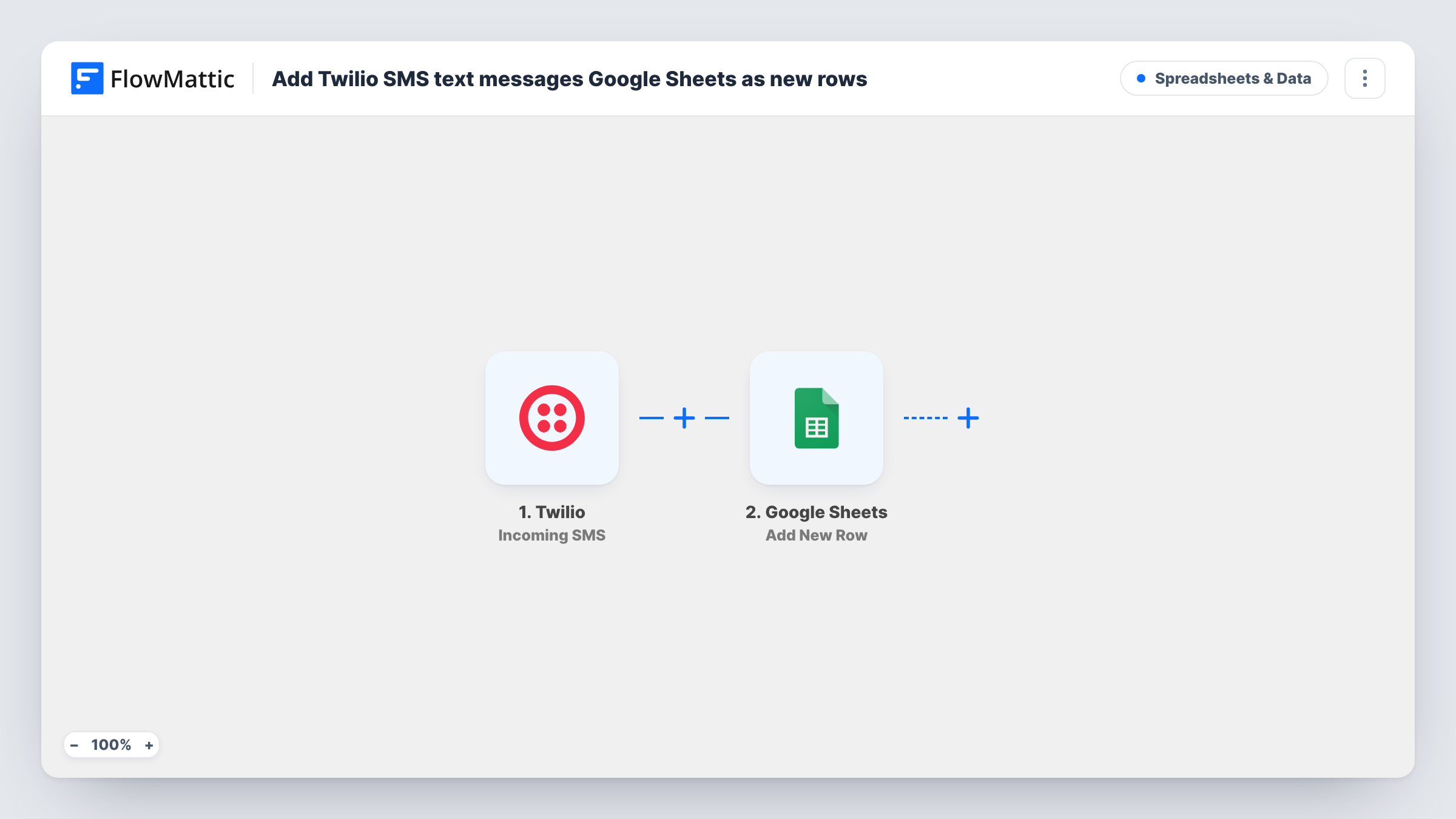
The trigger runs when an SMS is received by your Twilio number. FlowMattic makes the message details available to map, typically including who sent it and what it says. The Google Sheets step then adds a new row with mapped data to the spreadsheet you pick, one row per message.
Nothing is sent back to the person who texted you. The workflow only reads the message and logs it. If you want an automatic reply, add a Twilio send step after the sheet. Task History records each run, so you can check what reached the sheet.
Shared inbox for a support text line
Customers text your Twilio number with questions. Every message lands in a shared sheet, where your team sees who wrote, what they asked and when.
Collecting text-in entries
You run a text-to-enter giveaway. Each entry becomes a row, so you have a list of numbers and messages to pick from.
Logging replies to SMS campaigns
After you send an SMS campaign from Twilio, the replies collect in a spreadsheet you can sort, filter and share with sales.
How this workflow runs
What happens at each step once the workflow is on, and what you need before you import it.
 Twilio Incoming SMS
Runs whenever your Twilio number receives an SMS. The details of the incoming message become data you can map into the spreadsheet.
- Google Sheets Add New Row
Adds one new row to your Google Sheets spreadsheet for each text received. Map the Twilio message details to the sheet's columns and connect your Google account.
What you need
- FlowMatticCore
- Twilio AccountAccount
- Google Sheets AccountAccount
After importing, map your own data. To keep the template universal, not every step is pre-filled. Open each step in the builder and connect your accounts and fields (channels, lists, sheets, recipients) before you switch the workflow on.
Make it yours
Changes worth making after you import it.
- Add a Router if texts with a certain keyword should go to a second sheet, with one route checking for the keyword and its own Google Sheets step.
- Add a Filter after the Twilio trigger to log only messages that contain a keyword, such as a contest code, and leave the rest out of the sheet.
- Text your Twilio number once after import so FlowMattic captures a real message, then map its fields to the sheet's columns.
Questions about this workflow
Does the workflow reply to the person who texted my Twilio number?
No. It only logs the incoming SMS in Google Sheets. Add a Twilio send step after the sheet if you want an automatic reply.
Are SMS messages received before I import this added to the sheet?
No. The trigger reacts to messages as they come in, so only texts received while the workflow is on are logged.
Can the Twilio texts go into a sheet my team already uses?
Yes. Pick that spreadsheet in the Google Sheets step, add columns for the message details, and map the Twilio data into them.
Do I need a Twilio number that can receive SMS?
Yes. The trigger depends on incoming messages, so your Twilio number must be able to receive texts and be connected to FlowMattic.
More Spreadsheets & Data workflows
Other ready-to-import templates from the same category.



Import this workflow into your WordPress site
Download the JSON, import it from the Workflows screen and connect your accounts. Every run stays on your server, with no per-task fees.
30-day money-back guarantee Unlimited workflows and runs Self-hosted