

Automatically Forward Twilio SMS to Slack
Every SMS that arrives at your Twilio number is posted to a Slack channel, so your team can read customer texts in Slack instead of checking the Twilio console.
 Twilio
 Slack
2 steps Setup ~5 min Used on 1.3k sites Free to import
What this workflow does
A Twilio number is a handy way to let customers text you, but incoming messages don't show up anywhere your team works by default. Someone has to check the console or build a reply app. This workflow puts each text into Slack as it arrives.
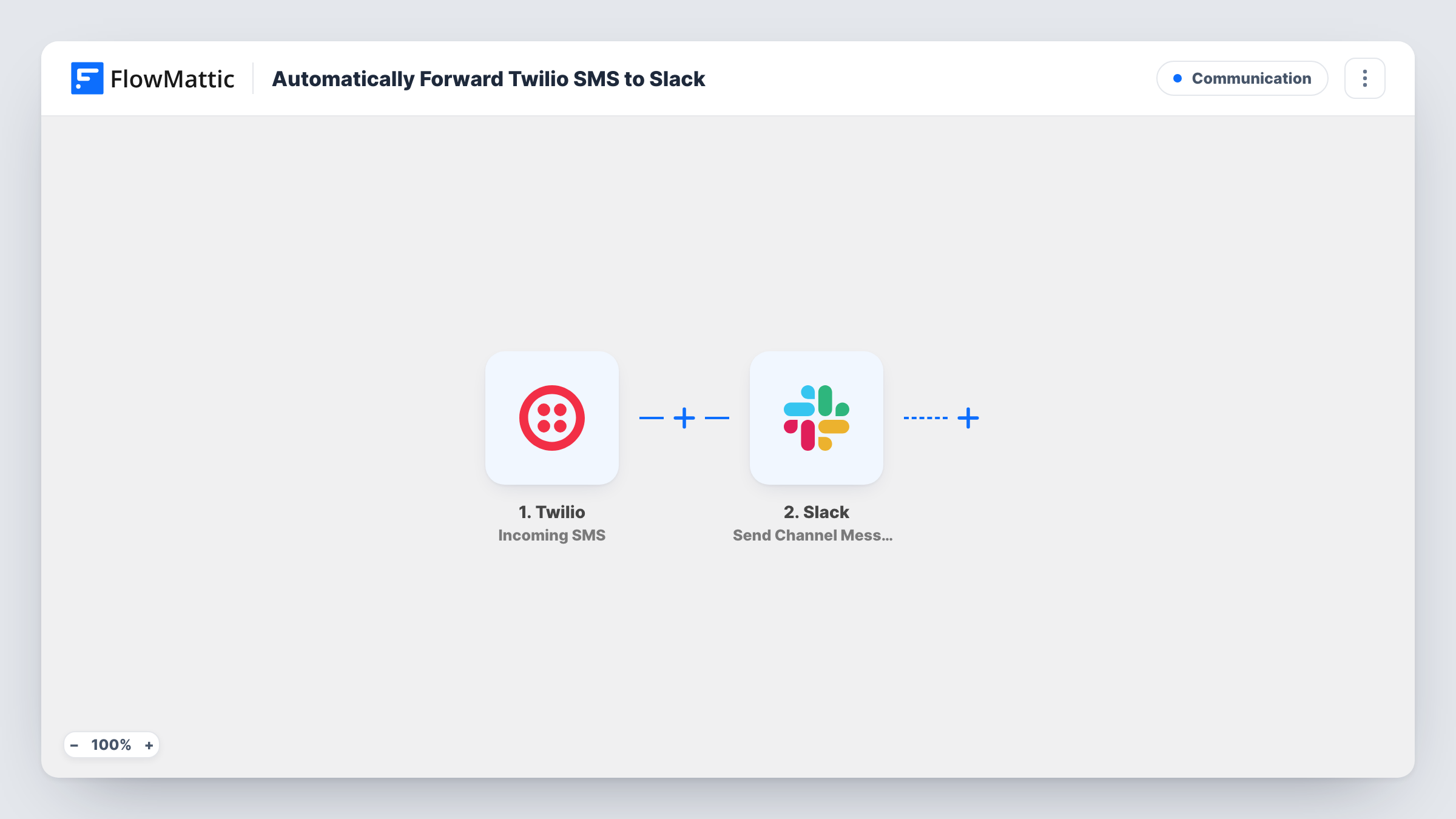
The Twilio trigger, Incoming SMS, starts the workflow when an SMS is received and passes the message details to FlowMattic. The second step is Slack Send Channel Message, which posts to the #channel you choose. You write the post and include the Twilio values, such as the sender's number and the message text, as they appear in a test run.
Set up the trigger as FlowMattic shows after import so your Twilio number sends its incoming texts to the workflow. Then send a text to the number and check that it lands in Slack. The workflow forwards messages only. Replies typed in Slack don't go back to the sender by SMS.
A text line for customer support
Customers text your support number with questions. Each text appears in the support channel so whoever is on shift can see it.
Order and delivery updates from drivers
Drivers text short updates to a Twilio number. The dispatch team reads them in a Slack channel without sharing a phone.
Keyword replies to a marketing campaign
A poster asks people to text a word to your number. Every reply is posted in Slack so the marketing team can see responses come in.
How this workflow runs
What happens at each step once the workflow is on, and what you need before you import it.
 Twilio Incoming SMS
Starts the workflow when your Twilio number receives an SMS. Set it up as FlowMattic shows after import, and the message details become available to the Slack step.
- Slack Send Channel Message
Posts the text to the Slack channel you choose. Connect your Slack workspace, pick the channel, and write the post with the sender's number and message body from the Twilio data.
What you need
- FlowMatticCore
- Twilio AccountAccount
- Slack AccountAccount
After importing, map your own data. To keep the template universal, not every step is pre-filled. Open each step in the builder and connect your accounts and fields (channels, lists, sheets, recipients) before you switch the workflow on.
Make it yours
Changes worth making after you import it.
- Add a Filter after the trigger on the message text if you only want texts containing a keyword in this channel.
- Use a Router to send texts from different Twilio numbers to different channels, with each route matching one number so a message only goes to one place.
- Start the Slack post with the sender's number so your team can tell separate conversations apart at a glance.
Questions about this workflow
Can my team reply to the Twilio SMS from Slack?
Not with this template. It only forwards incoming texts to Slack. Replying by SMS needs a separate workflow with a Twilio send step.
Are photos sent by MMS forwarded to Slack?
The template is built around Incoming SMS. Send a picture message to your number in a test and check what data FlowMattic receives before relying on it.
Will messages received before I set this up appear in Slack?
No. Only texts that arrive after the workflow is active are posted.
Do I need a Twilio phone number for this workflow?
Yes. You need a Twilio account with a number that can receive SMS, plus a Slack workspace to post into.
More Communication workflows
Other ready-to-import templates from the same category.





Import this workflow into your WordPress site
Download the JSON, import it from the Workflows screen and connect your accounts. Every run stays on your server, with no per-task fees.
30-day money-back guarantee Unlimited workflows and runs Self-hosted