

Change Membership Plan in Voxel when user purchase membership in Restrict Content Pro
When a user purchases a membership in Restrict Content Pro, FlowMattic changes that user’s membership plan in Voxel, so a site that sells access through one plugin and runs listings through the other keeps both in line.
 Restrict Content Pro
 Voxel
Voxel2 steps Setup ~5 min Used on 1.2k sites Free to import
What this workflow does
Some WordPress sites sell memberships with Restrict Content Pro while the directory or platform side runs on Voxel, which has its own membership plans. Without a link between them, a buyer pays in one and then waits for someone to upgrade their Voxel plan by hand. This workflow makes that change at the moment of purchase.
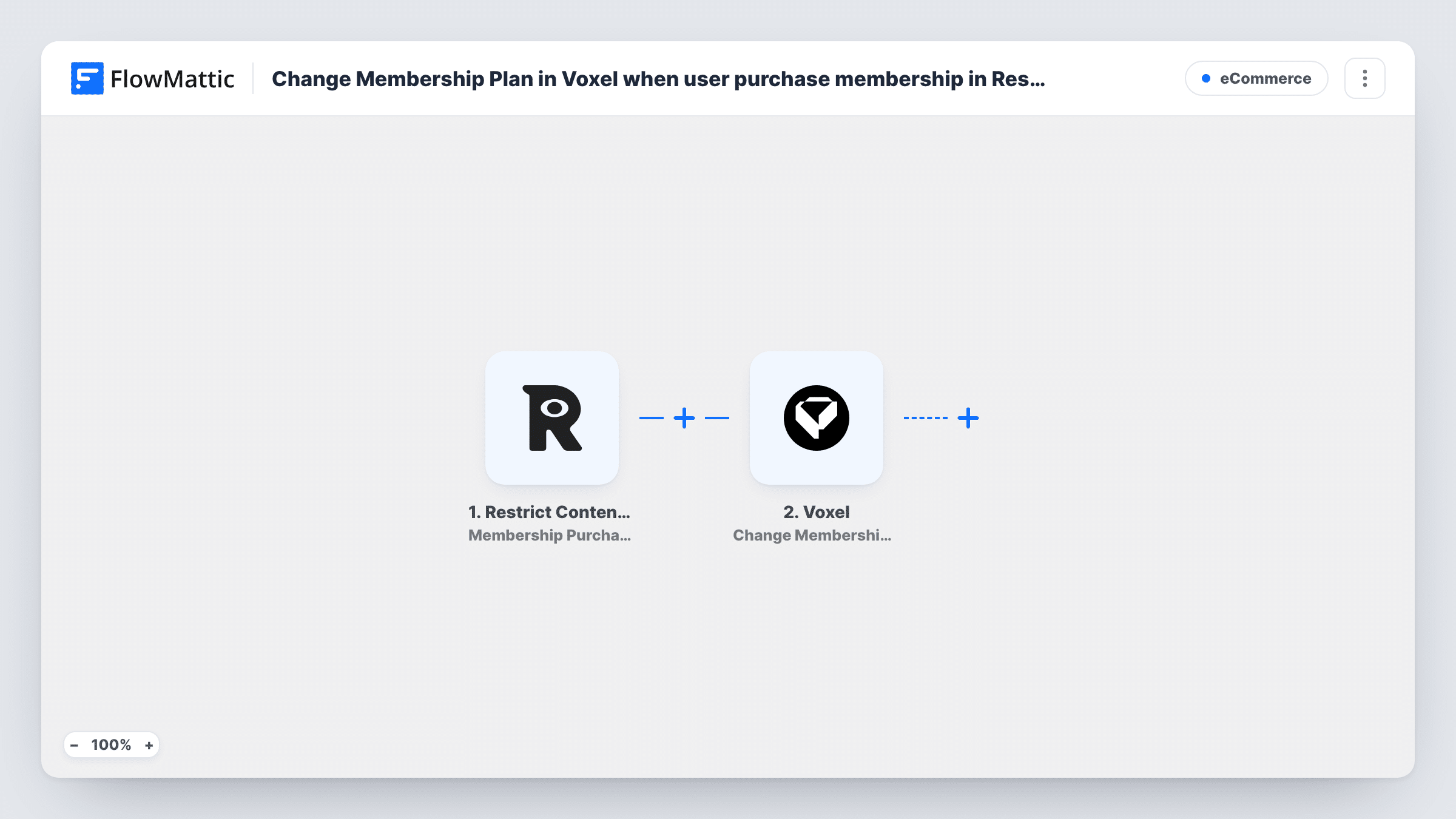
The trigger fires when a user purchases a membership in Restrict Content Pro. The purchase details, including the WordPress user who bought it, pass to the next step. The Voxel step then changes the membership plan of that user to the plan you set. Both plugins run on the same WordPress site as FlowMattic, so the data stays on your site.
As imported, every purchase leads to the same plan change, whichever Restrict Content Pro level was bought. If you sell several levels that should map to different Voxel plans, the tips explain how to split them. Test with a known user account first and confirm the new plan in Voxel.
Paid listings on a directory site
A business owner buys a membership through Restrict Content Pro, and their Voxel plan changes so they can work with the listing features that plan opens up.
Community platform with one paid tier
Members pay through Restrict Content Pro for access to protected content, and the same purchase moves them onto your paid Voxel plan.
Moving from manual plan upgrades
You used to check new Restrict Content Pro sales and change Voxel plans yourself. The workflow now does that change for each purchase.
How this workflow runs
What happens at each step once the workflow is on, and what you need before you import it.
 Restrict Content Pro Membership Purchased
Fires when a user purchases a membership in Restrict Content Pro. The details of the purchase and the WordPress user behind it are passed to the Voxel step.
 Voxel Change Membership Plan
Changes the Voxel membership plan of the user from the purchase. Map the buyer from the trigger into this step and choose the plan they should move to, then confirm it with a test purchase.
What you need
- FlowMatticCore
- Restrict Content Pro PluginPlugin
- Voxel AccountAccount
After importing, map your own data. To keep the template universal, not every step is pre-filled. Open each step in the builder and connect your accounts and fields (channels, lists, sheets, recipients) before you switch the workflow on.
Make it yours
Changes worth making after you import it.
- Selling several Restrict Content Pro levels? Add a Router with one route per membership level, each with a condition on the level and its own Voxel step set to the matching plan.
- Add a Filter after the trigger if only one Restrict Content Pro level should change the Voxel plan, so other purchases stop there.
- Make a test purchase with a staff account after import and check the user's plan in Voxel, so you know the right user and plan were mapped.
Questions about this workflow
Which Voxel plan does the buyer get?
The plan you set in the Voxel step. As imported, every Restrict Content Pro purchase leads to that same plan, so add a Router if different levels should map to different plans.
Does a cancelled Restrict Content Pro membership change the Voxel plan back?
No. The trigger here is Membership Purchased and nothing else. Restrict Content Pro also has Membership Cancelled and Membership Expired triggers in FlowMattic; build a second workflow on one of them if you want plans reversed.
Does the buyer need a WordPress account for the Voxel change?
Yes. Voxel changes the plan of a user on your site, and the purchase trigger supplies the WordPress user who bought the membership.
Do Restrict Content Pro and Voxel need to be on the same site?
Yes. Both run on the WordPress site where FlowMattic is installed, so the plan change applies to the same user account that made the purchase.
More E-Commerce workflows
Other ready-to-import templates from the same category.






Import this workflow into your WordPress site
Download the JSON, import it from the Workflows screen and connect your accounts. Every run stays on your server, with no per-task fees.
30-day money-back guarantee Unlimited workflows and runs Self-hosted