

Send Discord channel message for new purchase in WooCommerce
Each time a new order is created in your WooCommerce store, this workflow posts a message to a Discord channel with the order details you choose, so your team sees sales as they come in.
 WooCommerce
 Discord
2 steps Setup ~5 min Used on 1.5k sites Free to import
What this workflow does
Small shops often run their team chat in Discord. Checking the WooCommerce dashboard for new orders pulls people away from it, and some of them may not have a WordPress login at all. This workflow brings each new order into a Discord channel instead.
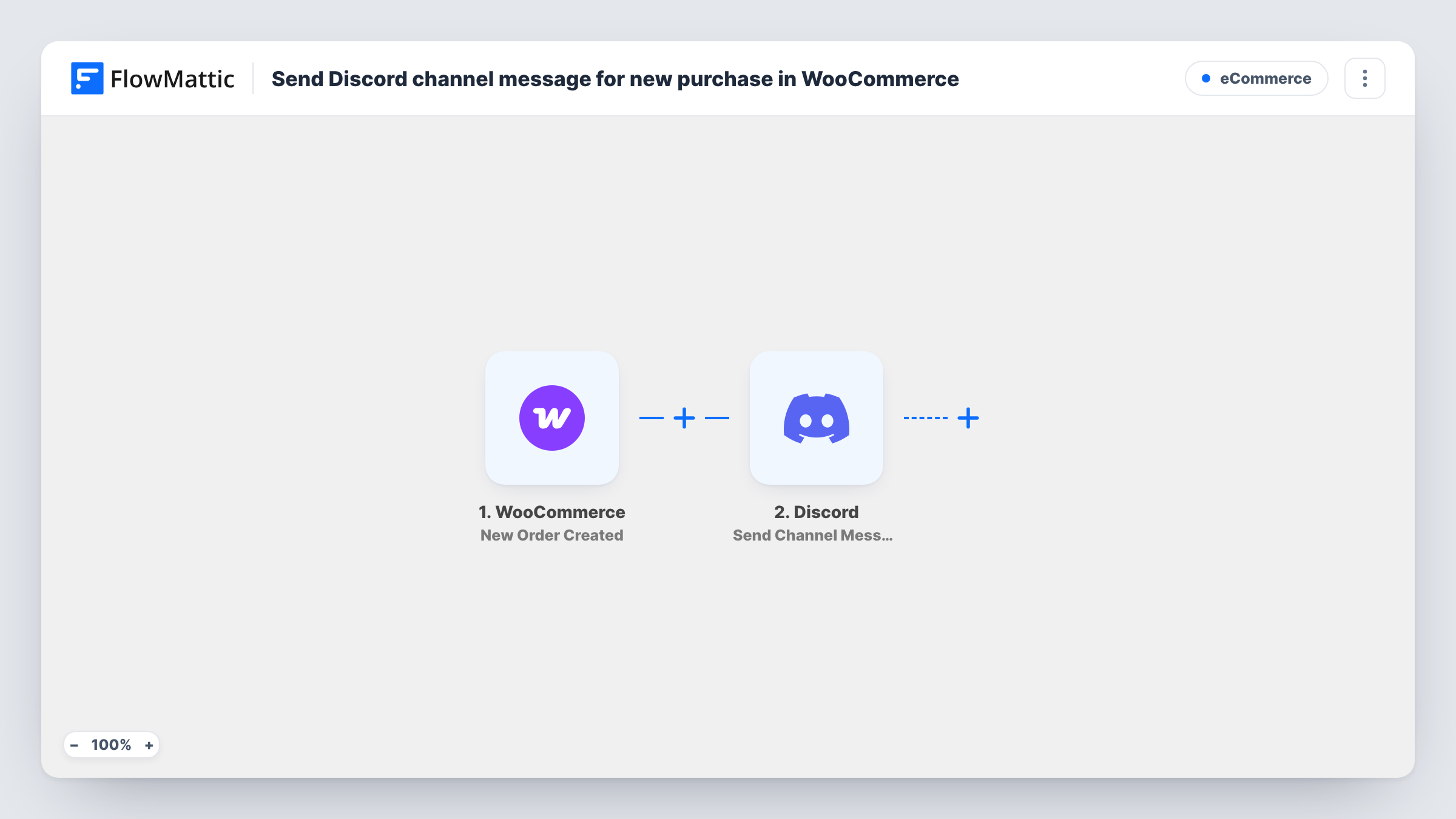
The WooCommerce trigger fires when a new order is created on the WordPress store where FlowMattic runs. FlowMattic passes the order data on. The Discord step then posts a message to the channel you pick, built from the order values you place in it, such as the order number, total and products.
An order is created at checkout, which can be before payment clears. Orders that end up failed or cancelled may still produce a post, so add a Filter on the order status if the channel should show paid orders only. Customer names and emails are personal data, so think about who can read the channel before you map them. Each post is recorded in Task History.
Sales feed for a small team
A shop run by three people shares a #sales channel. Each new order shows the products and total, so whoever is packing that day knows what is coming.
Launch day for a new product
During a launch, the team watches Discord to see orders arrive and spot which product is selling, without refreshing the WooCommerce orders page.
Creator store with a community server
A creator selling merch posts order totals, without customer details, to a private staff channel in the same Discord server they use for their community.
How this workflow runs
What happens at each step once the workflow is on, and what you need before you import it.
 WooCommerce New Order Created
Runs when a new order is created in WooCommerce on your site. The order details are passed on so you can map them into the Discord message.
- Discord Send Channel Message
Posts the new order to the Discord channel you pick. Write the message after import and insert order values such as the number, total and product names.
What you need
- FlowMatticCore
- WooCommerce PluginPlugin
- Discord AccountAccount
After importing, map your own data. To keep the template universal, not every step is pre-filled. Open each step in the builder and connect your accounts and fields (channels, lists, sheets, recipients) before you switch the workflow on.
Make it yours
Changes worth making after you import it.
- Add a Filter after the WooCommerce trigger that continues only when the order status is processing or completed, so unpaid or failed orders stay out of Discord.
- Add a second Filter condition on the order total, for example greater than 100, to post only larger orders. Totals compare as whole numbers, so 99.99 counts as 99.
- Place a test order after import so FlowMattic captures real WooCommerce data, then build the Discord message from the values it shows.
Questions about this workflow
Will failed or unpaid WooCommerce orders post to Discord?
They can. The trigger fires when the order is created, which may be before payment completes. Add a Filter on the order status to keep them out.
Can the Discord message list every product in the order?
Map the line items field from the order into the message. A test order shows how WooCommerce sends them, so you can check the result looks readable.
Should customer details go into the Discord channel?
Only if everyone who can read the channel should see them. You choose what goes into the message, so you can leave names and emails out.
Does it post orders created by hand in the WooCommerce admin?
The trigger is New Order Created, so place a test order from the admin after import and check Task History to confirm how your store handles it.
More E-Commerce workflows
Other ready-to-import templates from the same category.





Import this workflow into your WordPress site
Download the JSON, import it from the Workflows screen and connect your accounts. Every run stays on your server, with no per-task fees.
30-day money-back guarantee Unlimited workflows and runs Self-hosted