

Copy new Box files to a folder in Google Drive
When you add a new file to a Box folder, this workflow uploads a copy to a Google Drive folder you choose, so people who work in Drive can open it without a Box login.
 Box
 Google Drive
2 steps Setup ~5 min Used on 2.3k sites Free to import
What this workflow does
Teams and clients don't always use the same storage. You might keep files in Box while a partner, contractor or another department works in Google Drive. Sending each file across by hand is slow and easy to forget. This workflow copies new Box files into Drive as they arrive.
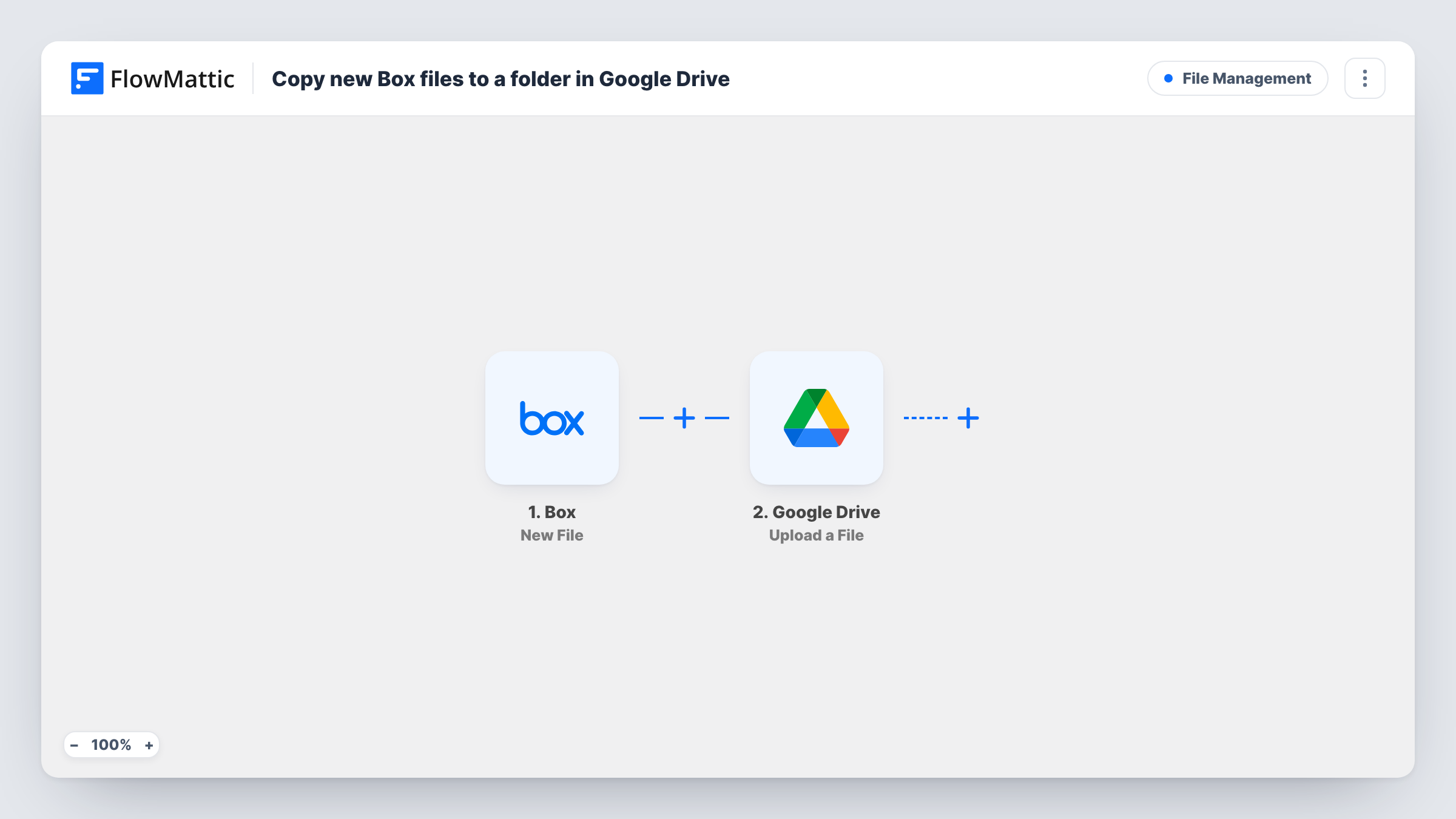
The Box trigger is New File, which fires when you add a new file to a folder. FlowMattic passes the file's data to the Google Drive step, which runs Upload a File and places the file in the Drive folder you select. You map the file from the Box event into the upload.
Copying runs in one direction only, and only for new files. Edits, renames and deletions in Box don't reach the copy in Drive, and files already in the Box folder before import aren't copied. Upload a test file after import and check that the copy opens in Drive before you rely on it.
Sharing deliverables with a client on Drive
Your team saves final files to a Box folder. Each new file is copied to a Drive folder shared with the client, who never needs Box access.
A second copy for safekeeping
Important documents saved to Box also land in Google Drive, so there is another copy in a separate service.
Scans from an office device
A scanner that saves to Box drops each new scan in a folder, and the copy in Drive is ready for staff who work in Google Workspace.
How this workflow runs
What happens at each step once the workflow is on, and what you need before you import it.
 Box New File
Fires when a new file is added to the Box folder you watch. The file's details are passed on so the Drive step can upload it.
- Google Drive Upload a File
Puts a copy of the new Box file into a Drive folder picked at setup. Map the file from the Box event, then upload a test file to Box to confirm the copy arrives in Drive and opens.
What you need
- FlowMatticCore
- Box AccountAccount
- Google Drive AccountAccount
After importing, map your own data. To keep the template universal, not every step is pre-filled. Open each step in the builder and connect your accounts and fields (channels, lists, sheets, recipients) before you switch the workflow on.
Make it yours
Changes worth making after you import it.
- If the test copy doesn't open, add Box's Get File Download URL step between the two steps and map the download URL it returns into the Google Drive upload.
- Add a Filter after the trigger to copy only certain files, for example continue only when the file name contains .pdf.
- To mirror a second Box folder, clone the workflow, point the copy's trigger at that folder and choose a matching Drive folder for its upload.
Questions about this workflow
Are changes to a Box file copied to Google Drive?
No. The trigger fires only when a new file is added, so later edits, renames or deletions in Box leave the Drive copy unchanged.
Will files already in my Box folder be copied to Drive?
No. Each run starts from a file added while the workflow is on, so older ones stay put. Move older files across by hand once.
What if the Google Drive upload doesn't work with the Box file data?
The failed upload is flagged on that run's Google Drive step in Task History. Adding Box's Get File Download URL step before the upload gives the Drive step a download link to map.
More File Management workflows
Other ready-to-import templates from the same category.





Import this workflow into your WordPress site
Download the JSON, import it from the Workflows screen and connect your accounts. Every run stays on your server, with no per-task fees.
30-day money-back guarantee Unlimited workflows and runs Self-hosted