

When a Plumsail Documents job finishes, save the file to Google Drive and alert the team in Slack
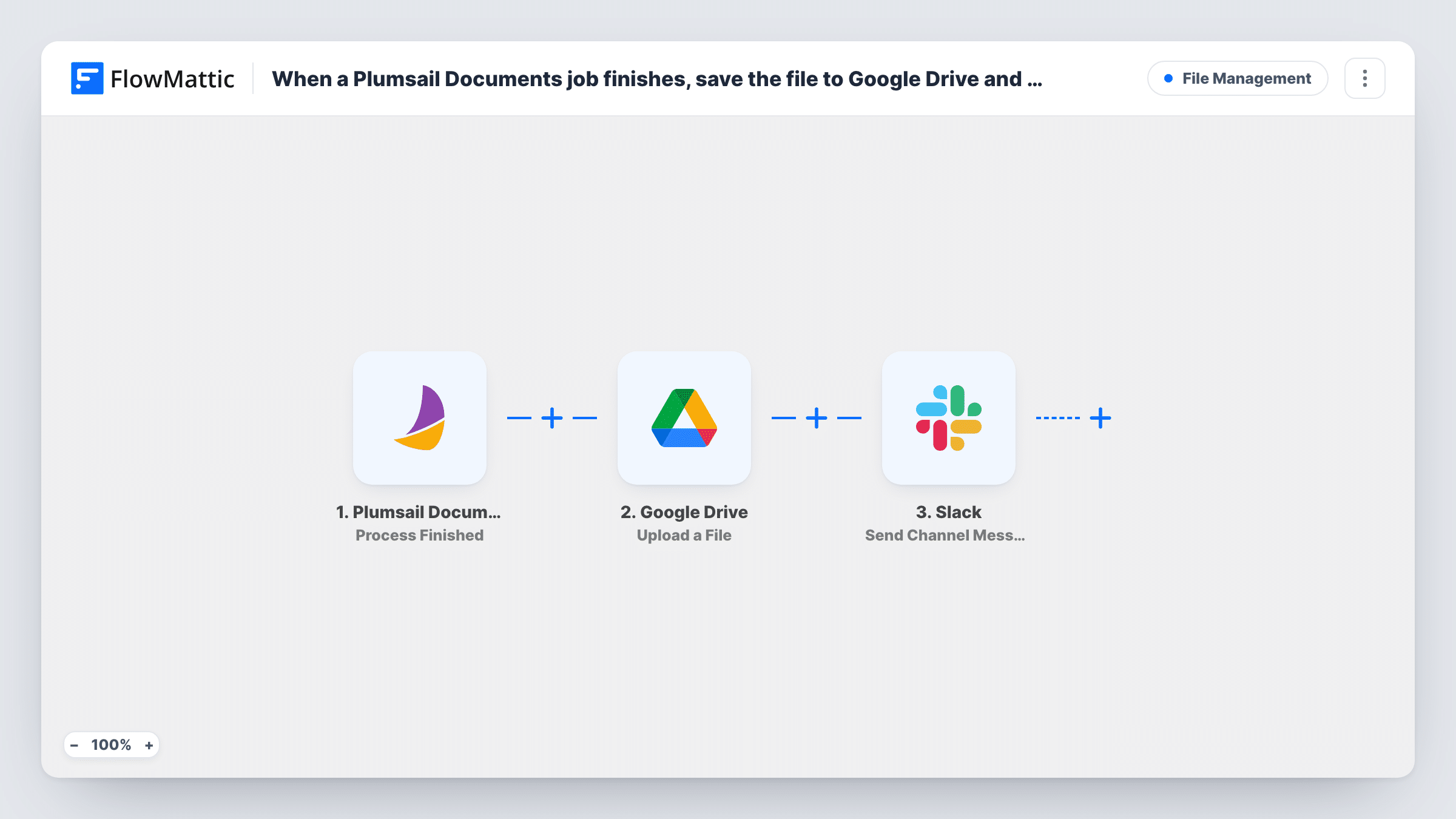
When a Plumsail Documents process finishes, this workflow uploads the generated file to a Google Drive folder and then posts a message in a Slack channel, so the document is stored and your team knows it is ready.
 Plumsail Documents
 Google Drive
 Slack
3 steps Setup ~5 min Used on 1.5k sites Free to import
What this workflow does
Generated contracts, invoices and reports are only useful once they are filed where people can find them. Downloading each Plumsail file, uploading it to Drive and telling the team in Slack takes three manual steps per document. This workflow does all three in order each time a document process completes.
The Plumsail Documents trigger fires as each process finishes and captures the data Plumsail sends about the result. The Google Drive step uploads the file to the folder you select, using the file or link you map from that data. The Slack step then posts a message to the channel you pick, where you can include the document name and the file details the upload step returns.
Every finished process runs all three steps, as there is no Filter. If a file is missing from the folder, Task History shows what the upload step returned for that run. Run one test process after import to confirm which value from Plumsail the upload step needs.
Contracts filed for a sales team
Each contract generated in Plumsail is saved to a shared Drive folder, and the sales channel in Slack gets a message with the link.
Monthly reports for managers
Reports built from Plumsail templates are uploaded to a reports folder, and a Slack post lets managers know the new file is there.
Invoices for the finance team
Invoice PDFs from Plumsail go into the finance Drive folder, and the finance channel in Slack is told each time one is added.
How this workflow runs
What happens at each step once the workflow is on, and what you need before you import it.
 Plumsail Documents Process Finished
Starts the run as soon as Plumsail reports that a document process is complete. The data about the generated document is captured for the Drive and Slack steps.
- Google Drive Upload a File
Uploads the generated document to the Google Drive folder you select. Map the file value from the Plumsail data, connect your Google account, and run a test to confirm the file arrives.
- Slack Send Channel Message
Sends a note to the Slack channel your team watches for new documents. Map the document details and the Drive link from the upload step into the text, so the team can open the file straight away.
What you need
- FlowMatticCore
- Plumsail Documents AccountAccount
- Google Drive AccountAccount
- Slack AccountAccount
After importing, map your own data. To keep the template universal, not every step is pre-filled. Open each step in the builder and connect your accounts and fields (channels, lists, sheets, recipients) before you switch the workflow on.
Make it yours
Changes worth making after you import it.
- Add a Filter between the Plumsail trigger and the Google Drive step that continues only for one Plumsail process, if you run several. Other processes then stop there, so they are neither stored nor announced in Slack.
- Add Google Drive's Share File step after the upload if people outside your Drive need access, and map that link into the Slack message.
- Create a dedicated Drive folder for these documents before mapping, so generated files do not mix with others in a general folder.
Questions about this workflow
Does every finished Plumsail process end up in Drive and Slack?
Yes, as imported. There is no Filter, so each process that finishes runs the upload and the Slack post. The tips show where a Filter goes if only one process should be stored.
Which Plumsail value do I map into the Google Drive upload?
Use the file or file link Plumsail sends with the finished process. Run a test process after import and look at the captured data to find it before mapping the upload.
Can the Slack message include a link to the file in Google Drive?
Usually. The upload step returns details about the new file. Check a test run for its link or ID and map it into the Slack text; if no link appears, add Share File and use the link it returns.
More File Management workflows
Other ready-to-import templates from the same category.




Import this workflow into your WordPress site
Download the JSON, import it from the Workflows screen and connect your accounts. Every run stays on your server, with no per-task fees.
30-day money-back guarantee Unlimited workflows and runs Self-hosted