

Create a ClickUp task when a new Timely project is created
When a project is created in Timely, this workflow creates a task in ClickUp from the project’s details, so the work your team tracks time against also shows up where they plan it.
 Timely
 ClickUp
2 steps Setup ~5 min Used on 1.1k sites Productivity Free to import
What this workflow does
Many teams track hours in Timely and plan the work itself in ClickUp. Every new client project then needs a second setup step: someone opens ClickUp and adds a task that points back to it. When that step is forgotten, the project exists in one tool and is missing from the other.
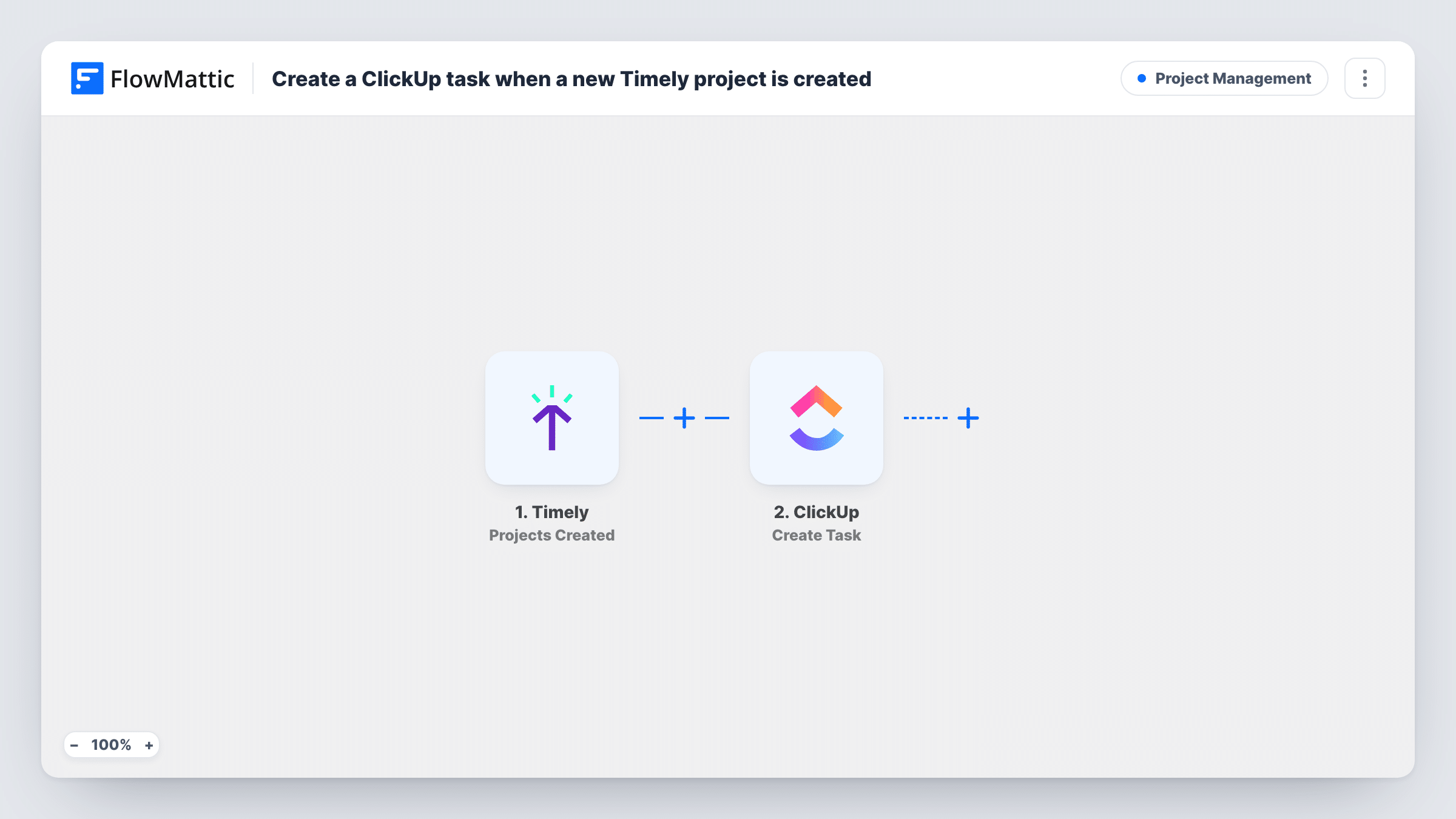
This workflow handles that step for you. The Timely trigger fires when a project is created in your Timely account. FlowMattic receives the project's data and passes it on to ClickUp, where the Create Task action adds a new task. You decide which Timely values go into the task, such as using the project name as the task name.
There are only two steps and no conditions, so every Timely project created while the workflow is on produces one ClickUp task. Projects that existed before you turned it on are left alone. Each run is listed in Task History, where you can see the Timely data that arrived and what was sent to ClickUp.
Kickoff task for each client project
An account manager sets up a new client project in Timely to track billable hours. A ClickUp task with the same name appears for the delivery team to plan the work.
Agency handoff between tools
Your finance lead owns Timely and your project leads live in ClickUp. New Timely projects reach the project leads as tasks without anyone forwarding a message.
Checklist starter for internal projects
When an internal project is opened in Timely, a ClickUp task is created so you can add the checklist and subtasks the project needs.
How this workflow runs
What happens at each step once the workflow is on, and what you need before you import it.
 Timely Projects Created
Runs each time a project is created in your connected Timely account. The new project's data is passed to the next step so you can map it.
- ClickUp Create Task
Adds a ClickUp task for the Timely project that just arrived. Connect your ClickUp account and map the Timely project values you want, such as the project name, into the task. A test run shows what the action asks for.
What you need
- FlowMatticCore
- Timely AccountAccount
- ClickUp AccountAccount
After importing, map your own data. To keep the template universal, not every step is pre-filled. Open each step in the builder and connect your accounts and fields (channels, lists, sheets, recipients) before you switch the workflow on.
Make it yours
Changes worth making after you import it.
- Add a Filter after the Timely trigger if only some projects need a ClickUp task, for example projects whose name contains a client code you use.
- Run a test after import by creating a sample project in Timely. FlowMattic then captures the real project data, which makes mapping the ClickUp task much easier.
- Need more than one task per project? Add further ClickUp Create Task steps after the first, each mapped to the same Timely project data with a different task name.
Questions about this workflow
Does every new Timely project create a ClickUp task?
Yes, as imported. There is no Filter, so each project created in Timely while the workflow is on leads to one new ClickUp task.
Will my existing Timely projects be copied to ClickUp?
No. The trigger only reacts to projects created after you turn the workflow on. Older projects stay in Timely only.
What happens in ClickUp if I rename or delete the Timely project later?
Nothing. The workflow only acts when a project is created. The ClickUp task stays as it was, and you update it by hand if needed.
Which Timely details can I put into the ClickUp task?
Whatever the Timely trigger returns for the new project. Create a test project after import and look at the captured data to see what you can map.
More Project Management workflows
Other ready-to-import templates from the same category.







Import this workflow into your WordPress site
Download the JSON, import it from the Workflows screen and connect your accounts. Every run stays on your server, with no per-task fees.
30-day money-back guarantee Unlimited workflows and runs Self-hosted