

Create a ClickUp task for each new Fantastical proposal
When a meeting proposal you sent from Fantastical is confirmed, this workflow creates a ClickUp task from it, so the prep and follow-up for that meeting sit in your task list instead of only on your calendar.
 Fantastical
 ClickUp
2 steps Setup ~5 min Used on 853 sites Productivity Free to import
What this workflow does
A Fantastical proposal offers people a few times to meet. Once they pick one, the meeting is set, but the work around it, such as preparing an agenda or sending notes afterwards, still lives in your head. If your team plans its work in ClickUp, a task for each settled meeting keeps that work visible.
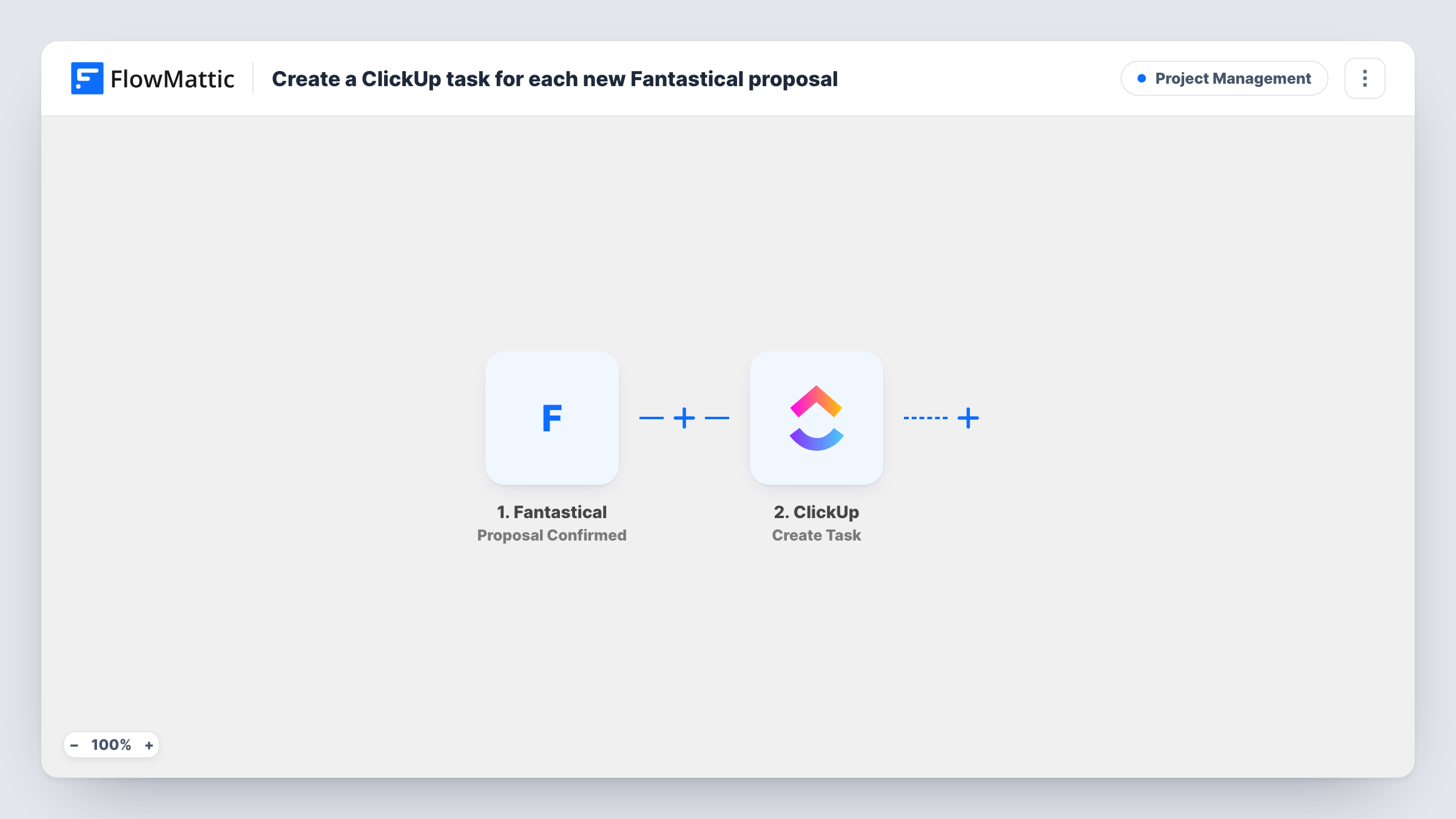
The Fantastical trigger fires when any proposal is confirmed. FlowMattic takes the proposal data that Fantastical sends and passes it to ClickUp, where Create Task adds a new task in the place you set during setup. You decide which proposal values fill the task after import, and a test run shows what is available.
The task appears at confirmation, not when you first send the proposal. A proposal nobody confirms never becomes a task. Each run is listed in Task History, so you can check what Fantastical sent and what ClickUp returned.
Client kickoff meetings
A consultant sends a proposal for a kickoff call. When the client picks a time, a ClickUp task appears to prepare the agenda and the project brief.
Partner and vendor calls
Calls agreed through a Fantastical proposal turn into ClickUp tasks, so the team can attach notes and follow-up actions to each one.
Recruiting conversations
Once a candidate confirms a time from your proposal, a ClickUp task reminds the hiring manager to review the CV before the call.
How this workflow runs
What happens at each step once the workflow is on, and what you need before you import it.
 Fantastical Proposal Confirmed
Runs when any Fantastical proposal is confirmed, meaning a time has been settled. The proposal data from that event is passed on for mapping in ClickUp.
- ClickUp Create Task
Adds a new task in ClickUp for the confirmed proposal. Connect your ClickUp account, choose where the task goes, and map proposal values into it.
What you need
- FlowMatticCore
- Fantastical AccountAccount
- ClickUp AccountAccount
After importing, map your own data. To keep the template universal, not every step is pre-filled. Open each step in the builder and connect your accounts and fields (channels, lists, sheets, recipients) before you switch the workflow on.
Make it yours
Changes worth making after you import it.
- Confirm a test proposal after import so FlowMattic captures real Fantastical data. Then you can see which values are available for the ClickUp task.
- Add a Filter after the trigger if only certain meetings need a task, and base its condition on a value you saw in the test data.
- Building a fuller meeting log? Add a Google Sheets Add New Row step after ClickUp to keep a sheet of every confirmed proposal as well.
Questions about this workflow
Is a ClickUp task created when I send a Fantastical proposal?
No. The trigger is Proposal Confirmed, so the task is created only once a time is confirmed. Proposals that are never confirmed do not create tasks.
Where in ClickUp does the task go?
Wherever you set in the Create Task step after import. Connect your ClickUp account and pick the location, then map the proposal data into the task.
Do Fantastical Openings bookings create ClickUp tasks too?
No. This template listens only for confirmed proposals. Openings appointments have their own Fantastical triggers, which you can use in a separate workflow.
What happens if ClickUp rejects the task for a confirmed proposal?
The run is still recorded in Task History, with the error ClickUp returned shown on that step. Fix the connection or mapping and confirm another proposal to test again.
More Project Management workflows
Other ready-to-import templates from the same category.







Import this workflow into your WordPress site
Download the JSON, import it from the Workflows screen and connect your accounts. Every run stays on your server, with no per-task fees.
30-day money-back guarantee Unlimited workflows and runs Self-hosted