

Create a HubSpot CRM contact for each new Muvi user signup
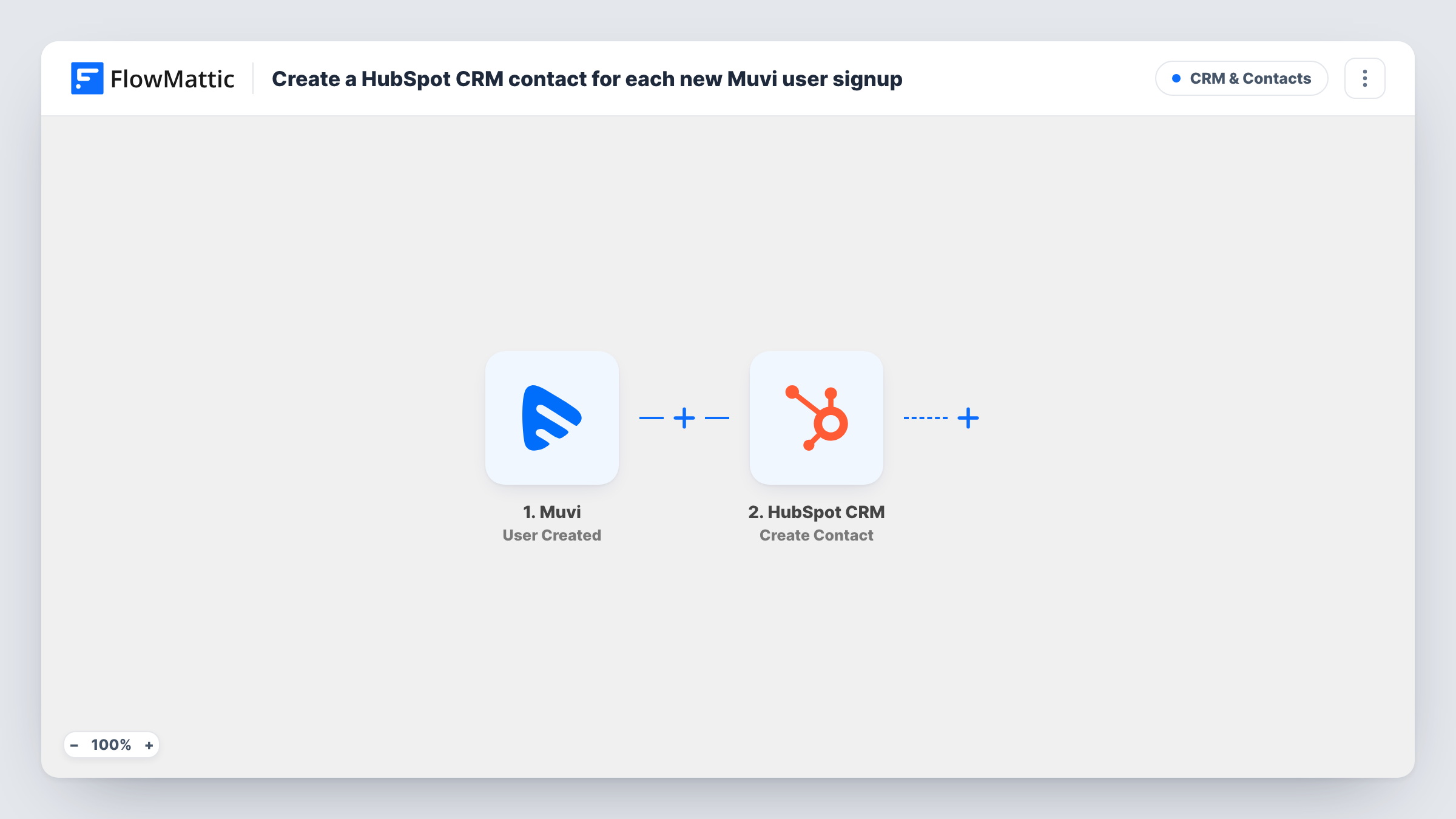
Whenever a new user account is created on your Muvi streaming platform, this workflow creates a matching contact in HubSpot CRM, so your sales and marketing team can see new viewers alongside the rest of your contacts.
 Muvi
 HubSpot CRM
2 steps Setup ~5 min Used on 1.4k sites Free to import
What this workflow does
A Muvi platform keeps its viewer accounts to itself. If your team plans emails, offers or follow-ups in HubSpot, new sign-ups stay invisible there until someone exports and imports them. This workflow passes each new viewer across as the account is created.
The Muvi trigger fires when a user is created on your platform. FlowMattic takes the account details Muvi sends and runs Create Contact in HubSpot CRM. You map the viewer's email address and any name details into that step, and HubSpot stores them as a new contact record.
The template has just these two steps, so every Muvi sign-up becomes a HubSpot contact with no conditions in between. Updates and deletions in Muvi are separate events and don't run this workflow. Each run shows up in Task History with the data sent to HubSpot and its reply.
Welcome series for new subscribers
A fitness video service on Muvi adds each sign-up to HubSpot, where a marketing workflow you build in HubSpot can pick the contact up for onboarding emails.
Sales follow-up on trial accounts
A film library that sells to schools gets each new Muvi account into HubSpot, so a rep can see who registered and reach out from the CRM.
One contact list across products
A creator who sells courses elsewhere and streams on Muvi keeps all audience members in one HubSpot database instead of two separate user lists.
How this workflow runs
What happens at each step once the workflow is on, and what you need before you import it.
 Muvi User Created
Fires when a new user is created on your Muvi platform. The account details Muvi sends are available to map into HubSpot.
- HubSpot CRM Create Contact
Creates a new contact in HubSpot CRM from the Muvi account. Map the user's email address and any name details you want stored, and connect your HubSpot account when you import.
What you need
- FlowMatticCore
- Muvi AccountAccount
- HubSpot CRM AccountAccount
After importing, map your own data. To keep the template universal, not every step is pre-filled. Open each step in the builder and connect your accounts and fields (channels, lists, sheets, recipients) before you switch the workflow on.
Make it yours
Changes worth making after you import it.
- Create a test account on your Muvi site after import, then check Task History to see which user fields Muvi sends before you finish mapping the HubSpot step.
- Add a Filter before the HubSpot step if staff or test accounts should stay out of the CRM, for example one that skips emails ending in your own domain.
- To group Muvi viewers in HubSpot, add HubSpot's Add Contact To List step after Create Contact and map the new contact from that step's result. Run a test sign-up to confirm the viewer lands in the list.
Questions about this workflow
What if the Muvi user is already a contact in HubSpot?
This template creates contacts and never looks one up first. A viewer whose email HubSpot already holds may be turned away as a duplicate; the run's Task History entry shows HubSpot's answer, and the older record keeps its current details.
Will Muvi users who signed up before I import this reach HubSpot?
No. Only Muvi accounts created while this workflow is on start a run. Viewers who joined earlier can go into HubSpot through its own import tool.
Does editing a Muvi user profile run this workflow again?
No. This template listens only to User Created. Muvi's User Updated event is a separate trigger you would use in another workflow.
Which HubSpot properties get filled for each Muvi viewer?
HubSpot receives just the Muvi values you choose in the contact step. Make a test sign-up so those values appear in FlowMattic, then match each to a HubSpot property.
More CRM & Contacts workflows
Other ready-to-import templates from the same category.





Import this workflow into your WordPress site
Download the JSON, import it from the Workflows screen and connect your accounts. Every run stays on your server, with no per-task fees.
30-day money-back guarantee Unlimited workflows and runs Self-hosted