

Create a HubSpot CRM contact from a new Fluix field form response
Each response submitted to a Fluix form creates a contact in HubSpot CRM from the answers you map, so people your field team meets on site reach your CRM without anyone retyping paper notes.
 Fluix
 HubSpot CRM
2 steps Setup ~5 min Used on 1.4k sites Free to import
What this workflow does
Field teams use Fluix to fill in forms on tablets: site surveys, inspection sign-offs, event sign-ups. When a form captures a customer's details, the office still has to copy them into HubSpot before anyone can follow up. This workflow creates the HubSpot contact when the response is submitted.
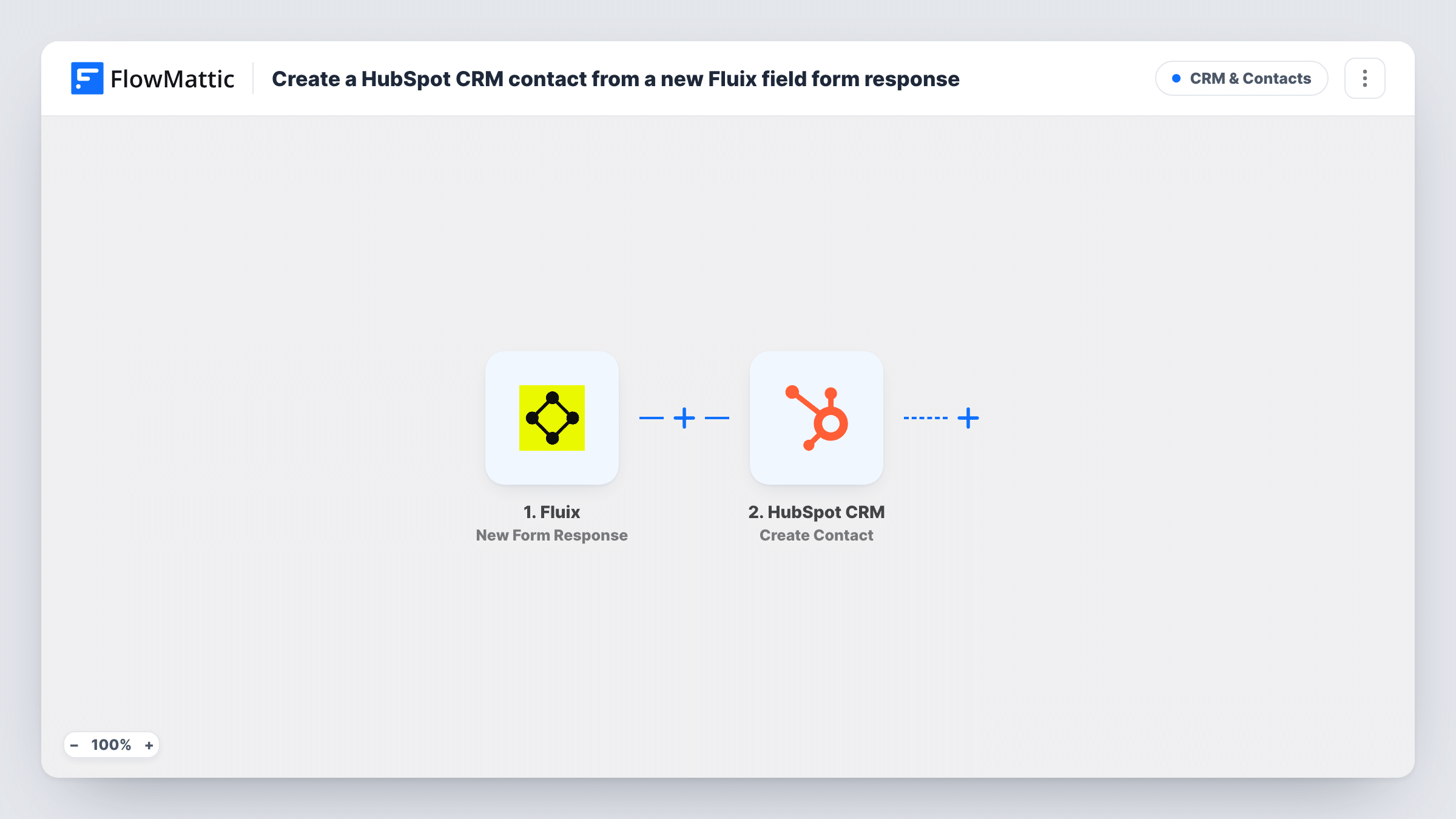
The Fluix trigger, New Form Response, fires when a response of the form is submitted. FlowMattic receives the response data and passes it to HubSpot CRM, where the Create Contact step adds a new contact from the fields you map, such as name, email, phone and company.
Create Contact is create-only and doesn't check HubSpot for an existing match first, so a returning customer may cause a duplicate-email error, which Task History shows. Your Fluix form should collect an email address, since that's what HubSpot uses to tell contacts apart.
Trade show sign-ups on a tablet
Staff at a stand collect visitor details in a Fluix form. Each response becomes a HubSpot contact the sales team can follow up after the show.
Site survey for a new customer
A surveyor records the property owner's details on a Fluix form during the visit, and the owner lands in HubSpot ready for a quote.
Service visit sign-off
Technicians capture the on-site contact who signs off the job, so the account team has that person in HubSpot for renewals.
How this workflow runs
What happens at each step once the workflow is on, and what you need before you import it.
 Fluix New Form Response
Fires when a response to your Fluix form is submitted. The answers in that response become data you can map into HubSpot.
- HubSpot CRM Create Contact
Creates a new contact in HubSpot CRM from the Fluix answers you map, such as email, first name, last name and company. Link your HubSpot account during import.
What you need
- FlowMatticCore
- Fluix AccountAccount
- HubSpot CRM AccountAccount
After importing, map your own data. To keep the template universal, not every step is pre-filled. Open each step in the builder and connect your accounts and fields (channels, lists, sheets, recipients) before you switch the workflow on.
Make it yours
Changes worth making after you import it.
- Make the email field required in your Fluix form, so every response gives HubSpot an address to create the contact with.
- Add a Filter after the trigger that continues only when the email answer isn't empty, so responses without customer details don't produce failed HubSpot runs.
- To avoid duplicate errors, add HubSpot's Get Contact step before Create Contact and a Filter that continues only when no contact is found.
Questions about this workflow
What happens if the Fluix respondent already exists in HubSpot?
Create Contact doesn't look for a match first. If the email is already in HubSpot, the request may be refused, and Task History records HubSpot's reply for that run.
Which Fluix form answers can I map to HubSpot?
Any answer the response carries. Submit a test response first so FlowMattic captures the fields, then map them to HubSpot contact properties.
Does every Fluix form response create a contact?
Yes, as imported. Add a Filter after the trigger if only some forms or answers should reach HubSpot.
Are Fluix responses submitted before import added to HubSpot?
No. Only responses submitted after you turn the workflow on create contacts.
More CRM & Contacts workflows
Other ready-to-import templates from the same category.




Import this workflow into your WordPress site
Download the JSON, import it from the Workflows screen and connect your accounts. Every run stays on your server, with no per-task fees.
30-day money-back guarantee Unlimited workflows and runs Self-hosted