

Create a HubSpot CRM contact from each new Serviceform chatbot submission
When a visitor completes your Serviceform chatbot, this workflow creates a contact in HubSpot CRM from their answers, so chatbot leads appear in HubSpot without anyone retyping them.
 Serviceform
 HubSpot CRM
2 steps Setup ~5 min Used on 2.3k sites Free to import
What this workflow does
A chatbot on your website collects names, emails and what each visitor is looking for. If those answers stay in Serviceform, your sales team has to copy them into HubSpot before they can follow up. This workflow creates the HubSpot contact for you from each chatbot submission.
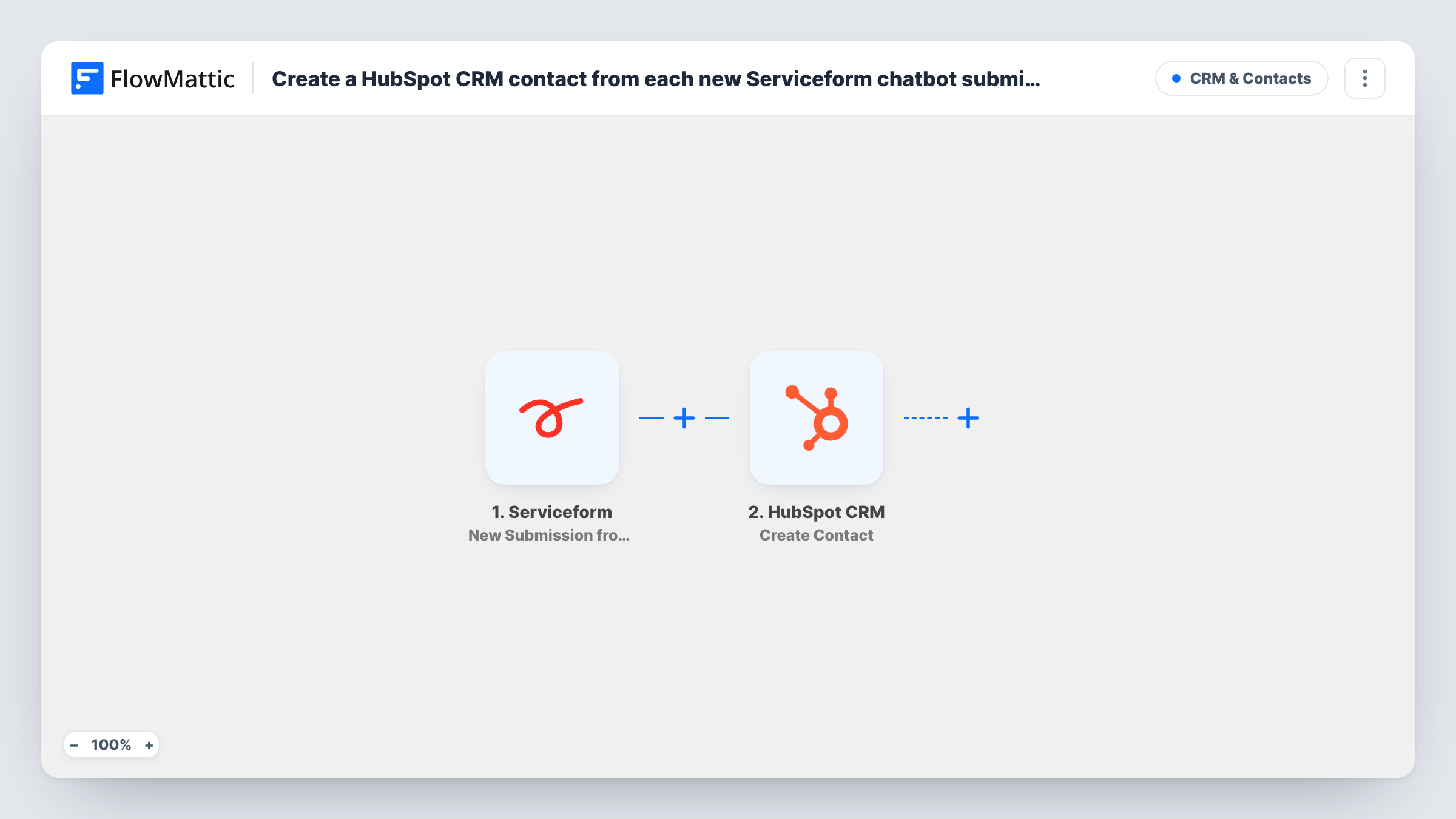
The Serviceform trigger fires for each new submission from a chatbot on your Serviceform account. The answers the visitor gave are passed to FlowMattic as data you can map. The HubSpot CRM step then uses Create Contact to add a new contact, with the email, name and any other properties you map from the chatbot answers.
This HubSpot action adds records and never checks for an existing one first, so a visitor who is already in HubSpot may be refused as a duplicate email. Task History shows HubSpot's response when that happens. Submissions made before you turn the workflow on are not sent.
Quote requests from a service business
A cleaning or renovation company uses a Serviceform chatbot to ask about the job. Each completed chat becomes a HubSpot contact the sales team can call back.
Demo bookings for a software company
Visitors answer a few qualifying questions in the chatbot. The answers land on a new HubSpot contact, so the rep sees company size and needs before the call.
Lead capture on landing pages
Paid campaign pages use the chatbot instead of a form. Every submission is in HubSpot, where you already track contacts from your other channels.
How this workflow runs
What happens at each step once the workflow is on, and what you need before you import it.
 Serviceform New Submission from Chatbot
Runs for each new submission from a Serviceform chatbot. The visitor's answers are captured and passed on so you can map them into HubSpot.
- HubSpot CRM Create Contact
Adds the visitor to HubSpot CRM as a fresh contact record. Map the chatbot's email answer to the contact email, plus the name and any other answers you want saved as contact properties.
What you need
- FlowMatticCore
- Serviceform AccountAccount
- HubSpot CRM AccountAccount
After importing, map your own data. To keep the template universal, not every step is pre-filled. Open each step in the builder and connect your accounts and fields (channels, lists, sheets, recipients) before you switch the workflow on.
Make it yours
Changes worth making after you import it.
- Add a Filter after the Serviceform trigger that continues only when the email answer is not empty, so a submission without an address never reaches HubSpot.
- Add a HubSpot Add Contact To List step after the contact is created to group chatbot leads in a static list of their own.
- Complete the chatbot yourself after import so FlowMattic captures a real Serviceform submission, then map each answer to the right HubSpot property.
Questions about this workflow
What if the Serviceform visitor is already a HubSpot contact?
Create Contact does not update existing records, so HubSpot may refuse a duplicate email, and Task History shows the response. The workflow carries on to any later steps you add.
Can chatbot answers go into custom HubSpot properties?
Check the Create Contact step after import to see which properties it offers. Map each chatbot answer to the property that should hold it, then test once.
Does every Serviceform chatbot on my account trigger this?
The trigger listens for new chatbot submissions. Submit a test on each chatbot you use and check Task History to see which ones reach the workflow.
Does the Serviceform chatbot keep its own copy of each submission?
The workflow only reads the new submission and sends it on. It does not delete or change anything in Serviceform, so whatever Serviceform stores stays as it was.
More CRM & Contacts workflows
Other ready-to-import templates from the same category.





Import this workflow into your WordPress site
Download the JSON, import it from the Workflows screen and connect your accounts. Every run stays on your server, with no per-task fees.
30-day money-back guarantee Unlimited workflows and runs Self-hosted