

Create a HubSpot CRM contact whenever a new Grassrootz campaign is created
Each new campaign created in Grassrootz adds a contact to HubSpot CRM from the campaign’s details, so the people running fundraisers are in your CRM for follow-up without copying them across.
 Grassrootz
 HubSpot CRM
2 steps Setup ~5 min Used on 767 sites Free to import
What this workflow does
When someone sets up a fundraising campaign on Grassrootz, your team usually wants to get in touch. You might welcome them, offer materials or check in partway through. If your outreach runs from HubSpot, each organiser has to be added there first. This workflow creates that HubSpot contact when the campaign is created.
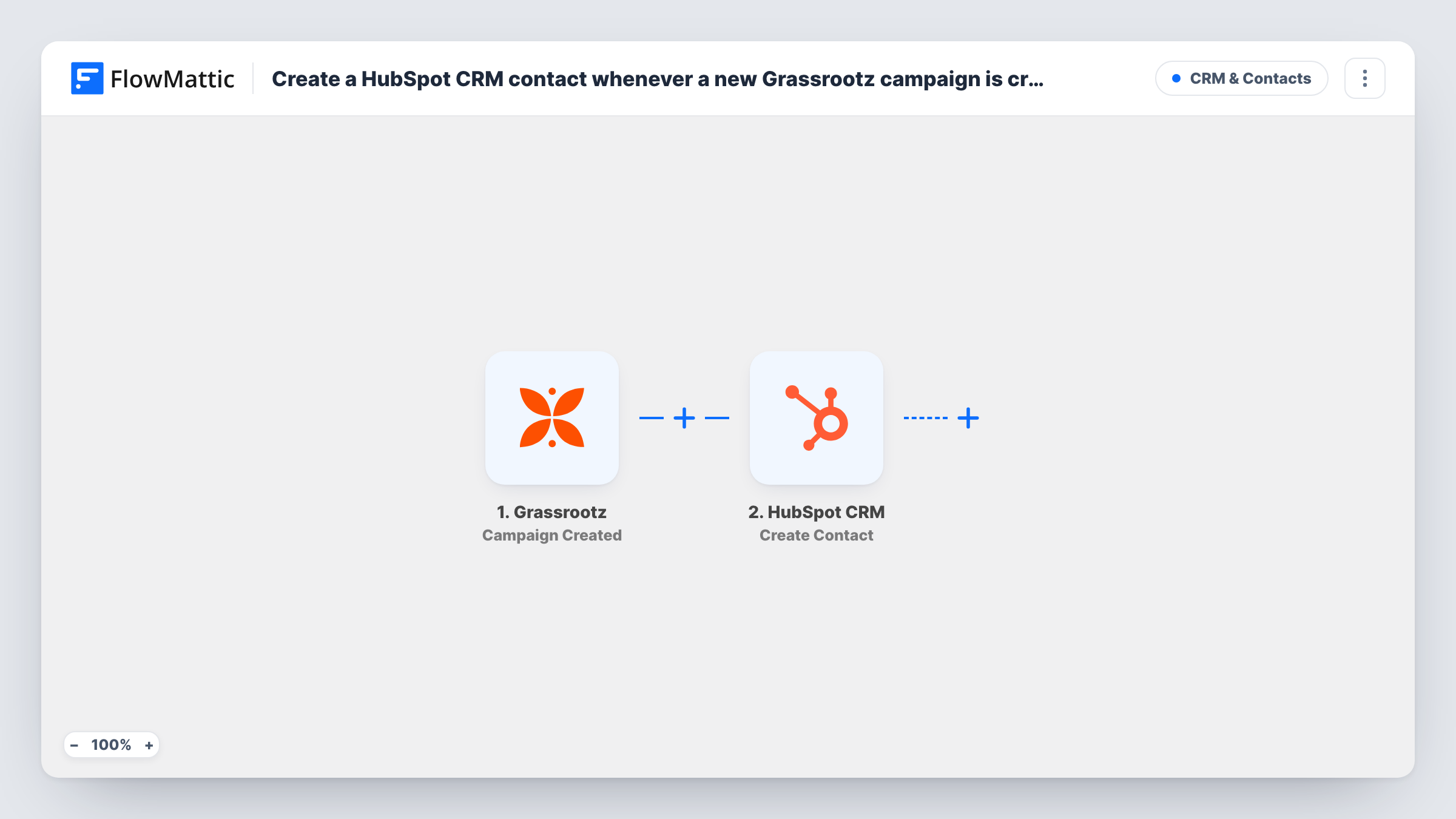
The Grassrootz trigger fires on Campaign Created and passes the campaign's details to FlowMattic. The second step, HubSpot CRM Create Contact, adds a contact using the values you map from the campaign.
A contact needs details about a person, so check what Grassrootz sends before you rely on this. Create a test campaign after import and look at the captured data for the organiser's name and email. If they are there, map them into the HubSpot step and confirm the new contact appears in your CRM.
Welcoming new fundraisers
A charity's supporter team adds each new campaign's organiser to HubSpot so they can send a welcome email and a fundraising pack.
Tracking peer-to-peer fundraisers
Community fundraisers who start a campaign are recorded as HubSpot contacts, so your team can see who is raising money on your behalf.
Event fundraising teams
When participants in a sponsored event each set up a campaign, the events team gets them into HubSpot for race-day updates.
How this workflow runs
What happens at each step once the workflow is on, and what you need before you import it.
 Grassrootz Campaign Created
Starts the workflow when a new campaign is created in your connected Grassrootz account. The campaign's details become data for the HubSpot step.
- HubSpot CRM Create Contact
Creates a contact in HubSpot CRM from the campaign data you map. Run a test campaign to confirm the organiser's details are present and the contact is created.
What you need
- FlowMatticCore
- Grassrootz AccountAccount
- HubSpot CRM AccountAccount
After importing, map your own data. To keep the template universal, not every step is pre-filled. Open each step in the builder and connect your accounts and fields (channels, lists, sheets, recipients) before you switch the workflow on.
Make it yours
Changes worth making after you import it.
- If the Create Contact step lets you set more contact properties, map the campaign name into one, so your team knows which campaign each contact started. A test run shows what is offered.
- Add a Filter after the trigger that continues only when an email value is present in the campaign data, so runs without one don't reach HubSpot.
- Add a Gmail or Slack step after HubSpot to tell your supporter team a new fundraiser has signed up.
Questions about this workflow
What if the Grassrootz organiser is already a HubSpot contact?
The step is Create Contact, so it tries to add a new one. HubSpot doesn't allow two contacts with the same email, so the step may report an error in Task History for someone already in your CRM. Test with a known contact to see how it behaves.
Are donors added to HubSpot by this workflow?
No. The trigger is Campaign Created, so only new campaigns start a run. Donations are a separate Grassrootz event.
Will campaigns created before import become contacts?
No. Only campaigns created after you turn the workflow on are sent to HubSpot.
More CRM & Contacts workflows
Other ready-to-import templates from the same category.




Import this workflow into your WordPress site
Download the JSON, import it from the Workflows screen and connect your accounts. Every run stays on your server, with no per-task fees.
30-day money-back guarantee Unlimited workflows and runs Self-hosted