

Create a HubSpot CRM contact from each new Servis.ai webhook payload
Each time Servis.ai sends an event you set up for its webhooks, this workflow creates a contact in HubSpot CRM from the payload’s details, so people recorded in Servis.ai also appear in HubSpot.
 Servis.ai
 HubSpot CRM
2 steps Setup ~5 min Used on 2.6k sites Free to import
What this workflow does
Teams that run part of their work in Servis.ai and their marketing or sales in HubSpot end up keeping two contact lists. Typing people into HubSpot by hand is slow and easy to forget. This workflow creates the HubSpot contact for you whenever Servis.ai sends an event.
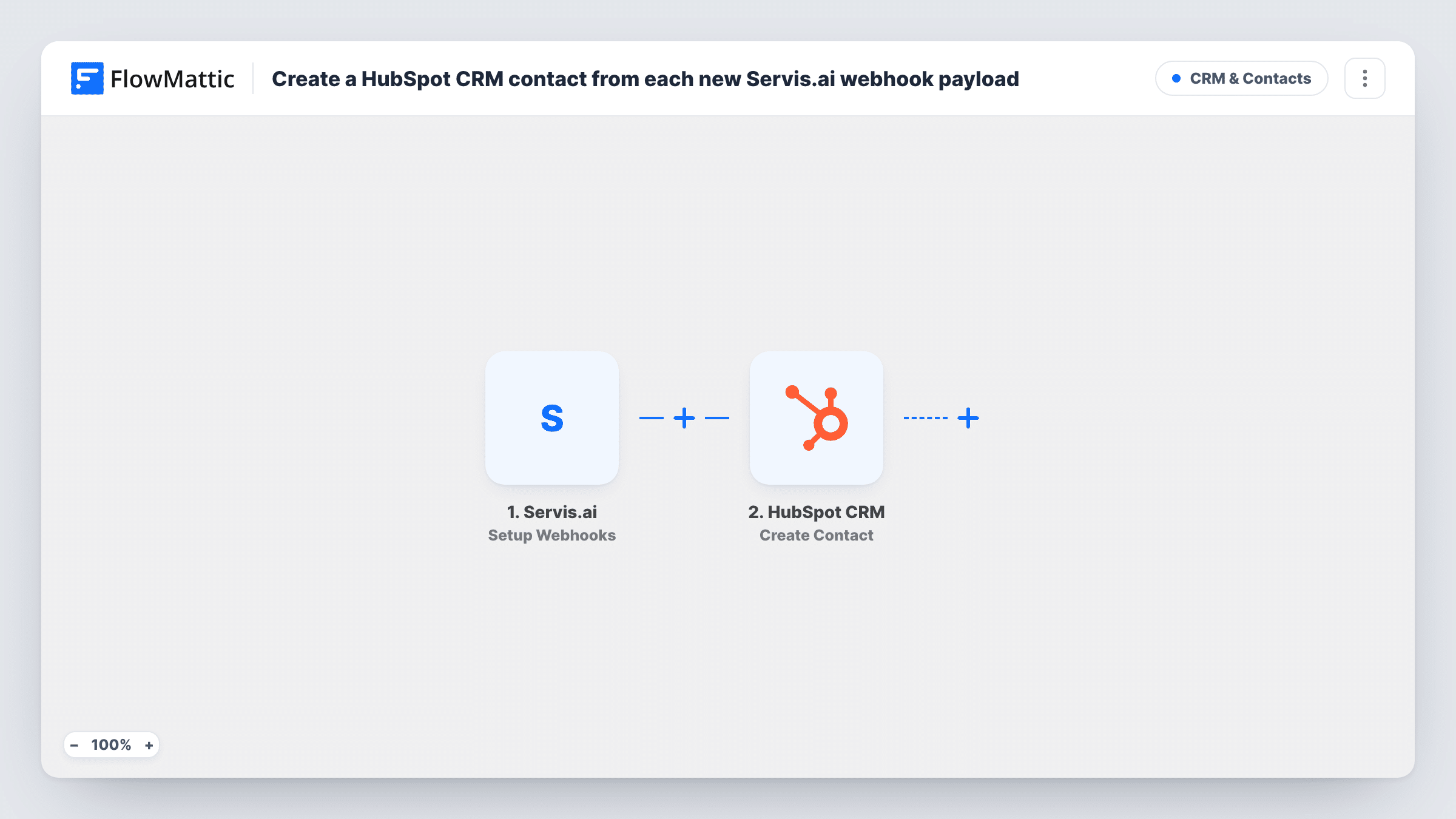
The Servis.ai trigger Setup Webhooks fires on the events you specify inside Servis.ai, and FlowMattic receives the data that comes with each one. The HubSpot CRM step then runs Create Contact. You map the person's email, name and any other details from the Servis.ai payload into the new contact.
What reaches HubSpot depends on which events you choose in Servis.ai, so pick ones whose data includes the person's email. The HubSpot action never looks for an existing record before adding one. If the email already belongs to a HubSpot contact, HubSpot may refuse the request, and Task History shows its response. Send one test event after import and check the payload before you map fields.
Field service customers into HubSpot marketing
Customers your team records in Servis.ai become HubSpot contacts, so marketing can include them in newsletters and service follow-ups.
Sales and operations on different tools
Operations works in Servis.ai while sales uses HubSpot. Each person added on the Servis.ai side shows up as a HubSpot contact for the sales team.
Moving to HubSpot gradually
While you trial HubSpot, new records in Servis.ai keep flowing in as contacts, so the HubSpot side fills up without a one-off import.
How this workflow runs
What happens at each step once the workflow is on, and what you need before you import it.
 Servis.ai Setup Webhooks
Fires when one of the events you set up in Servis.ai sends its webhook to FlowMattic. The data in that payload, such as a person's name and email, is available for mapping.
- HubSpot CRM Create Contact
Adds a brand-new HubSpot CRM contact. Map the email and other properties from the Servis.ai payload. HubSpot may reject an email that already belongs to a contact.
What you need
- FlowMatticCore
- Servis.ai AccountAccount
- HubSpot CRM AccountAccount
After importing, map your own data. To keep the template universal, not every step is pre-filled. Open each step in the builder and connect your accounts and fields (channels, lists, sheets, recipients) before you switch the workflow on.
Make it yours
Changes worth making after you import it.
- Add a Filter after the trigger that continues only when the payload's email is not empty, so events without a person don't produce failed HubSpot calls.
- Add a Slack or email step after Create Contact if a sales rep should hear about each new HubSpot contact coming from Servis.ai.
- Choose only the Servis.ai events that represent new people. Events about updates to existing records would try to create the same contact again.
Questions about this workflow
How do I choose which Servis.ai events create HubSpot contacts?
You pick them in the Servis.ai webhook setup. Choose events whose data includes a person's email, so the HubSpot step has an address to create the contact with.
What if the person is already a HubSpot contact?
The HubSpot step is create-only. HubSpot may refuse a duplicate email, and Task History shows the response, so check it after testing with a known contact.
Does the workflow update the HubSpot contact when Servis.ai changes?
No. It creates a contact when an event arrives and does not update it later. Changes in Servis.ai stay in Servis.ai.
Do I need accounts on both Servis.ai and HubSpot CRM?
Yes. You connect your Servis.ai account for the trigger and your HubSpot account for the contact step when you import.
More CRM & Contacts workflows
Other ready-to-import templates from the same category.






Import this workflow into your WordPress site
Download the JSON, import it from the Workflows screen and connect your accounts. Every run stays on your server, with no per-task fees.
30-day money-back guarantee Unlimited workflows and runs Self-hosted