

Create FluentCRM contacts for each contact item in the XML File received from Webhook
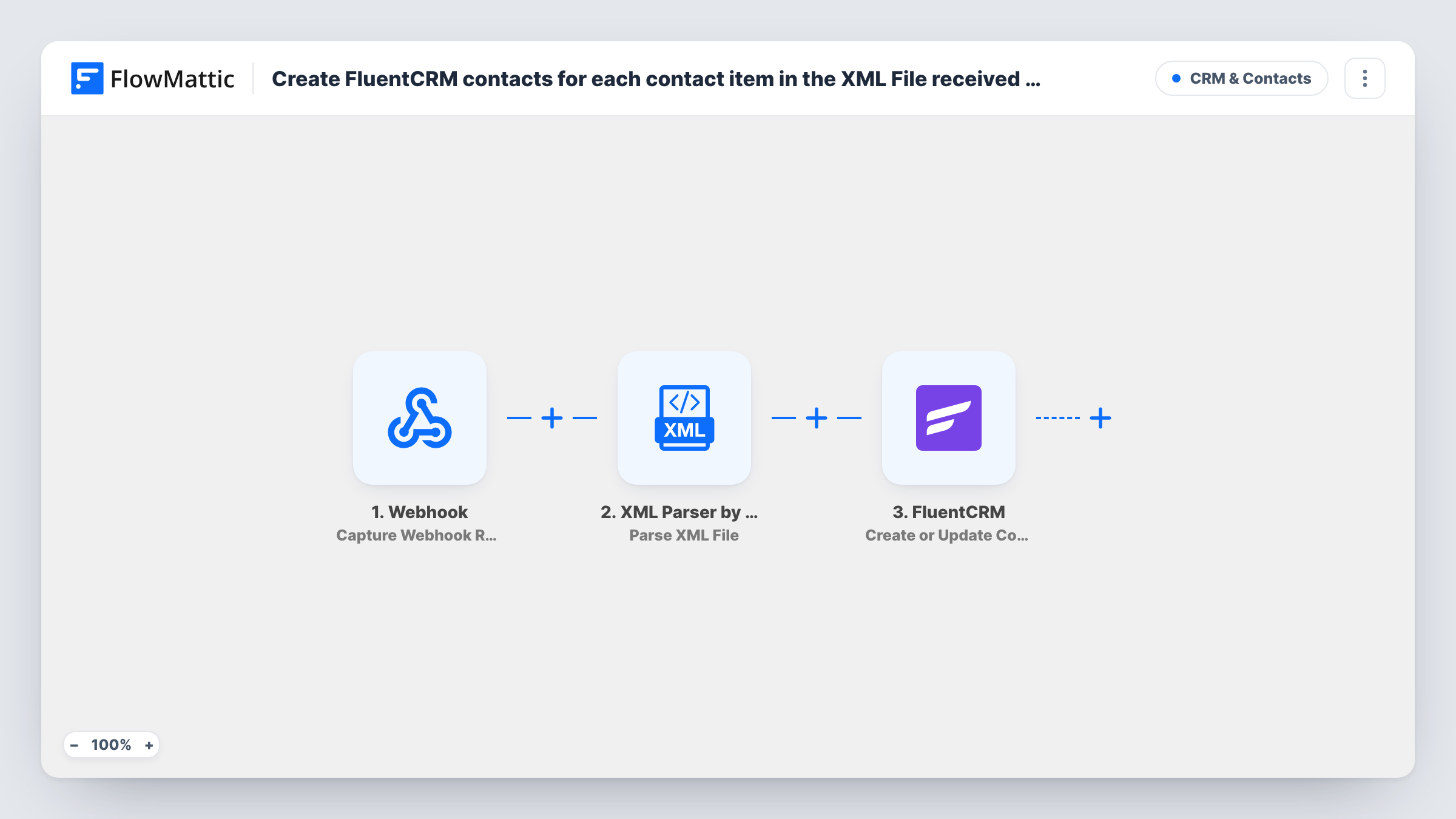
Send a webhook with the link to an XML file of contacts, and FlowMattic parses the file, loops through each contact item and creates or updates that person in FluentCRM by email.
 Webhook
 XML Parser by FlowMattic
 Iterator
 FluentCRM
4 steps Setup ~8 min Used on 2.8k sites Free to import
What this workflow does
Contact lists still travel as XML: exports from older CRMs, event registration systems or a partner's nightly feed. Converting them to CSV and importing them into FluentCRM by hand is slow and easy to get wrong. This workflow takes the file's URL from a webhook and turns every contact item in it into a FluentCRM contact.
The Webhook trigger provides an endpoint on your site for the other system to call. That system includes the address of the XML file in its request. The XML Parser step reads the file at that URL and converts it into JSON data that later steps can use. The template leaves the parser unmapped, so map the file URL from the webhook payload into it.
An Iterator then loops over the parsed result and runs the last step once per item. It is set to the parser's whole result, so after a test run check where the list of contacts sits in the parsed data and point the Iterator at that list if your file nests it under a parent element.
The FluentCRM Create or Update Contact step matches people by email address: a new address becomes a new contact and a known one is updated. It ships unmapped, so map each item's email, name and other fields from the Iterator.
Moving off an older CRM
A business exporting its contact list as XML from a legacy system posts the file link to the webhook and gets each contact into FluentCRM.
Partner lead feed
A reseller sends a daily XML file of new leads to the webhook URL, and every lead in it is added or refreshed in FluentCRM.
Event registrations from a ticketing tool
An organiser whose ticketing tool exports attendees as XML loads them into FluentCRM after each sale period, without building a CSV import.
How this workflow runs
What happens at each step once the workflow is on, and what you need before you import it.
 Webhook Capture Webhook Response
Gives you a webhook URL and starts a run each time a request arrives. The request should include the URL of the XML file you want to import.
- XML Parser by FlowMattic Parse XML File
Fetches the XML file from the URL you map and converts it into JSON data. Map the file URL from the webhook payload into this step after import.
- Iterator Loop Through Array
Loops through the parsed result and runs the FluentCRM step once for each item. It is pointed at the whole parser result; adjust it to the list of contact items in your file if needed.
- FluentCRM Create or Update Contact
Creates a FluentCRM contact for each item, or updates the existing one with the same email address. Map the email, name and any other contact fields from the current item.
What you need
- FlowMatticCore
- FluentCRM PluginPlugin
After importing, map your own data. To keep the template universal, not every step is pre-filled. Open each step in the builder and connect your accounts and fields (channels, lists, sheets, recipients) before you switch the workflow on.
Make it yours
Changes worth making after you import it.
- Turn on Require authentication on incoming requests in the Webhook trigger, so only the system that holds the key can start an import.
- Put a Filter between the Iterator and the FluentCRM step that continues only when the item's email is not empty. Items without an email are skipped and the loop moves on to the next contact.
- If the FluentCRM step lets you set a tag or list, give it a fixed one, such as XML import, so you can find every contact this workflow added.
- Send a small test file with two or three contacts first, then look at Task History to see how the parser laid out the data before you map fields.
Questions about this workflow
Does the webhook need to send the XML itself or a link to it?
A link. The XML Parser step reads an XML file from a URL, so the request should carry an address the parser can open, such as a file on your server or a public storage link.
What happens if a contact in the XML file already exists in FluentCRM?
FluentCRM matches on email address, so an existing contact with that email is updated with the values you mapped instead of being duplicated.
Why does the Iterator need adjusting for my XML file?
It ships pointed at the parser's whole result. If your contacts sit inside a parent element, such as a contacts block, point the Iterator at that inner list so it loops over people rather than the file's top level.
Do I need anything besides FluentCRM?
FluentCRM must be installed on the same WordPress site as FlowMattic, and the sending system must be able to post a request to the webhook URL.
More CRM & Contacts workflows
Other ready-to-import templates from the same category.





Import this workflow into your WordPress site
Download the JSON, import it from the Workflows screen and connect your accounts. Every run stays on your server, with no per-task fees.
30-day money-back guarantee Unlimited workflows and runs Self-hosted