

Create a HubSpot CRM contact from each new Nimbata call
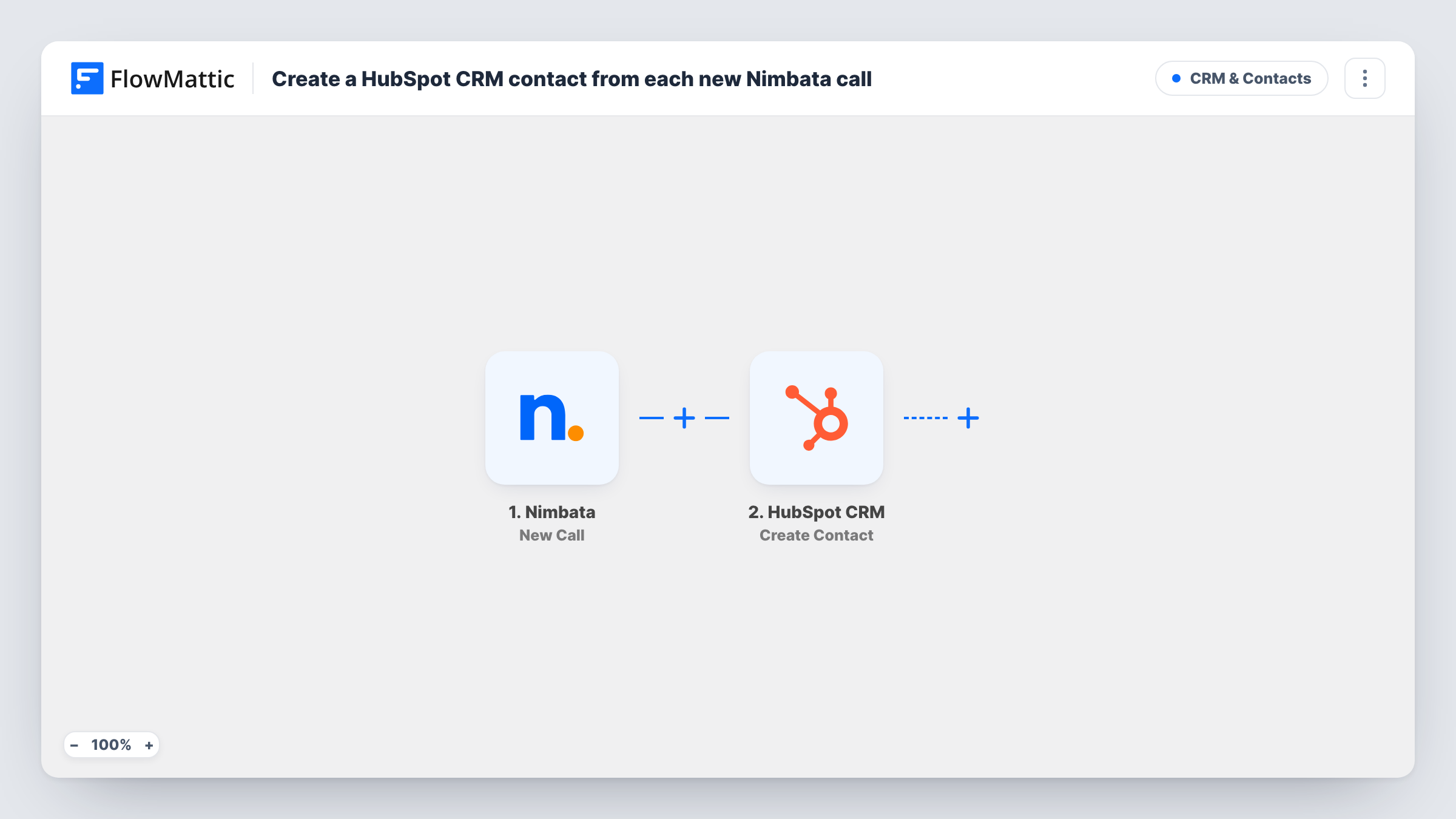
When an inbound call to one of your Nimbata tracking numbers is completed, FlowMattic creates a contact in HubSpot CRM from the call data you map, so phone leads sit in your CRM next to the rest.
 Nimbata
 HubSpot CRM
2 steps Setup ~5 min Used on 1.5k sites Free to import
What this workflow does
A lead who phones in leaves no form entry behind. A caller asks about pricing, the call ends, and unless someone types their details into the CRM, sales never sees them. This workflow takes each tracked call from Nimbata and turns it into a HubSpot contact.
The Nimbata trigger, New Call, fires when a new inbound call to one of your tracking numbers is completed. The call data it sends, such as the caller's number and the tracking details, can then be mapped. The HubSpot CRM step uses Create Contact to add a contact built from the values you map.
Every completed call starts a run, so repeat callers start one too. Create Contact only creates, it does not look for an existing record. A call usually carries a phone number rather than an email address, so HubSpot may end up with a second contact for someone who calls twice. For every call, Task History keeps the reply HubSpot sent back.
Service business taking calls from ads
A plumbing company puts Nimbata numbers on its ads. Each completed call becomes a HubSpot contact the office can follow up with a quote.
Tracking which campaign a caller came from
Map Nimbata's tracking details into a HubSpot contact property, so the sales team sees which ad or page produced each phone lead.
Clinic front desk
New patients ring the number on the website. Their calls appear as HubSpot contacts, so staff can add notes and book the first visit.
How this workflow runs
What happens at each step once the workflow is on, and what you need before you import it.
 Nimbata New Call
Fires when a new inbound call to one of your Nimbata tracking numbers is completed. The call details become data you can map into HubSpot.
- HubSpot CRM Create Contact
Creates a new contact in HubSpot CRM from the call data. Map the caller's number and any tracking details you want to keep, then connect your HubSpot account on import.
What you need
- FlowMatticCore
- Nimbata AccountAccount
- HubSpot CRM AccountAccount
After importing, map your own data. To keep the template universal, not every step is pre-filled. Open each step in the builder and connect your accounts and fields (channels, lists, sheets, recipients) before you switch the workflow on.
Make it yours
Changes worth making after you import it.
- Add a Filter after the trigger that continues only when the call duration is above a set number of seconds, if Nimbata's call data includes a duration and you want to keep short or missed calls out of HubSpot.
- Make one test call to a tracking number after import, then look at the captured data to see which caller and campaign values Nimbata sends before mapping.
- Put the tracking source into a HubSpot contact property you already use for lead source, so phone leads can be reported on next to form leads.
Questions about this workflow
Will someone who calls my Nimbata number twice become two HubSpot contacts?
It can happen. The HubSpot step only creates contacts, and a call usually brings a phone number but no email address to match on. Check HubSpot's response in Task History, and merge duplicates in HubSpot if they appear.
Does every Nimbata call create a HubSpot contact?
Every completed inbound call to a tracking number starts a run, because the template has no Filter. Add one after the trigger if only some calls should reach HubSpot.
Which Nimbata call details can I store on the HubSpot contact?
Whatever the New Call trigger sends. Place a test call, then open the HubSpot step to see the captured values and map the ones you want.
More CRM & Contacts workflows
Other ready-to-import templates from the same category.





Import this workflow into your WordPress site
Download the JSON, import it from the Workflows screen and connect your accounts. Every run stays on your server, with no per-task fees.
30-day money-back guarantee Unlimited workflows and runs Self-hosted