

Update contacts in SuiteDash when pipeline stages change in LeadConnector
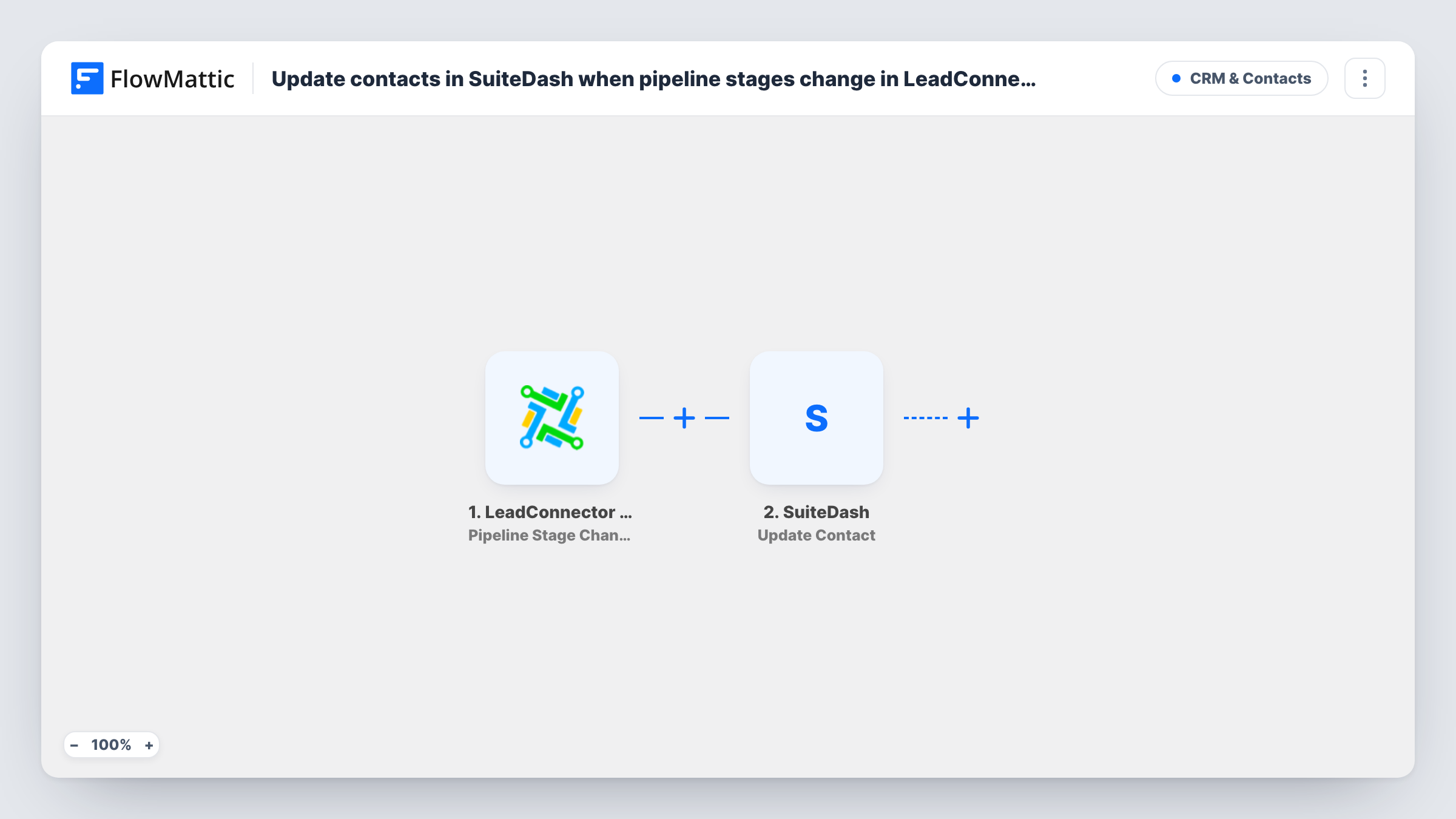
When an opportunity moves to another pipeline stage in LeadConnector, FlowMattic looks up the contact’s email in SuiteDash and updates that SuiteDash contact with the fields you choose.
 LeadConnector V2
 SuiteDash
3 steps Setup ~5 min Used on 1.6k sites Free to import
What this workflow does
Agencies that sell in LeadConnector (GoHighLevel) and deliver in SuiteDash often need the client portal to reflect where a deal stands. Copying stage changes by hand is easy to forget. This workflow updates the SuiteDash contact each time an opportunity changes stage, so your delivery team sees the same picture as sales.
The LeadConnector trigger fires when the pipeline stage of an opportunity updates. The template maps the email from that event into both SuiteDash steps. Check a test run to confirm the stage-change event carries the contact's email in your account.
The Find Contact step looks the person up in SuiteDash by that email. The Update Contact step then updates the contact matched by the same email; it doesn't take anything from the Find Contact result as shipped. Which SuiteDash fields change is up to you: after import, map values such as the new stage name into the fields you track.
The workflow doesn't create contacts. If the email isn't in SuiteDash, the SuiteDash steps may return an error, and Task History shows what each step returned. Every stage change starts a run, including moves back to an earlier stage.
Client portal that shows deal progress
A marketing agency moves a prospect from Proposal Sent to Won in LeadConnector, and the SuiteDash contact record picks up the new stage so the onboarding team knows to start.
One status across sales and delivery
A consultancy keeps a status field on SuiteDash contacts and wants it to follow the GoHighLevel pipeline without anyone retyping it.
Flagging stalled or lost deals
When an opportunity drops back a stage or lands in Lost, the matching SuiteDash contact is updated so account managers can see who needs attention.
How this workflow runs
What happens at each step once the workflow is on, and what you need before you import it.
 LeadConnector V2 Pipeline Stage Changed
Starts a run whenever an opportunity's pipeline stage changes in LeadConnector. The event's details, including the email the template maps, are passed to SuiteDash; confirm the email arrives with a test stage change.
- SuiteDash Find Contact
Looks up the SuiteDash contact by the email from the LeadConnector event. The search value is already mapped. Its result isn't used by the next step as imported, though Task History shows whether a contact was found.
- SuiteDash Update Contact
Updates the SuiteDash contact identified by the same LeadConnector email. Only the identifier is mapped, so after import choose which SuiteDash fields to change and map values like the new stage name into them.
What you need
- FlowMatticCore
- LeadConnector V2 AccountAccount
- SuiteDash AccountAccount
After importing, map your own data. To keep the template universal, not every step is pre-filled. Open each step in the builder and connect your accounts and fields (channels, lists, sheets, recipients) before you switch the workflow on.
Make it yours
Changes worth making after you import it.
- To act only on certain stages, put a Filter between the LeadConnector trigger and the Find Contact step that checks the stage name, such as Won. Stage changes it stops reach neither SuiteDash step.
- If you want updates only for people already in SuiteDash, add a Filter between Find Contact and Update Contact that checks the Find Contact result, using a field you see in a test run.
- Create a custom field in SuiteDash for the sales stage, then map the stage name from LeadConnector into it so the value is easy to spot on the contact.
Questions about this workflow
Does this create a SuiteDash contact when none exists?
No. Both SuiteDash steps work with an existing contact found by email. If the email isn't in SuiteDash, the steps may return an error; check Task History for the response.
Which SuiteDash fields get updated when the LeadConnector stage changes?
Only the ones you map. The template sets the contact's email as the identifier and leaves the field values empty, so choose them after import.
Does every pipeline stage change in GoHighLevel start a run?
Yes, as imported. Any stage update on an opportunity fires the trigger. If only some stages matter to SuiteDash, add a Filter on the stage name between the LeadConnector trigger and the Find Contact step.
What if the opportunity has no email in LeadConnector?
Then SuiteDash has nothing to match on. Run a test stage change and check whether the email field arrives before you rely on the workflow.
More CRM & Contacts workflows
Other ready-to-import templates from the same category.




Import this workflow into your WordPress site
Download the JSON, import it from the Workflows screen and connect your accounts. Every run stays on your server, with no per-task fees.
30-day money-back guarantee Unlimited workflows and runs Self-hosted