

Create a HubSpot CRM contact from each new Gumroad sale
Every new Gumroad sale creates a contact in HubSpot CRM from the buyer’s details, so the people buying your digital products are in the CRM you use for follow-up and support.
 Gumroad
 HubSpot CRM
2 steps Setup ~5 min Used on 3.4k sites Free to import
What this workflow does
Gumroad handles checkout and delivery for your digital products, but the buyer list stays inside Gumroad. If you track customers, send follow-ups or answer support questions from HubSpot, you need those buyers there too. This workflow adds them as each sale comes in.
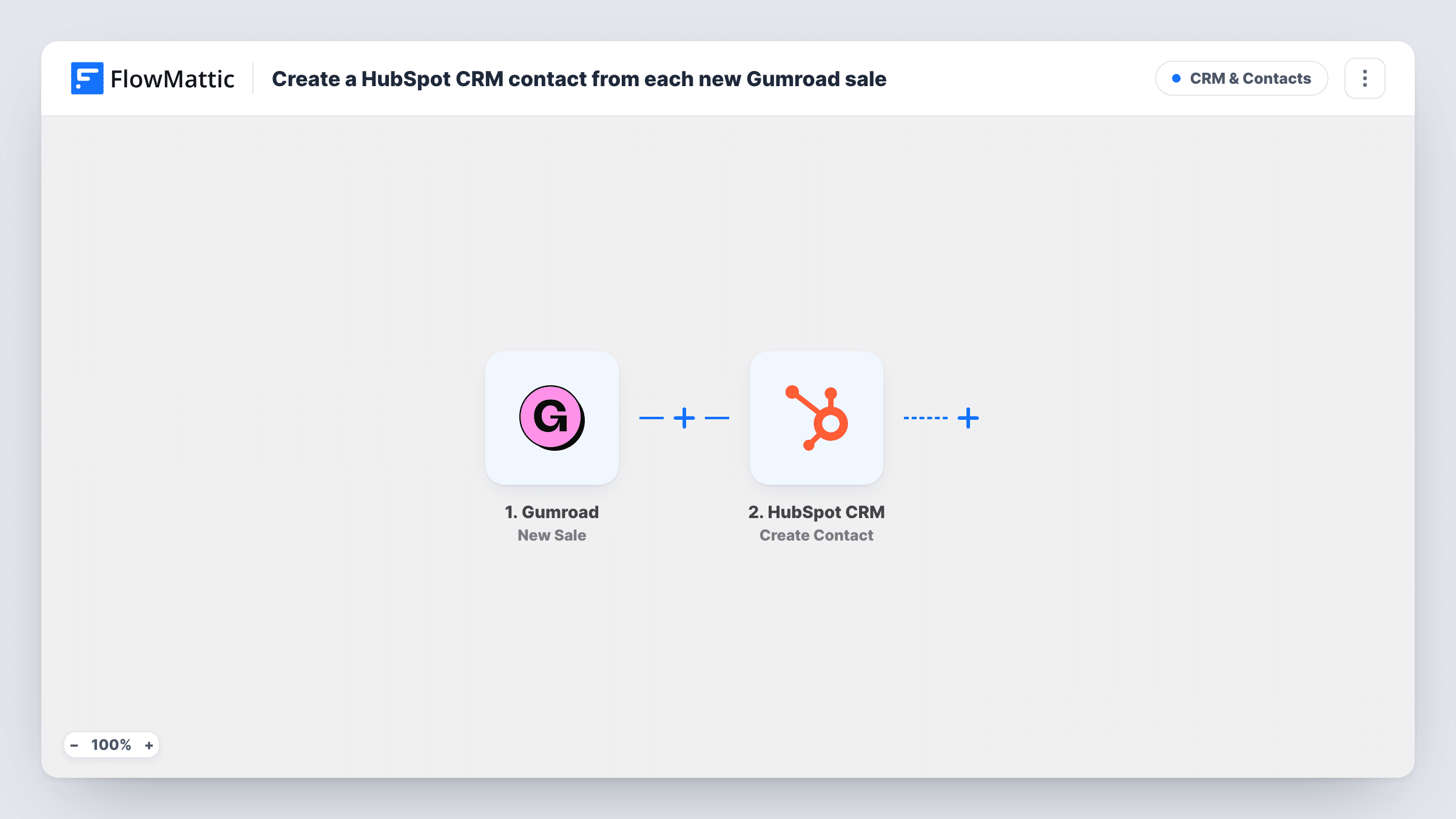
The Gumroad trigger fires when a new sale is made. The sale data, including details about the buyer and the product, becomes available for mapping. The second step uses HubSpot CRM to create a contact from the values you choose, usually the buyer's email address and name.
The trigger is a sale, not a first purchase. A customer who buys again starts another run, and the Create Contact step tries to add them a second time. HubSpot keeps one contact per email, so that repeat attempt is refused and shows as an error in Task History. The tips below cover how to handle repeat buyers.
E-book author building a reader list
Each Gumroad e-book sale adds the buyer to HubSpot CRM, where you keep a record of readers to tell about your next title.
Course creator handling student support
Students who buy a course on Gumroad appear in HubSpot, so whoever answers support emails can find them by address in the CRM.
Template shop tracking customers
A designer selling templates on Gumroad gets a HubSpot contact for each buyer, without exporting sales from Gumroad and importing them by hand.
How this workflow runs
What happens at each step once the workflow is on, and what you need before you import it.
 Gumroad New Sale
Runs each time a sale is made in your connected Gumroad account. The sale details, such as the buyer's email and the product bought, are passed to the next step.
- HubSpot CRM Create Contact
Creates a new HubSpot CRM contact from the sale. Connect your HubSpot account and map the buyer's email, plus any name fields, from the Gumroad data. A test sale shows exactly what arrives.
What you need
- FlowMatticCore
- Gumroad AccountAccount
- HubSpot CRM AccountAccount
After importing, map your own data. To keep the template universal, not every step is pre-filled. Open each step in the builder and connect your accounts and fields (channels, lists, sheets, recipients) before you switch the workflow on.
Make it yours
Changes worth making after you import it.
- For repeat customers, use a HubSpot action that searches for or updates an existing contact instead of Create Contact, so a second purchase updates the buyer rather than failing.
- Sell several products but want only one in HubSpot? Add a Filter after the trigger that continues when the product name equals the one you care about.
- Map the product name into a HubSpot contact property so your team can see from the contact record what the person bought on Gumroad.
Questions about this workflow
What happens when a Gumroad customer buys a second product?
A new sale starts a new run. Because the step only creates contacts and HubSpot allows one contact per email, the second attempt is refused. Task History shows that error, and the original contact stays as it was.
Are my past Gumroad sales added to HubSpot?
No. The trigger reacts to new sales made after the workflow is turned on. Earlier buyers would need to be imported into HubSpot another way.
Does this change anything in Gumroad?
No. FlowMattic only reads the sale data from Gumroad. Delivery, receipts and payouts work as they did before.
Can free Gumroad downloads create HubSpot contacts too?
That depends on whether Gumroad reports the claim as a new sale. Make a test claim of a free product and check Task History to see whether the workflow ran.
More CRM & Contacts workflows
Other ready-to-import templates from the same category.






Import this workflow into your WordPress site
Download the JSON, import it from the Workflows screen and connect your accounts. Every run stays on your server, with no per-task fees.
30-day money-back guarantee Unlimited workflows and runs Self-hosted