

Create an ActiveCampaign contact when a member logs in to Teachfloor
Each time a member logs in to Teachfloor, FlowMattic creates that learner as an ActiveCampaign contact, or updates the contact if it already exists, so your email marketing knows who is using your courses.
 Teachfloor
 ActiveCampaign
2 steps Setup ~5 min Used on 3.1k sites Free to import
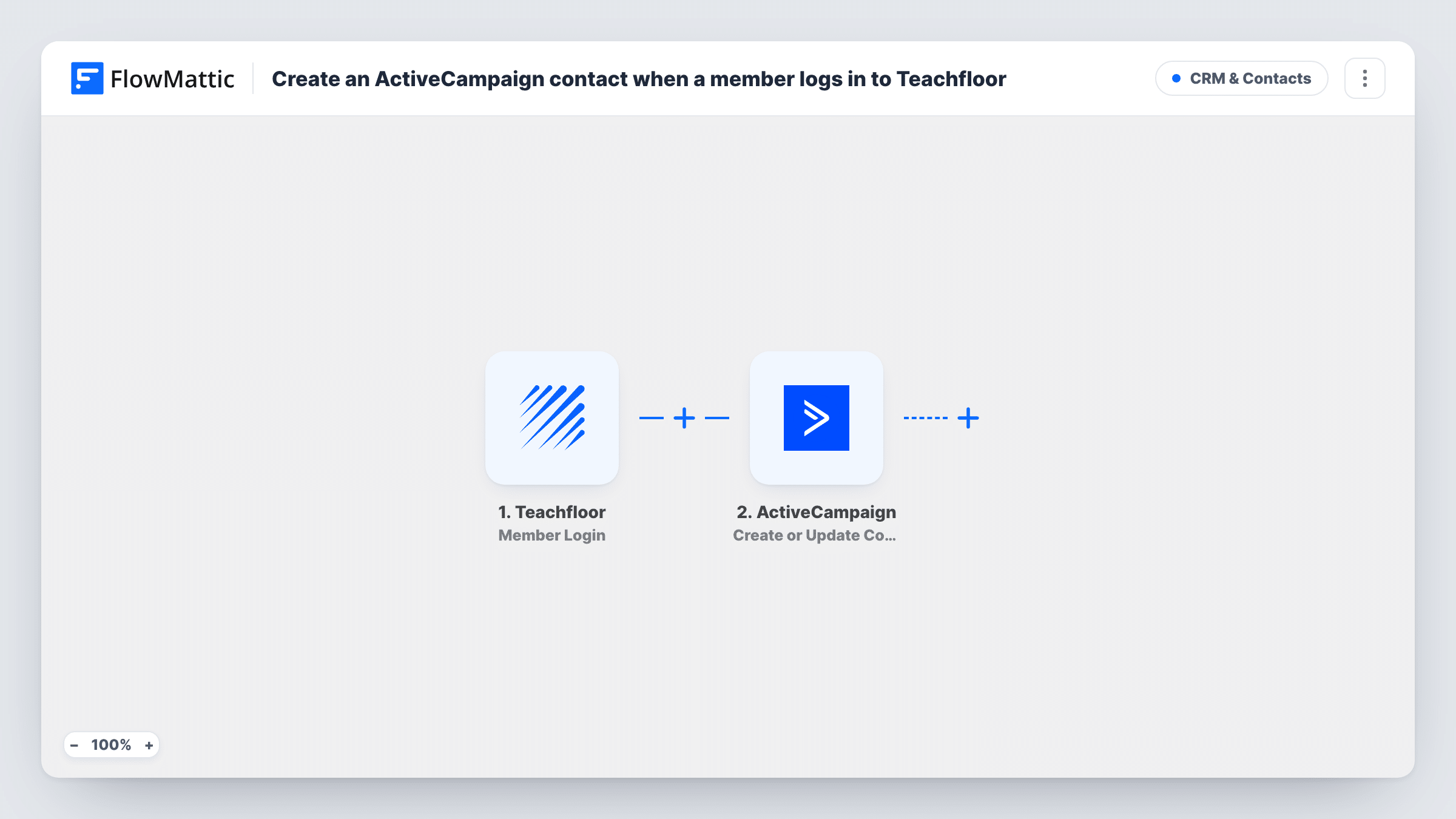
What this workflow does
Learners who sign in to your Teachfloor academy are the people you most want to reach with course news and offers. If your marketing runs on ActiveCampaign, this workflow puts them there without an export.
The Member Login trigger fires whenever a member logs in to Teachfloor. FlowMattic takes the member details from that event and passes them to ActiveCampaign's Create or Update Contact action. If no contact matches, a new one is created. If one already exists, its details are updated with the values you map.
Because the trigger is a login, the step runs on every sign-in, not just the first. Returning learners are not duplicated, since the action updates the existing contact, but each login is a fresh run in Task History. That makes the flow a good fit when you want ActiveCampaign to hold your current learners and their latest details.
Bring cohort learners into your email list
Students invited to a Teachfloor cohort become ActiveCampaign contacts the first time they log in, ready for your course announcements.
Keep learner details current in your CRM
When a member's name or details change in Teachfloor, their next login updates the matching ActiveCampaign contact with the new values.
Start an onboarding sequence for active learners
Add a tag or list step after the contact step so learners who log in enter an ActiveCampaign automation built for people already using the course.
How this workflow runs
What happens at each step once the workflow is on, and what you need before you import it.
 Teachfloor Member Login
Fires whenever a member logs in to your Teachfloor academy. The member details from that login are passed on to map into ActiveCampaign.
- ActiveCampaign Create or Update Contact
Creates a new ActiveCampaign contact, or updates the existing one, using the member details you map from Teachfloor. Map the member's email at minimum, plus their name if the trigger provides it.
What you need
- FlowMatticCore
- Teachfloor AccountAccount
- ActiveCampaign AccountAccount
After importing, map your own data. To keep the template universal, not every step is pre-filled. Open each step in the builder and connect your accounts and fields (channels, lists, sheets, recipients) before you switch the workflow on.
Make it yours
Changes worth making after you import it.
- Add ActiveCampaign's Subscribe or Unsubscribe Contact From List step after the contact step so each learner also lands on a list for your course emails.
- Use ActiveCampaign's Add/Remove Tag From Contact step to tag learners, for example with your academy name, so you can segment them later.
- Log in once with a test member after import so FlowMattic captures the Teachfloor login data, then map those fields into the ActiveCampaign step.
Questions about this workflow
Will a Teachfloor member who logs in daily create duplicate ActiveCampaign contacts?
No. The step is Create or Update Contact, so an existing contact is updated instead of added again. Each login still counts as a separate run in Task History.
Does this add Teachfloor members who never log in?
No. The trigger is Member Login, so a member reaches ActiveCampaign only after signing in at least once while the workflow is on.
Can the workflow add learners to an ActiveCampaign list or automation?
Not as imported. Add the Subscribe or Unsubscribe Contact From List step, or Add Existing Contact to Automation, after the contact step.
Do I need accounts on both Teachfloor and ActiveCampaign?
Yes. You connect both when you import the workflow, and FlowMattic runs it from your WordPress site.
More CRM & Contacts workflows
Other ready-to-import templates from the same category.






Import this workflow into your WordPress site
Download the JSON, import it from the Workflows screen and connect your accounts. Every run stays on your server, with no per-task fees.
30-day money-back guarantee Unlimited workflows and runs Self-hosted