

Create a HubSpot CRM contact from each new Orufy Bookings appointment
Each time someone schedules an appointment in Orufy Bookings, FlowMattic creates a contact in HubSpot CRM from the booking details, so the people who book with you are in your CRM.
 Orufy Bookings
 HubSpot CRM
2 steps Setup ~5 min Used on 2.4k sites Free to import
What this workflow does
A booked appointment tells you someone is interested enough to meet. If that person never reaches HubSpot, your sales team can't see them, follow up or report on them. This workflow sends each new booking into HubSpot as a contact.
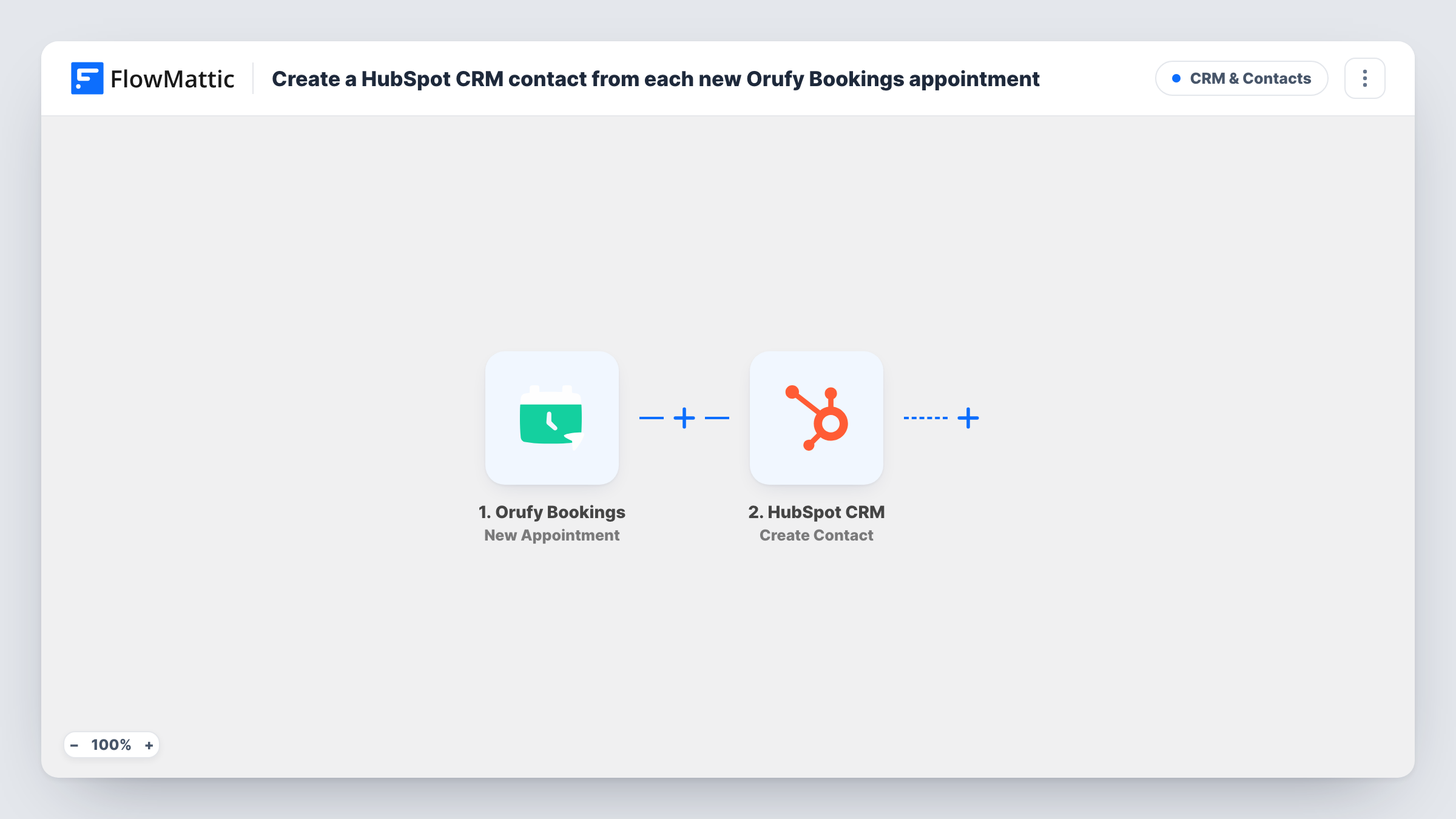
The Orufy Bookings trigger, New Appointment, fires when a new appointment is scheduled. FlowMattic passes the booking data to HubSpot CRM, where Create Contact adds a contact. You map the person's email, name and any other details Orufy sends into the HubSpot fields.
Orufy repeat bookings are worth planning for, because Create Contact never updates. A person who books again sends the same email to HubSpot a second time, which HubSpot may refuse as a duplicate; you can read its reply on that step in Task History. People booking for the first time are added as usual.
Discovery calls for a consultancy
Prospects book a discovery call in Orufy Bookings, and each one appears in HubSpot so your team can log the call outcome against the contact.
Demo bookings for a software product
Demo requests booked through Orufy create HubSpot contacts, ready for your sales pipeline and email sequences.
Clinic or studio appointments
New clients who book a first session become HubSpot contacts, so you can send them preparation notes and follow-ups from your CRM.
How this workflow runs
What happens at each step once the workflow is on, and what you need before you import it.
 Orufy Bookings New Appointment
Fires when a new appointment is scheduled in Orufy Bookings. The booking details, such as the person's contact information, are passed to HubSpot.
- HubSpot CRM Create Contact
Adds the person who booked to HubSpot CRM as a contact. Map the email and name from Orufy, plus any other fields you keep in HubSpot, and connect your HubSpot account.
What you need
- FlowMatticCore
- Orufy Bookings AccountAccount
- HubSpot CRM AccountAccount
After importing, map your own data. To keep the template universal, not every step is pre-filled. Open each step in the builder and connect your accounts and fields (channels, lists, sheets, recipients) before you switch the workflow on.
Make it yours
Changes worth making after you import it.
- Map the appointment date into a HubSpot contact property, so your team can see when the meeting is from the contact record. Check a test run for the field Orufy sends.
- Group bookers in HubSpot: add Add Contact To List after Create Contact, and map the contact ID that step 2 returns. Check a test run for that ID.
- Book a test appointment after import, then check Task History to confirm the contact appeared in HubSpot with the fields you mapped.
Questions about this workflow
What happens when someone books in Orufy a second time?
The workflow runs again and asks HubSpot to create the contact again. HubSpot may turn down the repeat email, and the error appears on that step in Task History. The existing contact is not changed by this step.
Does the HubSpot contact get the appointment time?
Only if you map it. Create Contact fills the fields you choose, so map the appointment time from the Orufy data into a HubSpot property if you want it there.
Do cancelled Orufy appointments remove the HubSpot contact?
No. The workflow only reacts to newly scheduled appointments and never deletes anything in HubSpot.
More CRM & Contacts workflows
Other ready-to-import templates from the same category.






Import this workflow into your WordPress site
Download the JSON, import it from the Workflows screen and connect your accounts. Every run stays on your server, with no per-task fees.
30-day money-back guarantee Unlimited workflows and runs Self-hosted