

Add or update LeadConnector opportunities with new changes to pipeline stages in LeadConnector
When an opportunity moves to a new pipeline stage in LeadConnector, FlowMattic runs Create or Update Opportunity with the details you map, so stage moves can update other fields on the deal.
 LeadConnector V2
2 steps Setup ~5 min Used on 2.3k sites Free to import
What this workflow does
A stage move in a LeadConnector pipeline often means other details on the deal should change too: a new value, a different owner, an updated name or status. Doing that by hand after every drag on the board is easy to forget. This workflow gives you a place to make those changes automatically each time the stage changes.
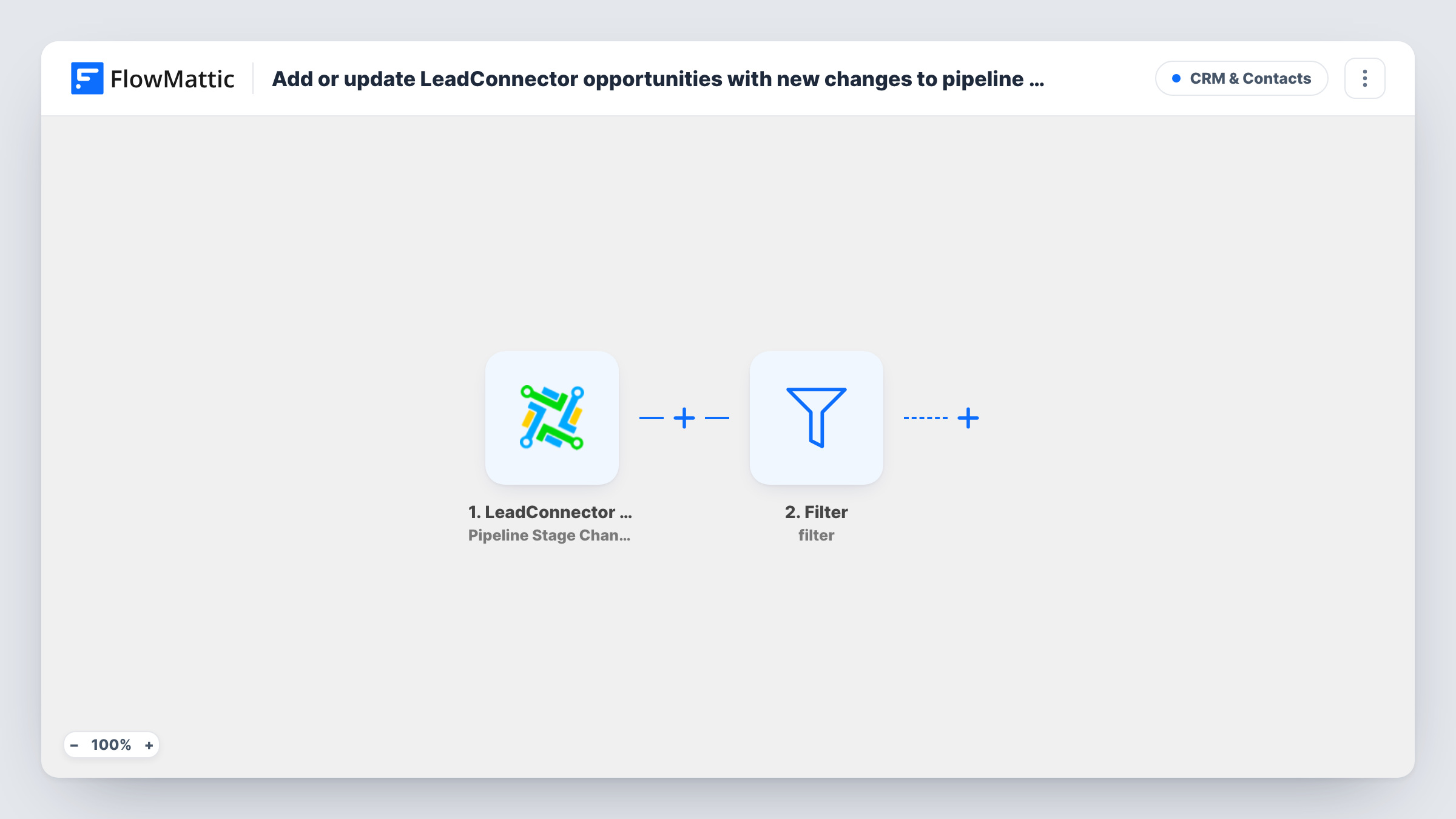
The LeadConnector Pipeline Stage Changed trigger fires when the pipeline stage of an opportunity updates, and passes the opportunity's details on. The second step, Create or Update Opportunity, creates an opportunity or updates an existing one at the sub-account level, using whatever you map into it.
The action ships unmapped. After import you connect LeadConnector, map the opportunity's identifying details from the trigger so the step updates the same deal, and set the values you want to change. Test with one known opportunity and check in LeadConnector that it was updated rather than duplicated.
Take care with the stage itself. If you map a different pipeline stage into the action, that change fires the trigger again and starts another run. Keep the stage as it arrived, or leave it out, and change only the other details.
Owner hand-off at a later stage
An agency moves deals to "Proposal sent" and has the update step assign the account manager who handles proposals, using a value you set in the step.
Keeping deal names readable
A sales team rewrites the opportunity name on each stage move to include the contact's name, so the pipeline board is easier to scan.
Copying stage details onto the deal
A coaching business stores the latest stage change on the opportunity in a field it reports on, so the deal itself shows where it last moved.
How this workflow runs
What happens at each step once the workflow is on, and what you need before you import it.
 LeadConnector V2 Pipeline Stage Changed
Fires when the pipeline stage updates for an opportunity in LeadConnector. The opportunity's details, including the new stage, are passed to the next step.
- LeadConnector V2 Create or Update Opportunity
Creates or updates an opportunity in your LeadConnector sub-account. Map the opportunity's identifying details from the trigger so the same deal is updated, then set the changes you want. Avoid mapping a new stage, which would fire the trigger again.
What you need
- FlowMatticCore
- LeadConnector V2 AccountAccount
After importing, map your own data. To keep the template universal, not every step is pre-filled. Open each step in the builder and connect your accounts and fields (channels, lists, sheets, recipients) before you switch the workflow on.
Make it yours
Changes worth making after you import it.
- If the change should happen only at one stage, put a Filter between the trigger and the Create or Update Opportunity step that continues when the new stage matches the one you want. Set the stage name from your own pipeline.
- Swap the action for LeadConnector's Update Opportunity if you never want this workflow to create a new opportunity.
- To add follow-up work as well, add LeadConnector's Create Task action after the opportunity step, so the next person sees what to do at the new stage.
Questions about this workflow
Will this create duplicate LeadConnector opportunities?
It can, if the step can't match the existing deal from what you map. Map the opportunity's identifying details from the trigger, test with one deal, and use Update Opportunity instead if you only ever want updates.
Can this workflow trigger itself in a loop?
Yes, if the action changes the pipeline stage, because every stage change fires the trigger. Leave the stage alone in the action to avoid that.
Does it run for every LeadConnector stage change?
Yes. Each stage update starts a run. Add a Filter between the trigger and the action to act on particular stages only.
Which LeadConnector account does it need?
A LeadConnector V2 connection to the sub-account that holds the pipeline, since the action works at the sub-account level.
More CRM & Contacts workflows
Other ready-to-import templates from the same category.






Import this workflow into your WordPress site
Download the JSON, import it from the Workflows screen and connect your accounts. Every run stays on your server, with no per-task fees.
30-day money-back guarantee Unlimited workflows and runs Self-hosted