

When a new Quickbase account is added, create the contact in HubSpot CRM and log it in Google Sheets
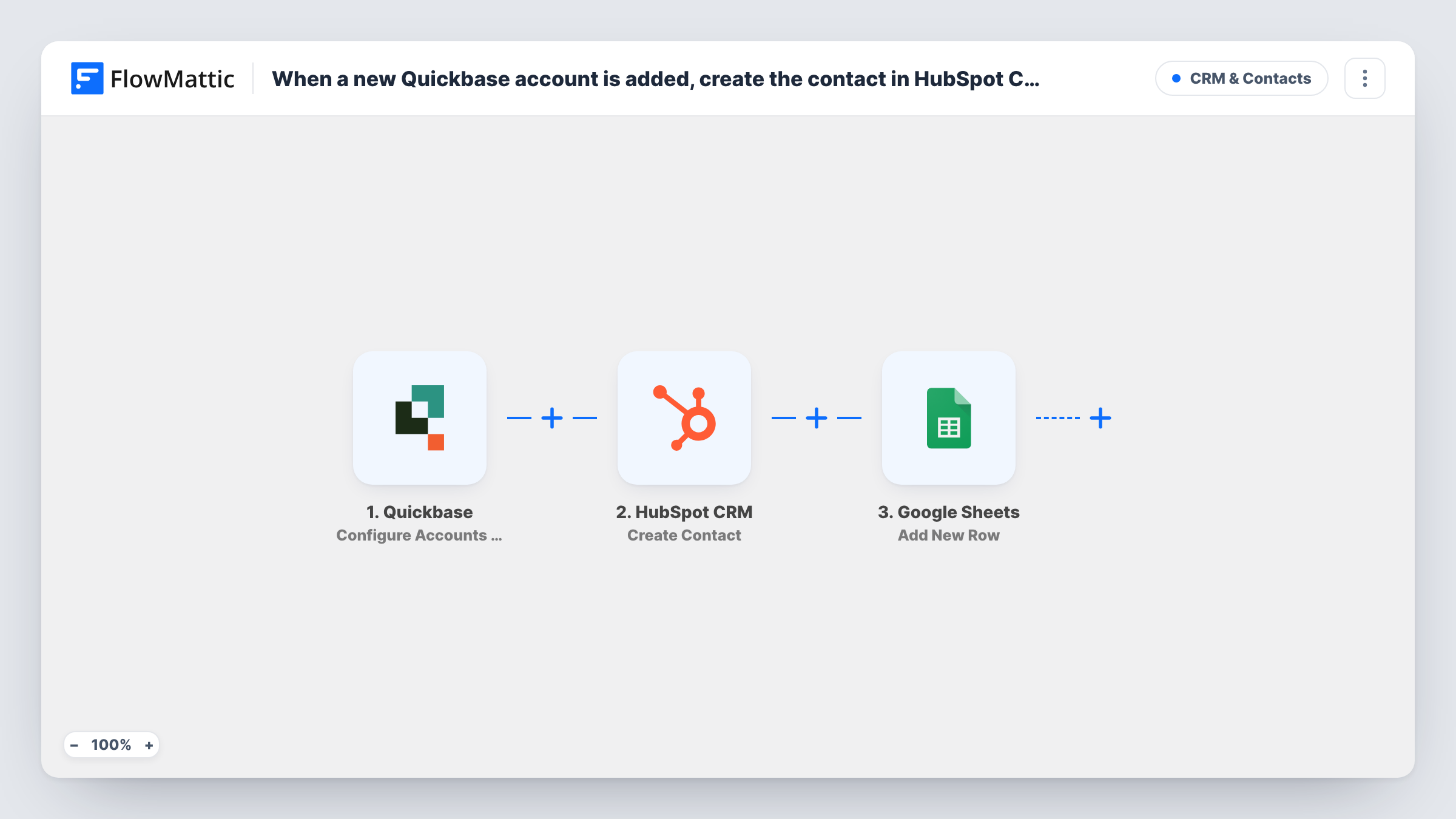
When a new account is added in Quickbase, this workflow creates the account’s contact in HubSpot CRM and then logs the account in a Google Sheets row you can share and review.
 Quickbase
 HubSpot CRM
 Google Sheets
3 steps Setup ~5 min Used on 564 sites Free to import
What this workflow does
A new account in Quickbase usually means someone in sales or account management should know the person behind it. This workflow takes each account your team adds, creates that account's contact person in HubSpot, and keeps a running log of new accounts in a spreadsheet.
It begins with the Quickbase trigger Configure Accounts Webhooks, which FlowMattic describes as firing when an account is added, deleted or modified. The events that actually start runs are the ones you pick while creating the webhook in Quickbase. Pick only added. With modified or deleted also picked, account edits and removals would run both later steps as well.
Step two runs Create Contact in HubSpot CRM. It ships unmapped, so after import you map the contact details your account records hold, such as a main contact's name and email. An account table that stores only company details gives this step little to work with, so check a test run first. The step only adds new contacts, and HubSpot may refuse one whose email it already has; Task History shows its answer.
The third step adds a row in Google Sheets. It also ships unmapped: choose the spreadsheet and map account values, and anything HubSpot returns, into your columns.
Hand new Quickbase accounts to sales in HubSpot
Your onboarding team opens accounts in Quickbase with a named buyer on each. The buyer turns up as a HubSpot contact, so the account manager can reach out from the CRM.
A shared log of accounts opened
Finance wants a simple list of each account opened, with the date and contact, without a Quickbase login. The Google Sheets row gives them that list to filter by month.
Account review meeting from one sheet
Each Monday the account team opens the Google Sheet of accounts added in Quickbase and goes through the new rows, while the same runs have sent each buyer to HubSpot as a contact.
How this workflow runs
What happens at each step once the workflow is on, and what you need before you import it.
 Quickbase Configure Accounts Webhooks
Starts the workflow when Quickbase calls the accounts webhook. FlowMattic says this trigger fires on added, deleted or modified accounts, so select only the added event when you create the webhook in Quickbase.
- HubSpot CRM Create Contact
Creates a new HubSpot CRM contact for the account. The template maps nothing here, so after import you connect HubSpot and map the contact person's details from the Quickbase account record.
- Google Sheets Add New Row
Adds one row to your chosen spreadsheet for each new account. Columns aren't mapped in the template, so pick the sheet and map account values, and any HubSpot result you want to keep, into it.
What you need
- FlowMatticCore
- Quickbase AccountAccount
- HubSpot CRM AccountAccount
- Google Sheets AccountAccount
After importing, map your own data. To keep the template universal, not every step is pre-filled. Open each step in the builder and connect your accounts and fields (channels, lists, sheets, recipients) before you switch the workflow on.
Make it yours
Changes worth making after you import it.
- Put a Filter between the HubSpot step and the Google Sheets step only if some accounts shouldn't be logged. A Filter right after the Quickbase trigger would stop both the HubSpot contact and the sheet row.
- If you also want the account itself in HubSpot, FlowMattic's HubSpot CRM integration has a Create Company action. Add it as another step and map the account's company details into it.
- Map the Quickbase account ID into its own sheet column if the webhook sends it, so you can trace each logged row back to the record in Quickbase.
Questions about this workflow
Where does the HubSpot contact's name and email come from?
From the Quickbase account record, through whatever the webhook sends. Your account table needs a contact name and email for this to be useful. Add a test account and check Task History to see the values before mapping them.
What if a Quickbase account's contact is already in HubSpot CRM?
The Create Contact step doesn't update or merge. HubSpot may refuse a second contact with the same email, and Task History records the response it sent back for that run.
Will editing an account in Quickbase run this workflow again?
Only if the Quickbase webhook includes the modified event. Leave it on added alone. Otherwise each edit tries to create another HubSpot contact and adds another row to the sheet.
Can I log Quickbase accounts in the sheet without creating HubSpot contacts?
Yes. Delete the HubSpot step after import so the Quickbase trigger feeds the Google Sheets step directly, then map the account values into your columns.
More CRM & Contacts workflows
Other ready-to-import templates from the same category.




Import this workflow into your WordPress site
Download the JSON, import it from the Workflows screen and connect your accounts. Every run stays on your server, with no per-task fees.
30-day money-back guarantee Unlimited workflows and runs Self-hosted