

Create a HubSpot CRM contact from each new Timetics booking
Each time someone books through Timetics on your WordPress site, this workflow creates a contact for them in HubSpot CRM, so people who book an appointment are in your CRM for follow-up.
 Timetics
 HubSpot CRM
2 steps Setup ~5 min Used on 1.1k sites Free to import
What this workflow does
Bookings tell you who is interested enough to give you their time. If those people stay inside your scheduling plugin, your sales team works from an incomplete CRM. This workflow copies each new booker into HubSpot as the booking is made.
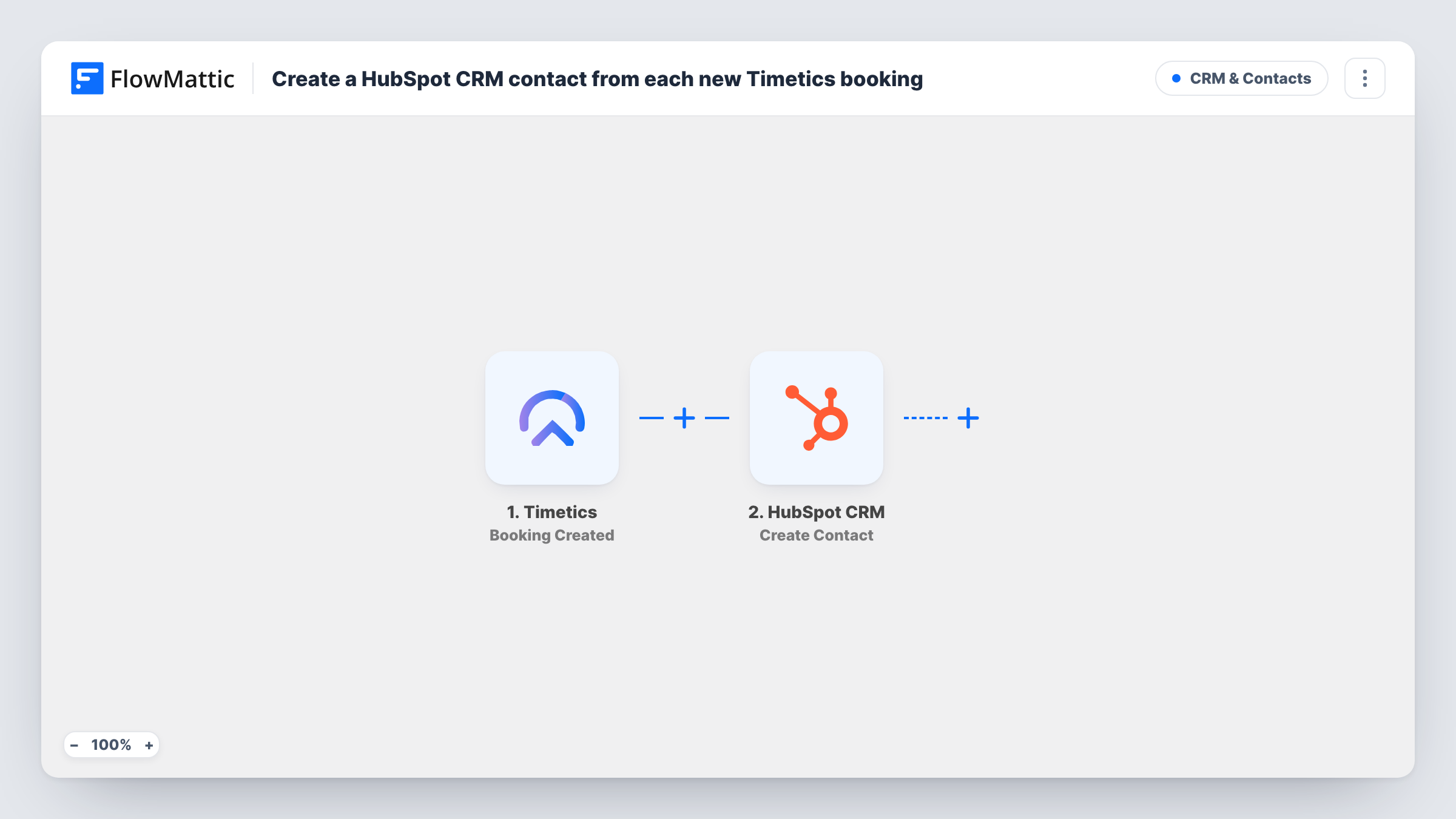
A new booking in Timetics starts the run. FlowMattic passes the booking data to HubSpot CRM, where the Create Contact step adds a contact. You map the booker's email, name and any other details the booking carries into the contact properties you want filled.
The HubSpot step is create-only and doesn't look for an existing record first, so a repeat booker or someone already in HubSpot may be refused as a duplicate email. Task History shows HubSpot's response for each run, so you can see which bookings produced a new contact and which didn't.
Discovery calls for a consultancy
Prospects book a free discovery call in Timetics. Each one appears in HubSpot as a contact before the call, so whoever takes it can add notes and deals against the record.
Demo bookings for a software product
Visitors book a product demo on your site. Your sales team sees each booker in HubSpot and can enrol them in follow-up after the demo.
Service businesses moving to a CRM
A salon or clinic that takes bookings through Timetics starts building a HubSpot contact base from real clients, without exporting booking lists.
How this workflow runs
What happens at each step once the workflow is on, and what you need before you import it.
 Timetics Booking Created
Fires when a booking is created in Timetics on your WordPress site. The booking data, including the details the attendee entered, becomes available to map.
- HubSpot CRM Create Contact
Creates a contact in HubSpot CRM from the booking. Map the attendee's email and name into the contact properties, plus anything else you want stored. You link your HubSpot account when you import the template.
What you need
- FlowMatticCore
- Timetics AccountAccount
- HubSpot CRM AccountAccount
After importing, map your own data. To keep the template universal, not every step is pre-filled. Open each step in the builder and connect your accounts and fields (channels, lists, sheets, recipients) before you switch the workflow on.
Make it yours
Changes worth making after you import it.
- Make a test booking after import so FlowMattic captures the Timetics fields. Then you can check whether the booking carries the attendee's email and phone before mapping them.
- Add a Filter after the trigger if only some booking types or meetings should reach HubSpot, for example continuing only when the meeting name matches your sales call.
- Add a property in HubSpot such as lead source and set it to a fixed value like Timetics booking in the mapping, so you can tell these contacts apart later.
Questions about this workflow
What happens when someone books a second time with Timetics?
The workflow runs again and tries to create the contact again. HubSpot may reject the repeat address; Task History records what it sent back. No existing contact is updated by this template.
Does a rescheduled or cancelled Timetics booking change the HubSpot contact?
No. The trigger is Booking Created only. Timetics also has Booking Updated and Booking Deleted triggers if you want separate workflows for those events.
Is the appointment itself saved in HubSpot?
Not as a meeting or deal. The template makes a HubSpot contact and nothing else. You can map booking details such as the date into contact properties you have set up in HubSpot.
Do I need Timetics on the same site as FlowMattic?
Yes. Timetics is a WordPress booking plugin, and the trigger listens for bookings on the site where FlowMattic runs.
More CRM & Contacts workflows
Other ready-to-import templates from the same category.




Import this workflow into your WordPress site
Download the JSON, import it from the Workflows screen and connect your accounts. Every run stays on your server, with no per-task fees.
30-day money-back guarantee Unlimited workflows and runs Self-hosted