

Create a HubSpot CRM contact from each new Uscreen subscriber
Pick the Uscreen webhook event for new subscribers, and FlowMattic turns each one into a HubSpot CRM contact with the details Uscreen sends, so your sales and marketing teams can see who has joined.
 Uscreen
 HubSpot CRM
2 steps Setup ~5 min Used on 1.8k sites Free to import
What this workflow does
Uscreen handles your video subscriptions, while your sales and marketing work happens in HubSpot. Without a link between them, new subscribers stay invisible to the CRM until someone exports a list. This workflow creates the HubSpot contact for each new subscriber instead.
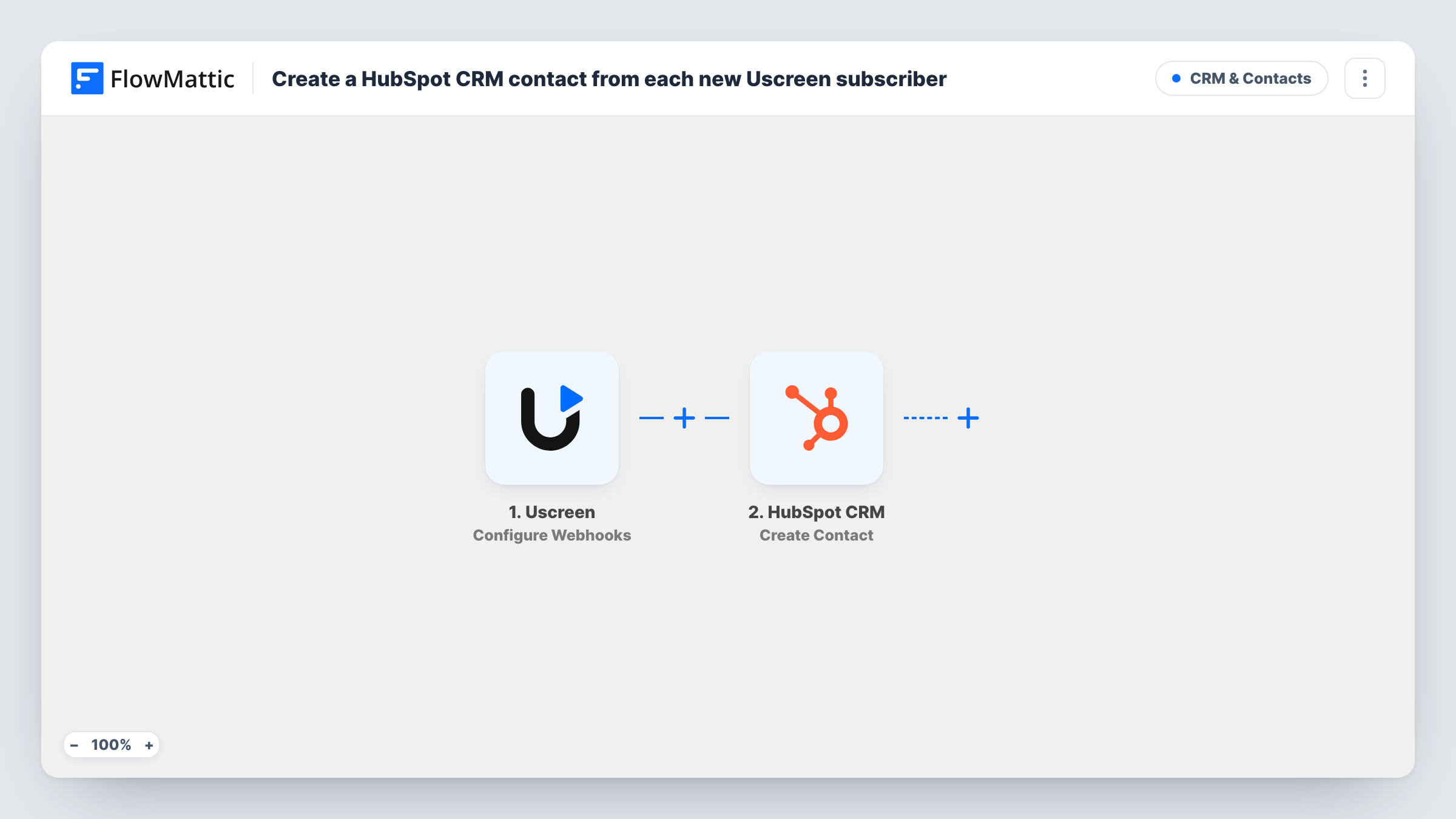
The Uscreen trigger is Configure Webhooks, and you choose its event type. Set it to the event Uscreen sends for a new subscription, so the workflow runs once per new subscriber and not for every other kind of activity. The subscriber's details from that event are passed on to map.
Next, the HubSpot CRM step runs Create Contact. You map the email and any name fields from the Uscreen data to the contact's properties. This action only creates contacts, so someone already in HubSpot may be refused as a duplicate email, and Task History will show HubSpot's response on that step.
Upselling coaching to video subscribers
A creator who sells one-to-one coaching on top of a Uscreen channel sees each new subscriber in HubSpot, ready for a sales follow-up.
Reporting on subscriber growth in HubSpot
A marketing team that reports from HubSpot gets every new Uscreen subscriber as a contact, so its dashboards count streaming sign-ups alongside other leads.
Keeping a studio's CRM current
A dance or music studio that sells on-demand classes through Uscreen keeps its HubSpot contact list in line with who has subscribed online.
How this workflow runs
What happens at each step once the workflow is on, and what you need before you import it.
 Uscreen Configure Webhooks
Listens for the Uscreen webhook event you select. Choose the event for new subscriptions, and each one delivers the subscriber's data to FlowMattic for the HubSpot step.
- HubSpot CRM Create Contact
Creates a contact in HubSpot CRM from the Uscreen subscriber. Map the email and name fields to the contact properties and connect your HubSpot account. An existing email may be refused, since this action only creates.
What you need
- FlowMatticCore
- Uscreen AccountAccount
- HubSpot CRM AccountAccount
After importing, map your own data. To keep the template universal, not every step is pre-filled. Open each step in the builder and connect your accounts and fields (channels, lists, sheets, recipients) before you switch the workflow on.
Make it yours
Changes worth making after you import it.
- After choosing the event type, subscribe with a test account in Uscreen so FlowMattic records the payload, then map its email field to the HubSpot contact.
- Add a Filter after the trigger that continues only when the email field is not empty, so events without an address never reach HubSpot.
- Add a HubSpot Create Deal step after the contact if your team tracks paid subscriptions as deals in the pipeline.
Questions about this workflow
Which Uscreen webhook event creates the HubSpot contact?
The one you select in the trigger. Pick the event Uscreen sends for a new subscription. Choosing a wider event would create a contact attempt for each of those events too.
What happens when the Uscreen subscriber already exists in HubSpot?
This step never updates an existing HubSpot record. HubSpot may refuse a contact whose email is already in your CRM, and Task History shows the response. Nothing else in the workflow depends on it.
Can I set a lifecycle stage or owner on the new HubSpot contact?
Check the Create Contact step after import to see which properties it lets you fill. Map any you need from the Uscreen data or type a fixed value, then run a test subscription to confirm.
More CRM & Contacts workflows
Other ready-to-import templates from the same category.








Import this workflow into your WordPress site
Download the JSON, import it from the Workflows screen and connect your accounts. Every run stays on your server, with no per-task fees.
30-day money-back guarantee Unlimited workflows and runs Self-hosted