

Create a Stripe customer record from each new Myfundbox payment
Every payment made through Myfundbox creates a new customer record in your Stripe account from the payer’s details, so people who pay you through Myfundbox also appear in Stripe.
 Myfundbox
 Stripe
2 steps Setup ~5 min Used on 735 sites Free to import
What this workflow does
If you take payments in Myfundbox but bill or invoice through Stripe, the same people end up in one system and not the other. Copying each payer into Stripe by hand is slow and easy to forget. This workflow creates the Stripe customer for you when the payment comes in.
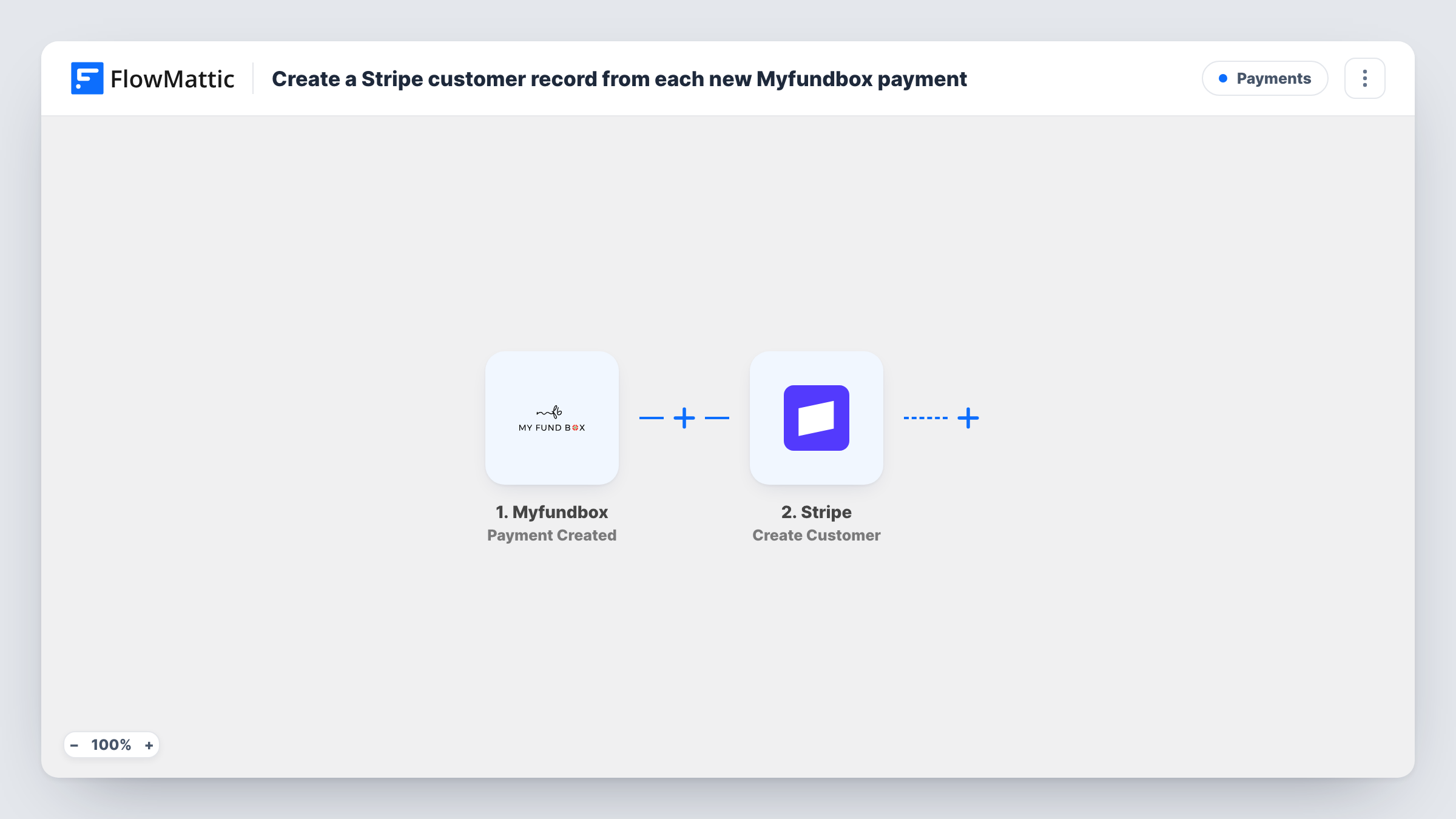
The Myfundbox trigger, Payment Created, fires when a payment is done in Myfundbox. FlowMattic receives the payment data that Myfundbox sends. The Stripe step, Create Customer, then adds a new customer to your Stripe account. You map whichever payer details that data holds into the new customer, which a test payment will show you.
This runs on every payment, not just someone's first. Create Customer always makes a new record, so a person who pays twice gets two Stripe customers unless you add a check first. The tips below show how. Task History shows each run and the customer data Stripe returned.
Invoicing Myfundbox payers through Stripe
You collect a first payment in Myfundbox and send later invoices from Stripe. The customer record is already there when you create the invoice.
One customer list for reporting
Keeping payers in Stripe as well as Myfundbox lets you look up anyone who has paid you from the Stripe dashboard.
Setting up a subscription after a deposit
A client pays a deposit in Myfundbox, and the Stripe customer created from it is ready when you start their recurring billing.
How this workflow runs
What happens at each step once the workflow is on, and what you need before you import it.
 Myfundbox Payment Created
Starts a run for each completed Myfundbox payment. The payment data Myfundbox sends with the event is passed to the Stripe step for mapping.
- Stripe Create Customer
Creates a new customer in your Stripe account. Map the payer details from the Myfundbox payment into it and connect Stripe when you import the workflow.
What you need
- FlowMatticCore
- Myfundbox AccountAccount
- Stripe AccountAccount
After importing, map your own data. To keep the template universal, not every step is pre-filled. Open each step in the builder and connect your accounts and fields (channels, lists, sheets, recipients) before you switch the workflow on.
Make it yours
Changes worth making after you import it.
- Add Stripe's Find Customer by Email step before Create Customer, then a Filter that continues only when no customer was found. Repeat payers then don't get a second record.
- Make a test payment in Myfundbox after import so FlowMattic captures the payment fields, then map the payer's details into the Stripe step.
- Add a Slack or email step after Stripe if someone on your team should hear about each new customer, and map the payer's details into the message.
Questions about this workflow
What happens when the same person pays through Myfundbox twice?
The trigger fires for each payment, and Create Customer adds a new record each time. Add a Find Customer by Email step and a Filter before it to avoid duplicate Stripe customers.
Does this charge the customer in Stripe?
No. It only creates the customer record. The payment itself stays in Myfundbox, and nothing is charged through Stripe.
Will past Myfundbox payments create Stripe customers?
No. Only payments made after the workflow is turned on start a run. Earlier payers need to be added to Stripe another way.
Which Stripe account do the new customers go to?
They go to the Stripe account you connect in the Stripe step on import. Check the first few runs in Task History to confirm the details land where you expect.
More Payments workflows
Other ready-to-import templates from the same category.







Import this workflow into your WordPress site
Download the JSON, import it from the Workflows screen and connect your accounts. Every run stays on your server, with no per-task fees.
30-day money-back guarantee Unlimited workflows and runs Self-hosted