

Log every successful MoonClerk payment in a Google Sheets spreadsheet
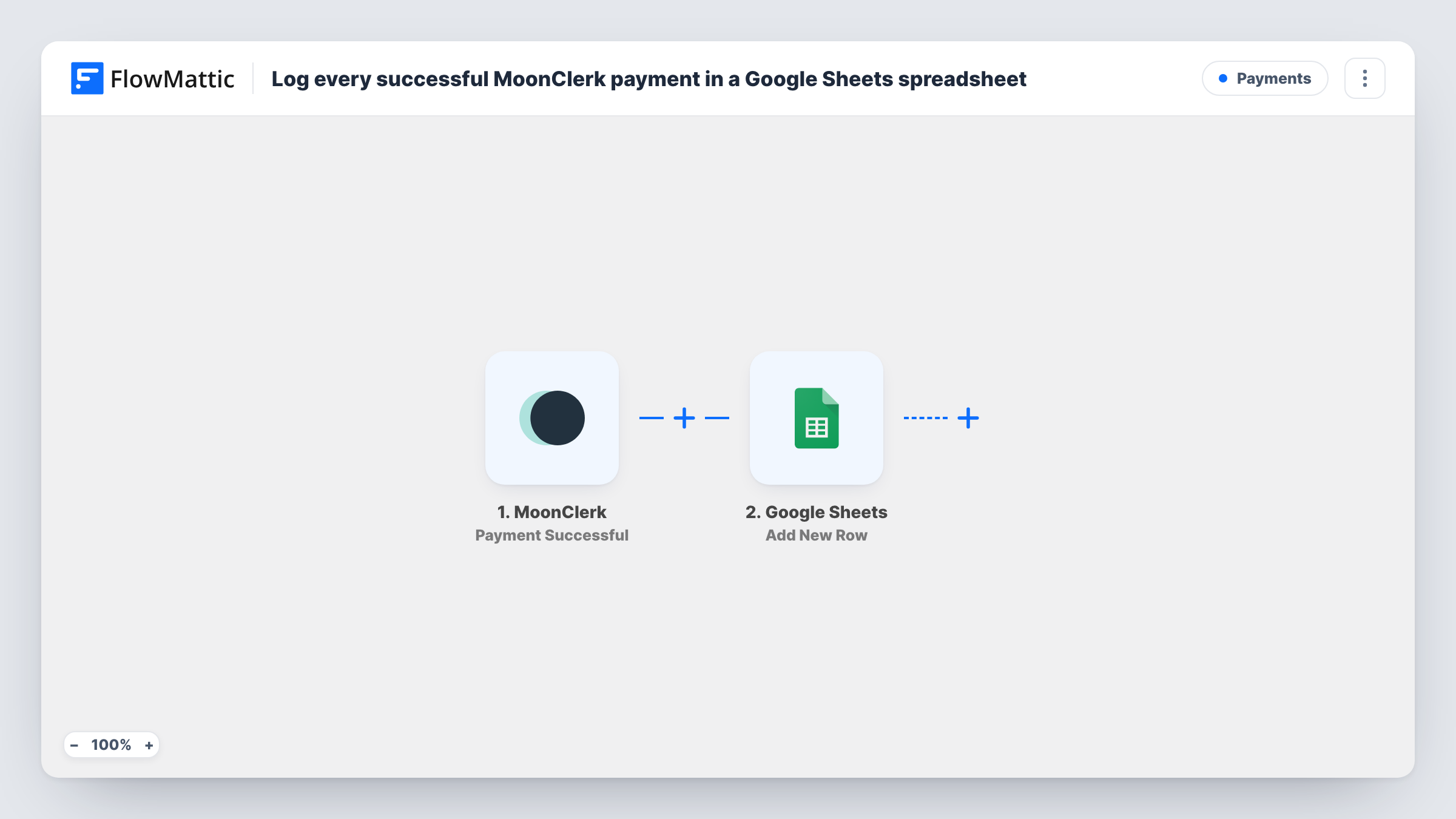
Each time a MoonClerk payment succeeds, this workflow writes it to a new row in Google Sheets, building a running payment log you can sort, total and share with your bookkeeper.
 MoonClerk
 Google Sheets
2 steps Setup ~5 min Used on 1.2k sites Free to import
What this workflow does
MoonClerk handles the payment forms and recurring billing, but reconciling those payments often happens somewhere else. Exporting a report each month and pasting it into a spreadsheet is slow and easy to get wrong. This workflow keeps a sheet up to date as payments come in.
The MoonClerk trigger is Payment Successful, which fires when a payment succeeds. Failed attempts don't fire it, so the sheet only gets money that actually went through. The payment details from MoonClerk become fields you can map in the next step.
The Google Sheets step adds a new row to the spreadsheet and sheet you choose. You decide which MoonClerk value goes into each column, such as the amount, the date or the payer's details, whatever your test run shows. Each successful payment gets its own row, so a recurring plan adds one row per charge.
Payments made before you turn the workflow on are not copied. Task History records every run, so you can see which payment a row came from.
Monthly donation tracking for a nonprofit
Each recurring donation charged through MoonClerk lands as a row, and the treasurer totals the sheet at month end without logging in to MoonClerk.
Membership dues for a club
Members pay dues through a MoonClerk form, and the committee reads one shared sheet to see who has paid this period.
Bookkeeping for a service business
Clients on payment plans are charged by MoonClerk, and your accountant matches each row in the sheet against the bank deposits.
How this workflow runs
What happens at each step once the workflow is on, and what you need before you import it.
 MoonClerk Payment Successful
Fires when a payment succeeds in your connected MoonClerk account, including each charge on a recurring plan. The payment details are passed on for mapping.
- Google Sheets Add New Row
Writes one row per payment into the spreadsheet and tab you select in Google Sheets. Set up your column headers first, then map a MoonClerk value to each column and connect your Google account.
What you need
- FlowMatticCore
- MoonClerk AccountAccount
- Google Sheets AccountAccount
After importing, map your own data. To keep the template universal, not every step is pre-filled. Open each step in the builder and connect your accounts and fields (channels, lists, sheets, recipients) before you switch the workflow on.
Make it yours
Changes worth making after you import it.
- Create the header row in your sheet before you import, then run one test payment so the MoonClerk fields are ready to map to each column.
- Add a column for the payment date and map it from MoonClerk, so you can filter the sheet by month when you reconcile.
- Want a record of declined cards too? Build a second workflow on MoonClerk's Plan Payment Failed trigger that writes to a different tab.
Questions about this workflow
Are failed MoonClerk payments added to the sheet?
No. The Payment Successful trigger only fires for payments that succeed. MoonClerk has a separate Plan Payment Failed trigger if you want to log those as well.
Do recurring MoonClerk charges add a row each time?
Yes. Each successful charge fires the trigger, so a customer on a monthly plan gets a new row every month.
Will my past MoonClerk payments show up?
No. The workflow only records payments that succeed after you turn it on. Export older payments from MoonClerk if you want them in the same sheet.
Can I log the payments in FlowMattic Tables instead of Google Sheets?
Yes. Swap the Google Sheets step for a FlowMattic Tables step and map the same MoonClerk fields to its columns.
More Payments workflows
Other ready-to-import templates from the same category.




Import this workflow into your WordPress site
Download the JSON, import it from the Workflows screen and connect your accounts. Every run stays on your server, with no per-task fees.
30-day money-back guarantee Unlimited workflows and runs Self-hosted