

When a successful payment is received in PayForm, create a new ticket in Fluent Support for onboarding
When PayForm processes a payment successfully, FlowMattic opens a new Fluent Support ticket for that customer, so your support team has an onboarding thread ready for every new buyer.
 PayForm
 Fluent Support
2 steps Setup ~5 min Used on 3.1k sites Free to import
What this workflow does
A paid customer usually needs something next: an account set up, a kickoff call, files sent over. If your team handles that through Fluent Support, someone has to open a ticket for each sale. This workflow does it when PayForm confirms the payment.
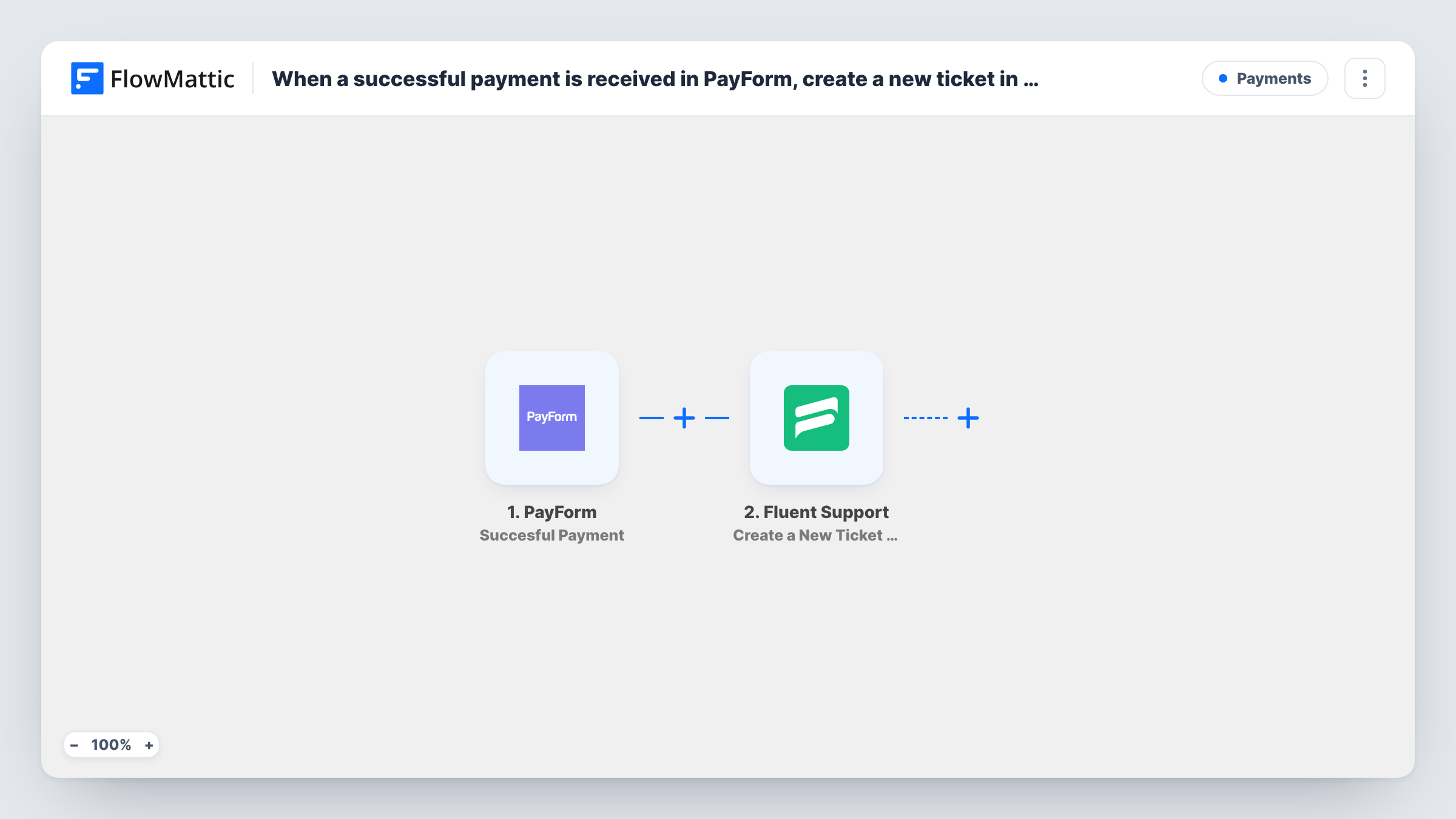
The PayForm trigger starts a run once a PayForm charge goes through. FlowMattic passes the payment data, such as the payer's details, to Fluent Support. Its Create a New Ticket Using Customer action creates a ticket for that customer, and the action supports custom fields and file attachments if you need them.
Fluent Support runs inside WordPress, so the ticket is created on your own site. You decide what the ticket says, for example a checklist of onboarding steps with the customer's name added. Every successful payment opens a ticket, including repeat purchases by the same person. Task History lists each run with the PayForm data and the result of the ticket step.
Coaching packages sold through PayForm
A coach sells programmes on a PayForm page. Each payment opens a Fluent Support ticket where the coach sends the intake questions and schedules the first call.
Website setup services
An agency takes payment for a setup package. The ticket gives the client one place to send logins and content, and the team tracks progress there.
Software licences that need configuration
After a licence is paid for, a ticket asks the buyer for the details your team needs to configure their account.
How this workflow runs
What happens at each step once the workflow is on, and what you need before you import it.
 PayForm Succesful Payment
Runs for each PayForm payment that completes successfully. The payment and payer details are passed on for the Fluent Support ticket.
- Fluent Support Create a New Ticket Using Customer
Creates a new Fluent Support ticket for the customer from the payment. Map the payer's details from PayForm, fill in the onboarding text, and test with a sample payment.
What you need
- FlowMatticCore
- PayForm AccountAccount
- Fluent Support PluginPlugin
After importing, map your own data. To keep the template universal, not every step is pre-filled. Open each step in the builder and connect your accounts and fields (channels, lists, sheets, recipients) before you switch the workflow on.
Make it yours
Changes worth making after you import it.
- Add a Filter after the PayForm trigger so only payments for your onboarding product open a ticket, if the payment data shows which form or product was bought.
- Put the customer's name and the amount paid in the ticket message so your agent sees what was bought without opening PayForm.
- Add a Delay before the ticket step if you want the onboarding ticket to open a day after purchase rather than straight away.
Questions about this workflow
Where does Fluent Support need to be installed for PayForm tickets?
Install it next to FlowMattic, on one and the same WordPress site. The onboarding tickets are then created in that helpdesk, not in an outside service.
Does a repeat PayForm customer get a second ticket?
Yes. Each successful payment starts a run, so every purchase opens its own ticket. Add a Filter if some payments should not.
Are failed or pending PayForm payments ignored?
The trigger fires only when a payment is successfully processed, so other payment states do not open a Fluent Support ticket.
More Payments workflows
Other ready-to-import templates from the same category.







Import this workflow into your WordPress site
Download the JSON, import it from the Workflows screen and connect your accounts. Every run stays on your server, with no per-task fees.
30-day money-back guarantee Unlimited workflows and runs Self-hosted