

Create a Todoist follow-up task for each new Calilio call log
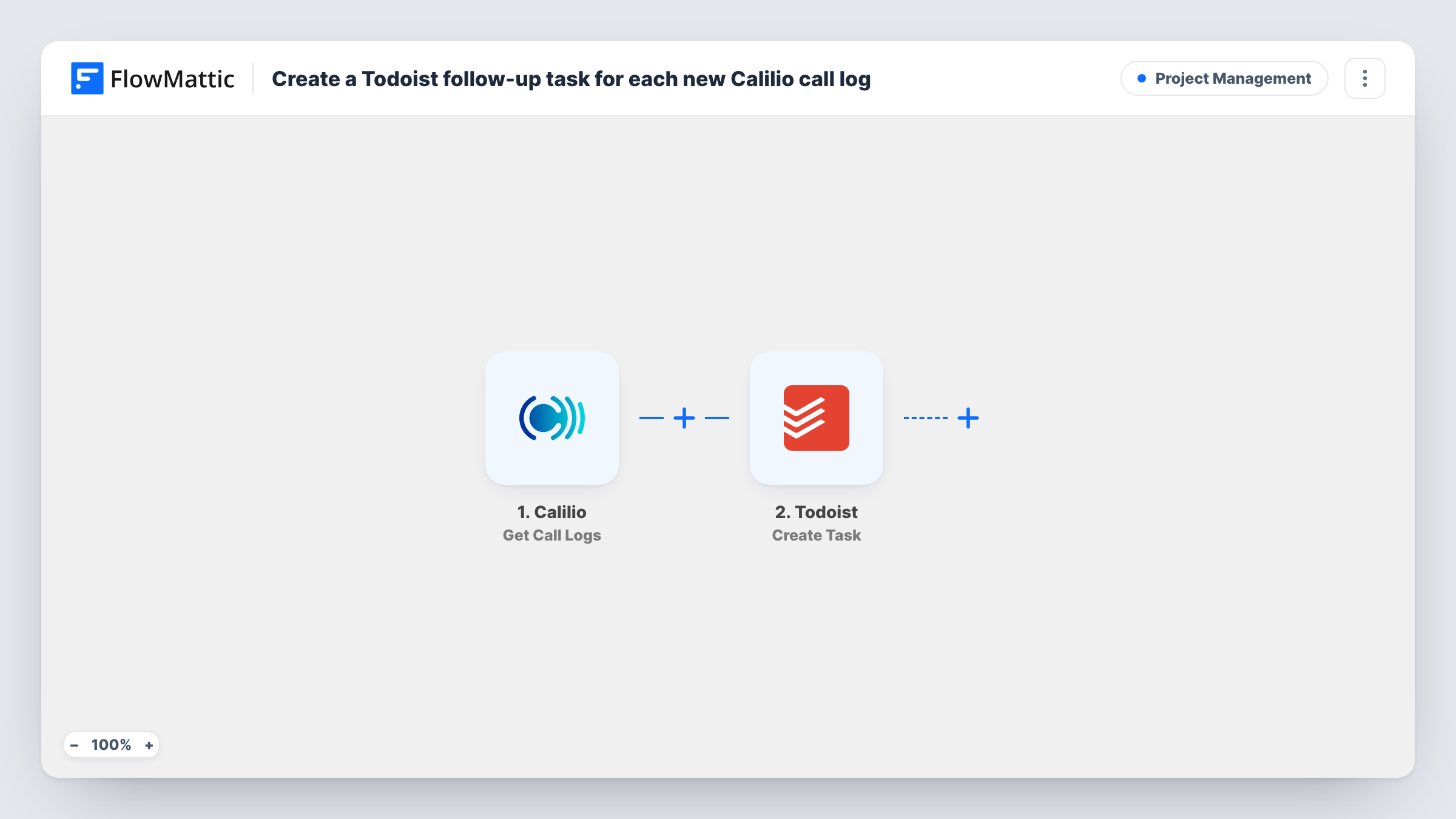
Every call Calilio logs, incoming or outgoing, becomes a Todoist task, so each conversation gets a follow-up item with the call details mapped in.
 Calilio
 Todoist
2 steps Setup ~5 min Used on 2.5k sites Productivity Free to import
What this workflow does
Promises made on the phone are easy to lose. You hang up, the next call comes in, and the callback you agreed to never gets written down. This workflow turns each Calilio call log into a Todoist task, so there is always an item waiting after a conversation.
The Calilio trigger, Get Call Logs, fires for every incoming and outgoing call log. FlowMattic passes the call data to Todoist, where Create Task adds a new task. You map the call details into the task, for example the caller's number in the task name, and choose where the task goes.
As imported, there is no Filter, so every logged call produces a task, including short or missed calls. If you only want tasks for some calls, add a Filter after the trigger. Task History records each run, so you can see which call created which task.
Callbacks for a small sales team
Each prospect call becomes a Todoist task in the sales project, so the rep has a reminder to send the quote or book the next call.
Support lines that need written follow-up
When a customer calls about an issue, a task is created with the number and call details, ready for whoever owns the ticket.
Solo consultants tracking client calls
Every client call drops into your Todoist inbox, so you can note what was agreed and tick it off once it's done.
How this workflow runs
What happens at each step once the workflow is on, and what you need before you import it.
 Calilio Get Call Logs
Fires for every Calilio call log, whether the call was incoming or outgoing. The call data from Calilio is passed on for mapping into Todoist.
- Todoist Create Task
Creates a new task in Todoist from the call log. Map the call details you want into the task, connect your Todoist account, and run a test call to see which fields Calilio sends.
What you need
- FlowMatticCore
- Calilio AccountAccount
- Todoist AccountAccount
After importing, map your own data. To keep the template universal, not every step is pre-filled. Open each step in the builder and connect your accounts and fields (channels, lists, sheets, recipients) before you switch the workflow on.
Make it yours
Changes worth making after you import it.
- Add a Filter after the trigger to keep only calls you want tasks for, for example outgoing calls only, if the call log carries a direction value you can test against.
- Put the caller's number and the call time in the task name. In a busy project you can then tell tasks apart without opening each one.
- Make a test call after import so FlowMattic captures a real Calilio call log, then map its fields in the Todoist step.
Questions about this workflow
Does every Calilio call create a Todoist task?
Yes, as imported. The trigger fires for all incoming and outgoing call logs and there is no Filter, so each logged call becomes a task. A Filter after the trigger can narrow which calls count.
Will old Calilio calls be turned into tasks?
No. Only call logs that arrive after you turn the workflow on start a run.
Can the Todoist task get a due date?
Open the Create Task step after import to see which settings it offers. If it accepts a due date, you can type a fixed one or map a value from the call log.
Do I need paid plans for Calilio or Todoist?
You need a Calilio account and a Todoist account to connect. Check each app's own plans for API access.
More Project Management workflows
Other ready-to-import templates from the same category.




Import this workflow into your WordPress site
Download the JSON, import it from the Workflows screen and connect your accounts. Every run stays on your server, with no per-task fees.
30-day money-back guarantee Unlimited workflows and runs Self-hosted