

Create a Todoist task to follow up on each Appcues NPS score
Every NPS score a user submits through Appcues creates a task in Todoist, so someone on your team reviews each response and decides whether to follow up.
 Appcues
 Todoist
2 steps Setup ~5 min Used on 2.8k sites Free to import
What this workflow does
An NPS survey only pays off when someone looks at the answers and reaches out where it matters. Scores that pile up in a dashboard are easy to ignore. This workflow turns each submitted score into a Todoist task, so follow-ups sit in the same list as the rest of your team's work.
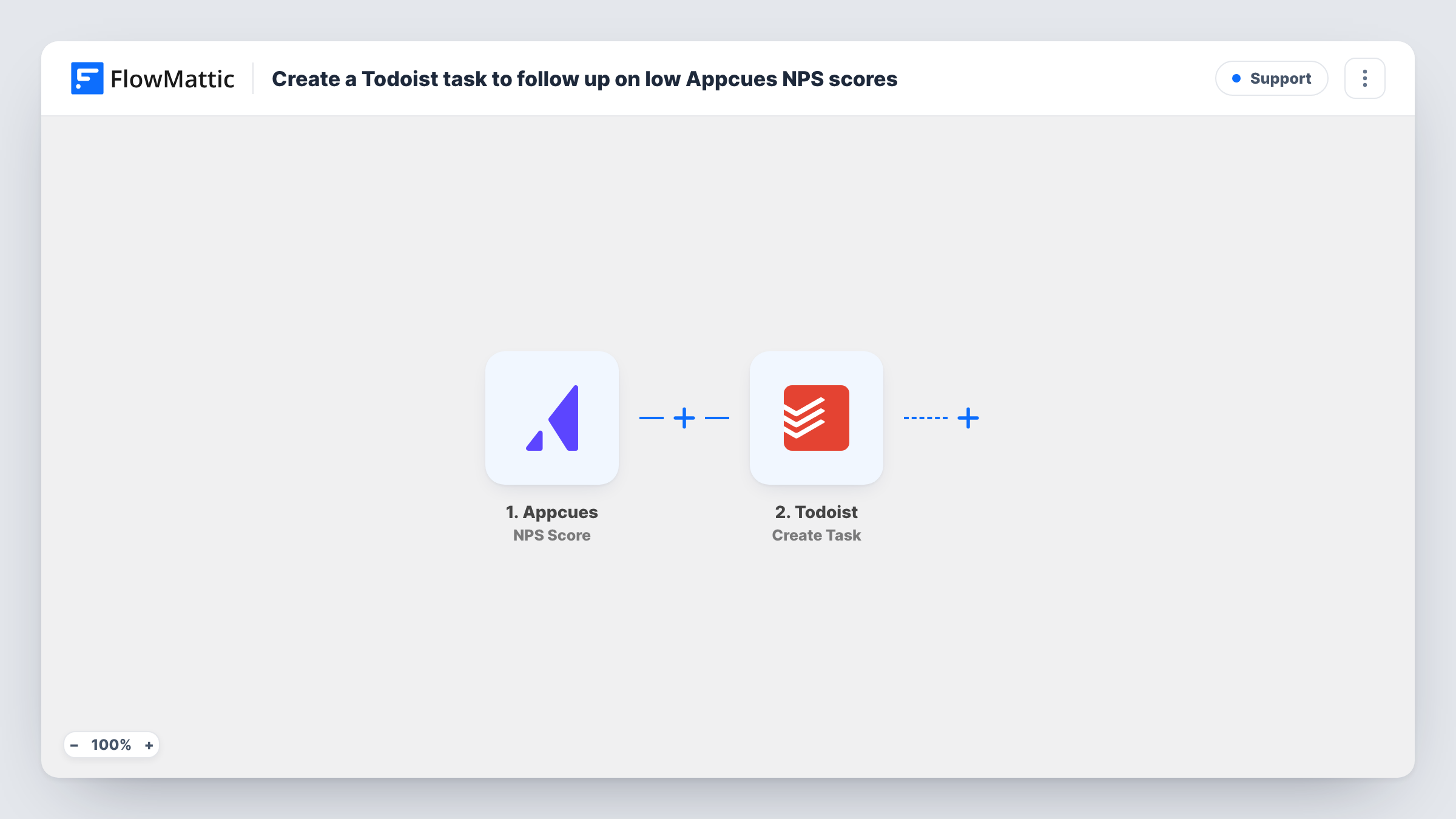
The Appcues NPS Score trigger fires whenever a user submits a score in an Appcues NPS survey. FlowMattic then runs the Todoist Create Task action. There is no condition between the two, so high, middling and low scores all become tasks.
The Create Task step ships unmapped. After import, connect Todoist, choose where tasks should go if the step asks, and write the task content with the score and the user's details mapped in from the trigger. Submit a test score first so you can see which fields Appcues sends.
If you only want tasks for unhappy users, add a Filter on the score, as described in the tips. Task History records each run with the data Appcues passed and the task Todoist created.
Customer success follow-up queue
A SaaS team's success manager works through a Todoist project of NPS tasks each morning, calling users who left a low score and thanking promoters.
Detractor outreach only
With a Filter added on the score, a founder gets a Todoist task only when a user scores 6 or lower, and replies to each one personally.
Review of every response
A small product team keeps every score as a task, adds comments in Todoist about what each user said, and closes the task once it is handled.
How this workflow runs
What happens at each step once the workflow is on, and what you need before you import it.
 Appcues NPS Score
Fires when a user submits an NPS score in Appcues. The score and the details Appcues sends about the user become available for the Todoist task.
- Todoist Create Task
Creates a new Todoist task for each submitted score. The step ships without mapping, so after import connect Todoist and build the task text from the score and user fields.
What you need
- FlowMatticCore
- Appcues AccountAccount
- Todoist AccountAccount
After importing, map your own data. To keep the template universal, not every step is pre-filled. Open each step in the builder and connect your accounts and fields (channels, lists, sheets, recipients) before you switch the workflow on.
Make it yours
Changes worth making after you import it.
- Put a Filter between the Appcues trigger and the Todoist step that continues only when the score is less than 7, so only detractors create tasks. A blank score counts as 0 and would pass this check, so test with a real response.
- Put the score at the start of the task name, such as 'NPS 4 - follow up', so you can scan the list and pick the urgent ones first.
- Use FlowMattic's separate Appcues NPS Feedback trigger in a second workflow, or add its comment as a Todoist task comment, if you want the written feedback alongside the score.
Questions about this workflow
Does every Appcues NPS score create a Todoist task?
Yes, as imported. Nothing checks the score, so every submission runs the Create Task step. Add a Filter on the score between the Appcues trigger and the Todoist step to limit it.
Is the written NPS comment included in the Todoist task?
This trigger fires on the score. FlowMattic describes a separate Appcues NPS Feedback trigger for submitted feedback, so check a test run to see whether a comment arrives with the score before you rely on it.
Where in Todoist do the follow-up tasks appear?
Wherever you set them up to go when you configure the Create Task step after import. The template leaves that step empty, so run one test score and check where the task lands.
More Support workflows
Other ready-to-import templates from the same category.






Import this workflow into your WordPress site
Download the JSON, import it from the Workflows screen and connect your accounts. Every run stays on your server, with no per-task fees.
30-day money-back guarantee Unlimited workflows and runs Self-hosted