

Create an Airtable record for every new Fantastical openings appointment
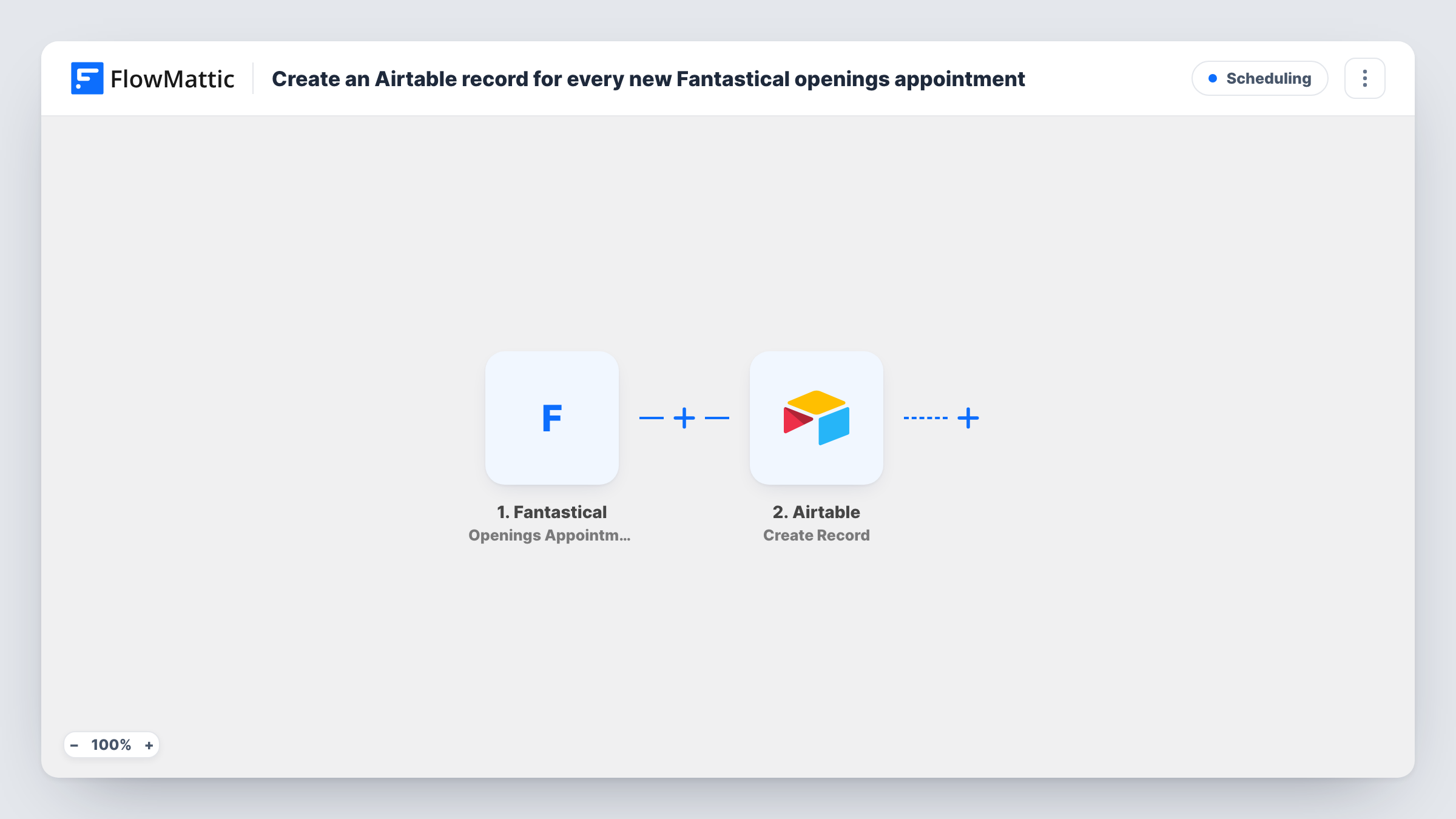
Each time an appointment booked through Fantastical Openings is confirmed, this workflow creates a matching record in your Airtable base, so every confirmed booking ends up in one table you can sort and share.
 Fantastical
 Airtable
2 steps Setup ~5 min Used on 1.3k sites Free to import
What this workflow does
Fantastical Openings lets people book time with you, and the bookings live in your calendar. A calendar is a poor place to count, sort or report on them. If you track clients, sessions or sales calls in Airtable, you end up typing each booking into the base yourself. This workflow writes the record for you.
The Fantastical trigger fires when an Openings appointment is confirmed. FlowMattic takes the appointment data Fantastical sends with that event and passes it to Airtable, where the Create Record action adds a new record to the base and table you pick. You decide which appointment value goes into which Airtable field when you set up the step.
Only confirmed appointments start a run. A request that is still waiting for your approval does not create a record until it is confirmed. Each run appears in Task History, so you can see what Fantastical sent and what Airtable received.
Client session log for a coach
Every confirmed coaching session booked through your Openings page becomes an Airtable record, giving you a table of sessions to group by client or month.
Sales call pipeline
Prospects who book a discovery call through Fantastical Openings appear in your Airtable sales base, ready for your team to add notes and a status.
Interview scheduling for a small team
Candidates confirm an interview slot through Openings, and the record in Airtable lets the hiring group see who is booked without sharing your calendar.
How this workflow runs
What happens at each step once the workflow is on, and what you need before you import it.
 Fantastical Openings Appointment Confirmed
Runs when an appointment booked through Fantastical Openings is confirmed. The appointment data sent with this event is made available for mapping in the Airtable step.
- Airtable Create Record
Adds one record per confirmed booking to the Airtable table you select. Connect your Airtable account, then map the appointment values from the trigger into your table's fields.
What you need
- FlowMatticCore
- Fantastical AccountAccount
- Airtable AccountAccount
After importing, map your own data. To keep the template universal, not every step is pre-filled. Open each step in the builder and connect your accounts and fields (channels, lists, sheets, recipients) before you switch the workflow on.
Make it yours
Changes worth making after you import it.
- Run a test booking on your Openings page after import, then confirm it, so FlowMattic captures real appointment data before you map the Airtable fields.
- Also want requests that are not yet approved? Build a second workflow on Fantastical's Openings Appointment Requested trigger and send those to a separate Airtable table.
- Add a Filter after the trigger if only some appointment types belong in this base, and set it to continue when the value that identifies the type matches.
Questions about this workflow
Does a Fantastical Openings request create an Airtable record before I confirm it?
No. This template uses the Openings Appointment Confirmed trigger, so a record is created only once the appointment is confirmed in Fantastical.
Which Airtable fields get filled?
The ones you map. The template ships without field mapping, so after import you choose the base and table and link each appointment value to a field. A test run shows exactly which values Fantastical sends.
Can I send confirmed Fantastical appointments to a spreadsheet instead of Airtable?
Yes. Replace the Airtable step with the Google Sheets Add New Row action, keep the Fantastical trigger, and map the appointment values to your sheet's columns.
Are bookings confirmed before I turn the workflow on copied to Airtable?
No. The trigger only reacts to confirmations that happen while the workflow is active, so earlier appointments stay out of the base.
More Scheduling workflows
Other ready-to-import templates from the same category.







Import this workflow into your WordPress site
Download the JSON, import it from the Workflows screen and connect your accounts. Every run stays on your server, with no per-task fees.
30-day money-back guarantee Unlimited workflows and runs Self-hosted