

Create new Hubspot CRM ticket for new task created in ClickUp
Each time a task is created in ClickUp, this workflow opens a ticket in HubSpot CRM from the task’s details, so support work planned in ClickUp also shows up where your customer records live.
 ClickUp
 HubSpot CRM
2 steps Setup ~5 min Used on 2.3k sites Free to import
What this workflow does
Some teams plan work in ClickUp but track customer issues in HubSpot. When a bug report or a customer request becomes a ClickUp task, someone still has to open a matching HubSpot ticket, or the support side never sees it. This workflow opens that ticket for you.
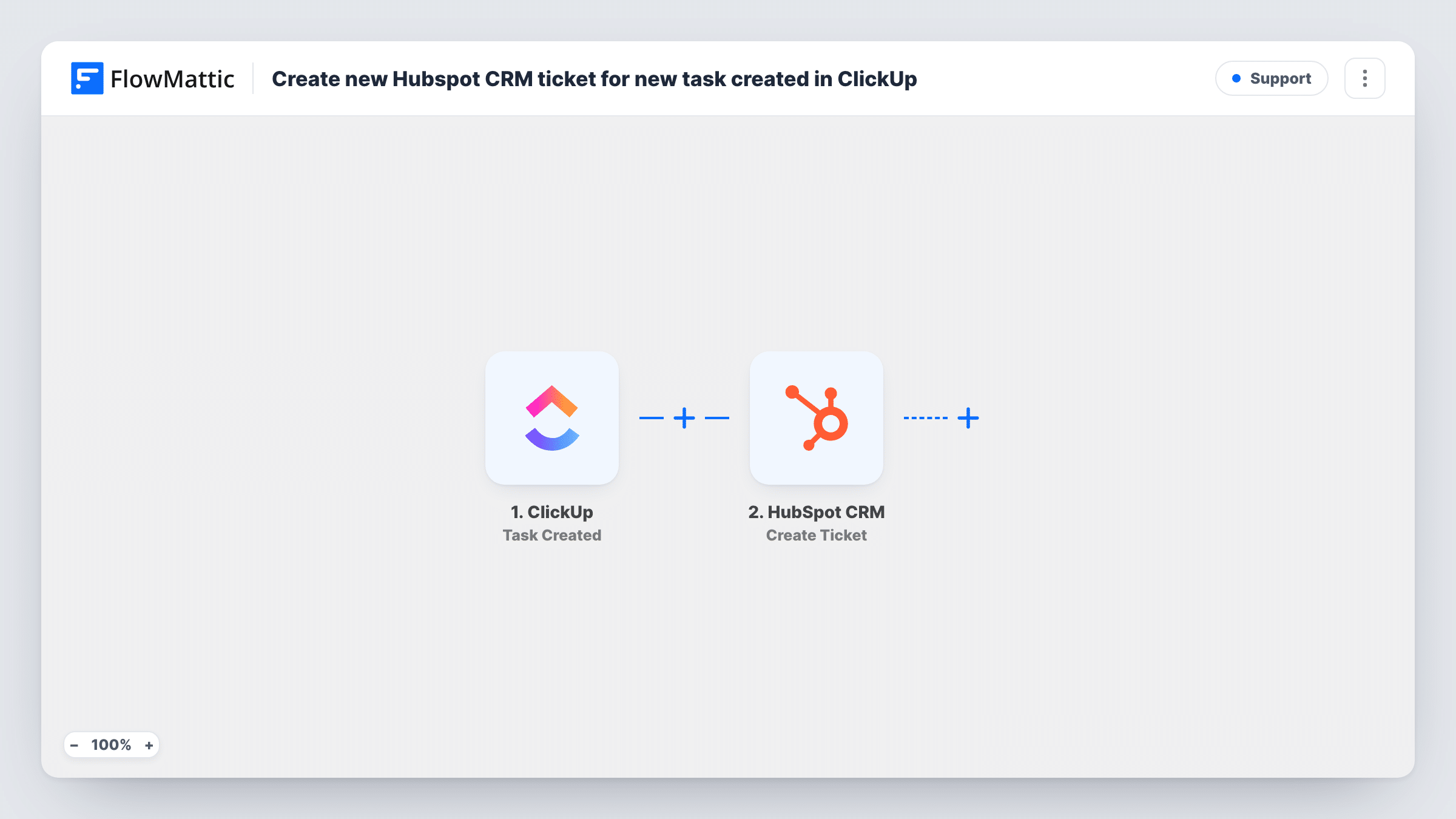
The ClickUp trigger fires when a new task is created. FlowMattic receives the task data, such as its name and description, and makes it available for mapping. The second step uses the Create Ticket action in HubSpot CRM to open a new ticket, filled with whichever task values you map into it.
As imported, there is no Filter between the two steps. Every new task the trigger reports produces one HubSpot ticket, including internal to-dos that have nothing to do with a customer. If only some tasks should reach HubSpot, add a Filter after the trigger. Each run is logged in Task History, along with the response HubSpot returned for the ticket.
A ClickUp list used as the support intake queue
Your team logs customer problems as tasks in one ClickUp list. Each task also becomes a HubSpot ticket, so account managers see open issues next to the customer record.
Bug reports raised by developers
Developers create tasks for customer-reported bugs in ClickUp. A HubSpot ticket appears for each one, giving the support team something to track and close with the customer.
Onboarding work for new clients
A project manager creates onboarding tasks in ClickUp, and each task opens a HubSpot ticket that your customer success team can follow.
How this workflow runs
What happens at each step once the workflow is on, and what you need before you import it.
 ClickUp Task Created
Runs as soon as someone adds a task in ClickUp. The task's data is passed to FlowMattic so you can map it into the HubSpot step. Create a test task after connecting your account to capture a sample.
- HubSpot CRM Create Ticket
Creates a ticket in HubSpot CRM from the task values you map into it, for example the task name and description. You link your HubSpot account while importing, and a test run shows the ticket HubSpot created.
What you need
- FlowMatticCore
- ClickUp AccountAccount
- HubSpot CRM AccountAccount
After importing, map your own data. To keep the template universal, not every step is pre-filled. Open each step in the builder and connect your accounts and fields (channels, lists, sheets, recipients) before you switch the workflow on.
Make it yours
Changes worth making after you import it.
- Add a Filter after the ClickUp trigger so only some tasks become tickets, for example tasks whose tag or list matches your support work. Check a test run to see which task fields the trigger provides.
- Map the ClickUp task URL into the HubSpot ticket's description, so whoever handles the ticket can jump straight to the task.
- Run a test with a sample task before you turn the workflow on, then open HubSpot and check that the ticket shows the values you expected.
Questions about this workflow
Does every new ClickUp task create a HubSpot ticket?
Yes, as imported. Nothing between the trigger and the HubSpot step checks the task, so each new task the trigger reports opens one ticket. A Filter placed right after the trigger can narrow it down.
Will changes to the ClickUp task update the HubSpot ticket?
No. The trigger fires only when a task is created, and the HubSpot step only creates tickets. Later edits, status changes or comments in ClickUp are not copied to HubSpot.
Are tasks created before I turn this on copied to HubSpot?
No. Only tasks created after the workflow is active trigger a run. Older tasks stay in ClickUp only.
Which HubSpot account and ClickUp workspace does it use?
The ones you connect when importing the workflow. You need a ClickUp account for the trigger and a HubSpot CRM account that is allowed to create tickets.
More Support workflows
Other ready-to-import templates from the same category.






Import this workflow into your WordPress site
Download the JSON, import it from the Workflows screen and connect your accounts. Every run stays on your server, with no per-task fees.
30-day money-back guarantee Unlimited workflows and runs Self-hosted