

Notify the support channel in Discord when a HappyFox smartrule fires
When a HappyFox smart rule fires on a ticket, FlowMattic posts a message to the Discord channel you choose, so your support team sees the tickets your rules pick out where they already chat.
 HappyFox
 Discord
2 steps Setup ~5 min Used on 1.8k sites Free to import
What this workflow does
HappyFox smart rules already decide which tickets need attention: an urgent priority, a VIP customer, a certain product. The problem is that the people who should act may be in Discord, not watching the helpdesk. This workflow carries each smart rule event into a Discord channel.
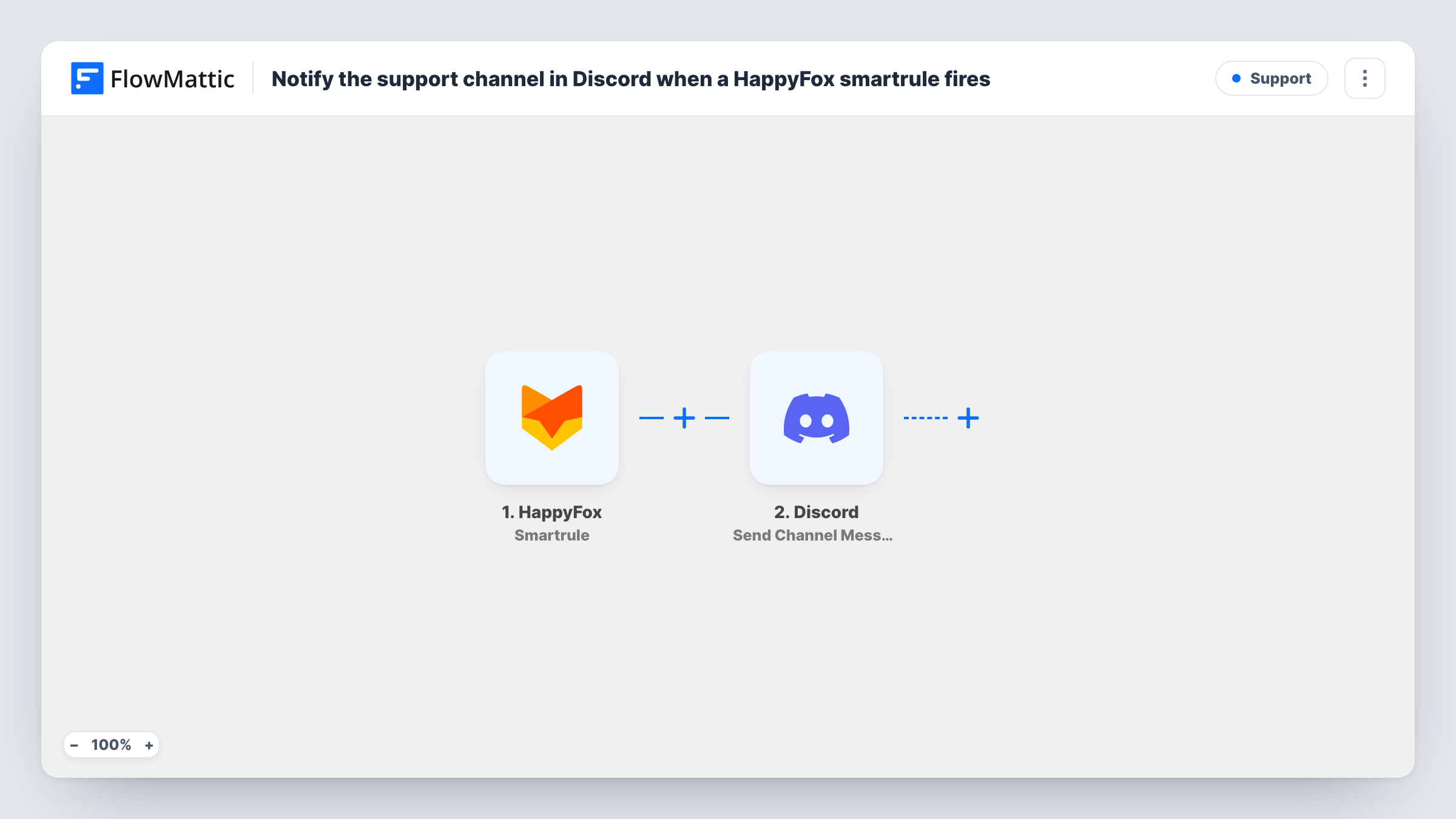
The HappyFox Smartrule trigger starts a run when one of your smart rules fires. FlowMattic then sends a message to a channel in Discord. The template comes with nothing mapped, so you write the message yourself after import, using the ticket details the trigger provides, such as its subject or ID.
The workflow doesn't decide which tickets matter; your HappyFox smart rules do. Set the rule conditions in HappyFox, fire one with a test ticket, and check Task History to see the data FlowMattic received before you write the Discord text.
Escalations for an on-call team
A smart rule picks out tickets marked urgent. Each one appears in the team's Discord support channel, where whoever is on shift can claim it.
Community-run support for a game or app
Your moderators live in Discord. Tickets that a smart rule flags as needing a moderator show up there without anyone checking HappyFox.
Tickets from key accounts
A rule matches tickets from your biggest customers, and the account team sees those in a private Discord channel.
How this workflow runs
What happens at each step once the workflow is on, and what you need before you import it.
 HappyFox Smartrule
Runs when a HappyFox smart rule fires for a ticket. The ticket data from that event becomes available to the Discord step. Trigger a rule with a test ticket to see which values arrive.
- Discord Send Channel Message
Sends a message to a Discord channel. Connect Discord, choose the channel, and write the message using values from the HappyFox trigger, such as the ticket subject and a link if one is provided.
What you need
- FlowMatticCore
- HappyFox AccountAccount
- Discord AccountAccount
After importing, map your own data. To keep the template universal, not every step is pre-filled. Open each step in the builder and connect your accounts and fields (channels, lists, sheets, recipients) before you switch the workflow on.
Make it yours
Changes worth making after you import it.
- Put the ticket subject and priority at the start of the Discord message so people can judge it from the notification alone.
- Use separate smart rules for different situations, and add a Router with one route per rule name if the trigger data includes it, so each kind of ticket goes to its own Discord channel.
- Add a Filter after the trigger if one smart rule covers more tickets than your Discord channel needs to see.
Questions about this workflow
Which HappyFox tickets reach Discord?
Only tickets that make one of your smart rules fire. The rule conditions live in HappyFox, so change them there to widen or narrow what is posted.
What does the Discord message say by default?
Nothing is preset. You write the message after import and fill it with values from the HappyFox trigger.
Can my team answer the customer from Discord?
No. The message is a notice only. Your team opens the ticket in HappyFox to reply, so include a ticket ID or link in the message to make that quick.
Does posting to Discord change anything on the HappyFox ticket?
No. The workflow reads the ticket data from the smart rule event and sends a Discord message. The ticket's status, owner and replies stay as they are.
More Support workflows
Other ready-to-import templates from the same category.






Import this workflow into your WordPress site
Download the JSON, import it from the Workflows screen and connect your accounts. Every run stays on your server, with no per-task fees.
30-day money-back guarantee Unlimited workflows and runs Self-hosted