

When a Carrot quest message comes in, log it to Google Sheets and notify the team on Telegram
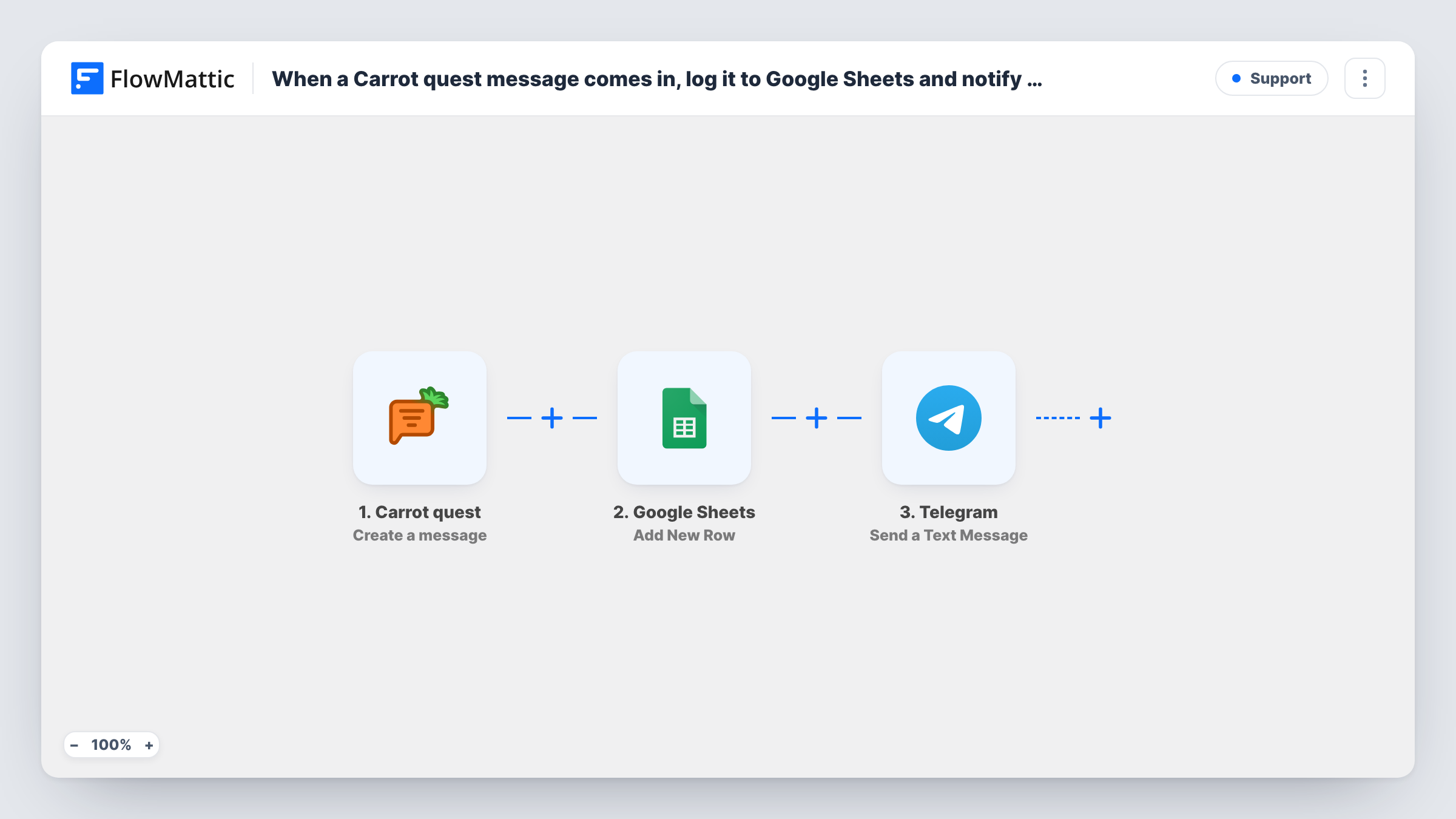
Each time Carrot quest reports a new message, this workflow writes it to a Google Sheets row and then sends a Telegram text to your team, giving you a running log plus a prompt to respond.
 Carrot quest
 Google Sheets
 Telegram
3 steps Setup ~5 min Used on 1.8k sites Free to import
What this workflow does
A chat tool shows conversations while they are open, but it is not built for a long-term record you can sort, count or share. And a team that keeps Telegram open all day may not have the Carrot quest inbox in front of them. With this workflow, every message gets a row in a sheet, and the team gets a Telegram text about it.
The Carrot quest trigger, Create a message, is described by FlowMattic as firing when a template or a message is created. Templates start runs too. The event data goes first to Google Sheets, which adds a new row with the values you map. Then the Telegram step sends a text message, which can use markup, to the chat you set.
The template does not tell customer messages apart from templates or from replies your operators write. Check what a few test runs deliver, then decide whether a Filter belongs between the Carrot quest trigger and the Google Sheets step.
Small support team on Telegram
A two-person team keeps a Telegram group open on their phones. Each Carrot quest message pings the group, and the sheet holds the history for later review.
Weekly volume reporting
With every message logged as a row, a manager can count messages per day or week in the sheet without exporting anything from Carrot quest.
Out-of-hours coverage
Whoever is on call sees each new Carrot quest message as a Telegram text, while the sheet keeps a record of what came in overnight.
How this workflow runs
What happens at each step once the workflow is on, and what you need before you import it.
 Carrot quest Create a message
Runs when a message or a template is created in Carrot quest. The event's data is handed to the next two steps for mapping.
- Google Sheets Add New Row
Logs the event as a fresh row in the Google Sheets spreadsheet you pick. Map Carrot quest values, such as the message text and time, to your columns.
- Telegram Send a Text Message
Sends a Telegram text message, with markup if you want it, to the chat your bot is set to post in. Map the Carrot quest values that tell the team what came in.
What you need
- FlowMatticCore
- Carrot quest AccountAccount
- Google Sheets AccountAccount
- Telegram AccountAccount
After importing, map your own data. To keep the template universal, not every step is pre-filled. Open each step in the builder and connect your accounts and fields (channels, lists, sheets, recipients) before you switch the workflow on.
Make it yours
Changes worth making after you import it.
- Once a test run shows which value separates customer messages from templates, put a Filter between the Carrot quest trigger and the Google Sheets step so only customer messages reach the sheet and Telegram.
- Add your Telegram bot to the team group before you test. A bot can only post in chats it belongs to.
- If the trigger data includes a conversation reference, give it its own column next to the message text, so messages from one conversation can be grouped later.
Questions about this workflow
Do new Carrot quest templates end up in the sheet and on Telegram?
Yes, as imported. The trigger fires for created templates as well as messages, so both steps run for them unless you add a Filter between the trigger and the Google Sheets step.
Which Carrot quest details can go into the sheet row?
Whatever the Create a message event sends. The Add New Row step ships unmapped, so run a test, look at the trigger data in Task History, and map values such as the message text and time to your columns.
Can the Telegram alert go to one person instead of a group?
Yes. Send it to that person's chat with your bot instead of the group chat. They need to have started a chat with the bot first.
More Support workflows
Other ready-to-import templates from the same category.





Import this workflow into your WordPress site
Download the JSON, import it from the Workflows screen and connect your accounts. Every run stays on your server, with no per-task fees.
30-day money-back guarantee Unlimited workflows and runs Self-hosted