

Post a Discord notification for every new Hiver mailbox reply
Each time someone on your team sends a reply from a Hiver shared inbox, this workflow posts a message to the Discord channel you pick, so the rest of the team can see what went out.
 Hiver
 Discord
2 steps Setup ~5 min Used on 548 sites Free to import
What this workflow does
Shared inboxes work well until two people answer the same customer, or nobody is sure whether a thread got a reply. If your team already talks in Discord, a running feed of sent replies in one channel answers that question without anyone opening the inbox.
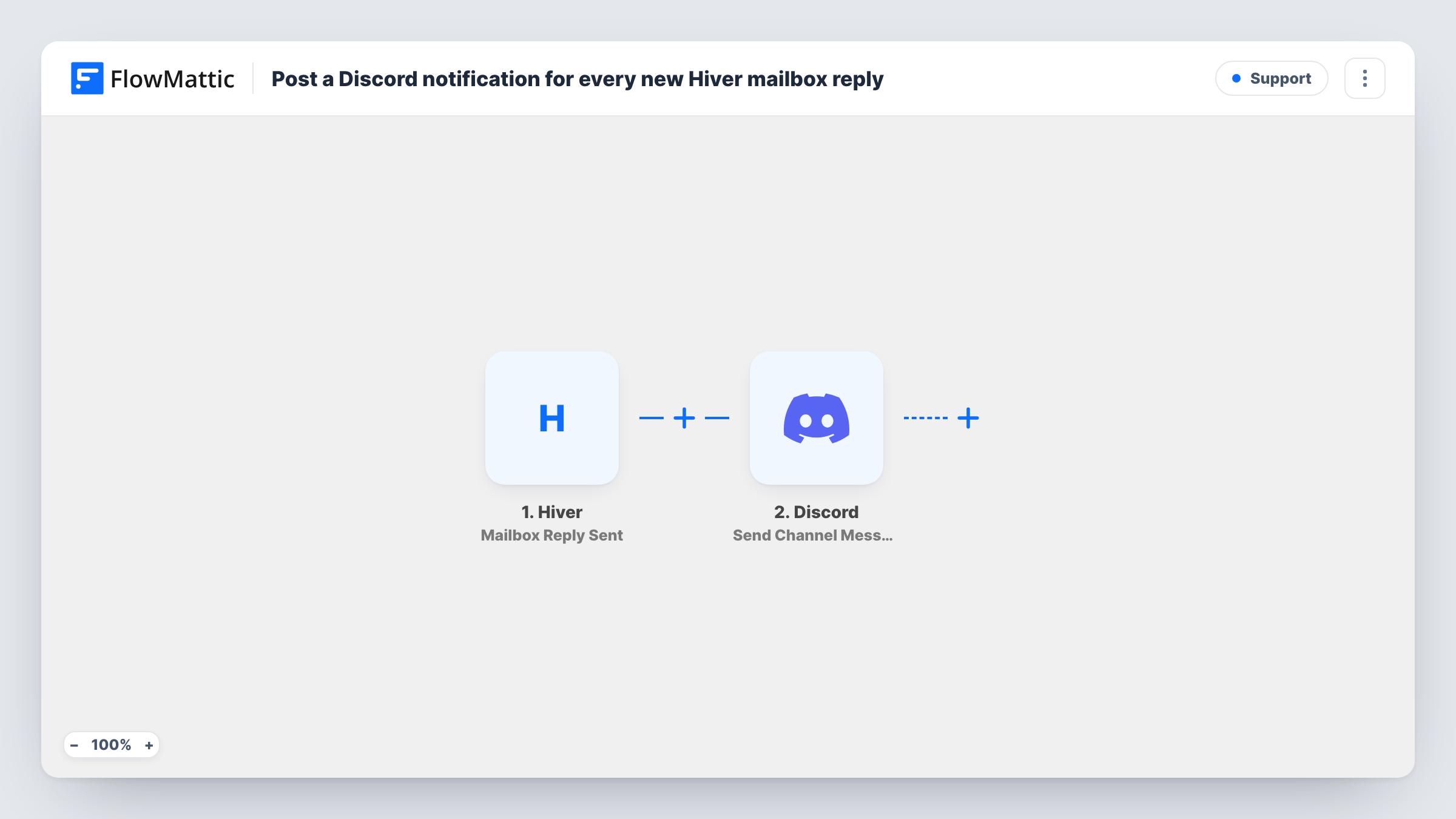
The Hiver trigger fires when a mailbox reply is sent from a Shared Inbox. FlowMattic receives the details Hiver passes about that reply and hands them to the next step. Discord then posts a new message to the channel you choose, built from whatever reply details you map into it.
There is no Filter in this template, so every reply sent from the connected Shared Inbox produces one Discord message. That suits a small team or a quiet inbox. For a busy one, the tips below show how to narrow the feed. Task History in FlowMattic records each run, so you can check what Hiver sent and what reached Discord.
Support team without inbox seats for everyone
Agents reply in Hiver, while a team lead or developer who has no Hiver access follows the outgoing replies in a Discord channel.
Spotting double replies
When two teammates answer the same thread, both replies show up next to each other in Discord, so the overlap is easy to catch and talk about.
Community managers on a Discord server
A team that runs its community on Discord sees each email reply from the shared support inbox in a private staff channel, alongside the chat it already reads.
How this workflow runs
What happens at each step once the workflow is on, and what you need before you import it.
 Hiver Mailbox Reply Sent
Fires when a mailbox reply is sent from a Hiver Shared Inbox. The details Hiver provides about that reply become available to map into the Discord message.
- Discord Send Channel Message
Sends a message to the Discord channel you pick for the reply feed. Write the message text and map in the Hiver reply details you want the team to see, then connect your Discord account.
What you need
- FlowMatticCore
- Hiver AccountAccount
- Discord AccountAccount
After importing, map your own data. To keep the template universal, not every step is pre-filled. Open each step in the builder and connect your accounts and fields (channels, lists, sheets, recipients) before you switch the workflow on.
Make it yours
Changes worth making after you import it.
- Add a Filter after the Hiver trigger if only some replies matter, for example replies that contain a word such as refund. Run one test first so you can see which Hiver fields are available to check.
- Pick a dedicated staff-only channel for this feed so customer emails are not shown to everyone on your Discord server.
- Send a test reply from the Shared Inbox after import, then open Task History to see the data Hiver passed before you finish mapping the Discord message.
Questions about this workflow
Does every Hiver reply create a Discord message?
Yes, as imported. Each mailbox reply sent from the Shared Inbox runs the workflow once and posts one message. Add a Filter after the trigger to limit which replies get posted.
Will incoming customer emails show up in Discord too?
No. This trigger fires on replies sent from the Shared Inbox. Hiver has separate FlowMattic triggers for other events, such as new inbound conversations, if you want those as well.
Which Hiver details can I include in the Discord post?
Whatever Hiver passes with the reply event. Send a test reply after import and check the trigger's captured data in FlowMattic, then map the parts you want into the message.
Can the Hiver replies go to more than one Discord channel?
Yes. Add a second Discord Send Channel Message step after the first and point it at another channel, or use a Router to send different replies to different channels.
More Support workflows
Other ready-to-import templates from the same category.







Import this workflow into your WordPress site
Download the JSON, import it from the Workflows screen and connect your accounts. Every run stays on your server, with no per-task fees.
30-day money-back guarantee Unlimited workflows and runs Self-hosted