

Parse customer support emails forwarded from Outlook and post them to a Slack support channel
Forward your Outlook support mail to an Email Parser by FlowMattic address, and each email that arrives posts a message to your Slack support channel.
 Email Parser by FlowMattic
 Slack
2 steps Setup ~5 min Used on 3.0k sites Free to import
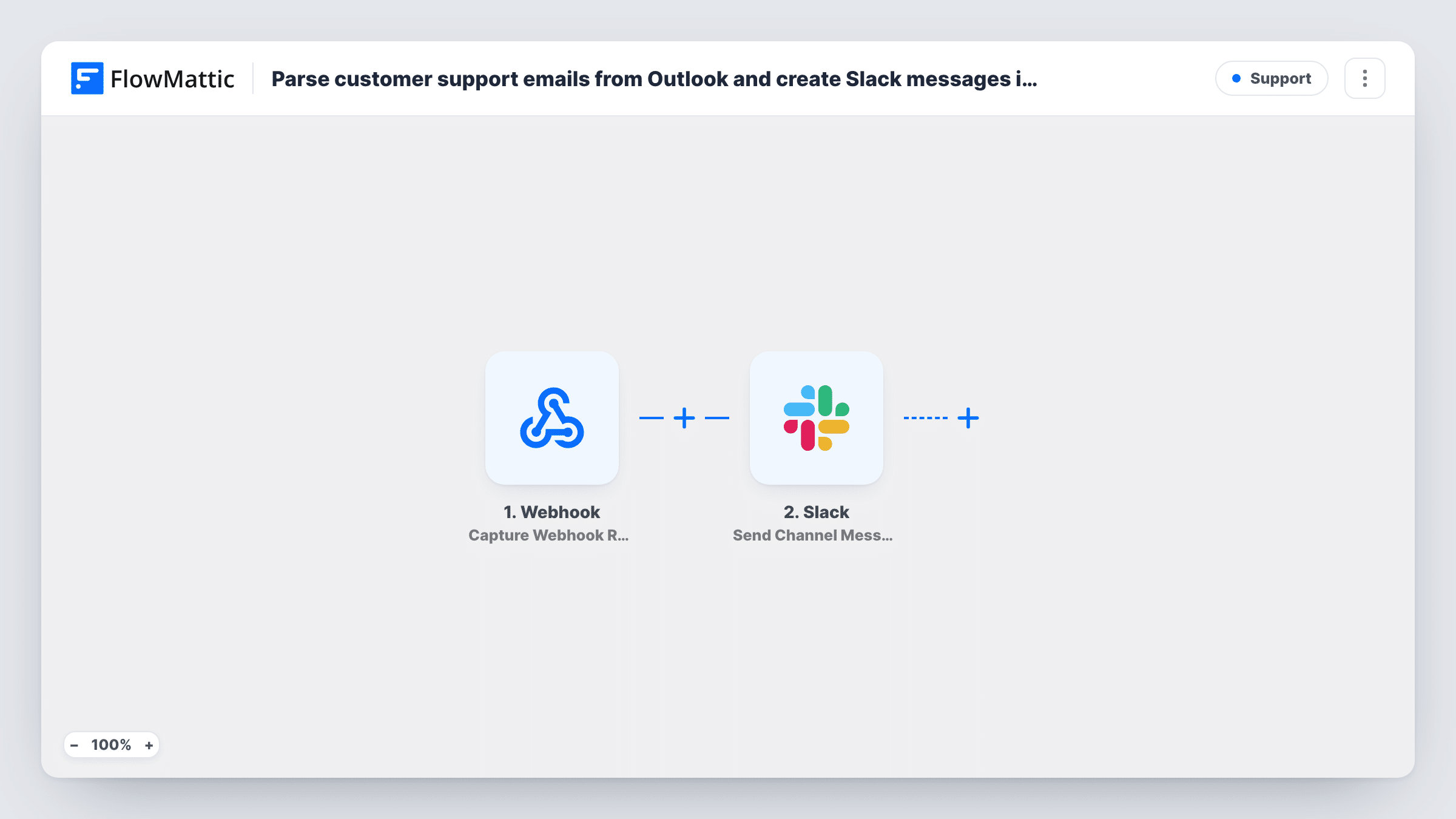
What this workflow does
Support requests that land in one person's Outlook inbox are easy to miss when that person is busy or away. This workflow puts a message in a shared Slack channel for every support email, so the whole team knows something new has come in.
The Email Parser by FlowMattic trigger comes with its own inbound address for this workflow. You set up a forwarding rule in Outlook that sends your support mail to it. Each email received there starts a run, and the parser breaks the message into fields such as the sender, subject and body that later steps can use.
The Slack Send Channel Message step then posts to the channel you choose. As imported, the message text is a fixed line, "New customer support email received.", with no details from the email. To post the email itself, map the parsed sender, subject and body into the message after import, and pick your support channel.
Every forwarded email posts once, including auto-replies and newsletters if your Outlook rule forwards them. Keep the rule narrow, and check Task History to see what the parser pulled out of each email.
Shared view of a single support inbox
A small software company forwards its Outlook support address to the parser, and every agent sees new requests in #support without sharing a mailbox login.
Faster hand-offs on busy days
A customer service lead watches the Slack channel and assigns each request to whoever is free, replying in a thread under the post.
After-hours awareness
An online shop's on-call staff get Slack notifications on their phones when a support email comes in outside office hours.
How this workflow runs
What happens at each step once the workflow is on, and what you need before you import it.
 Email Parser by FlowMattic Email Received
Fires when an email reaches your Email Parser by FlowMattic address, such as one forwarded by an Outlook rule. The parsed sender, subject and body are available to the Slack step.
- Slack Send Channel Message
Shares each forwarded email in your Slack support channel. The message is set to the fixed text "New customer support email received."; map the parsed subject, sender and body into it to share the email's content.
What you need
- FlowMatticCore
- Slack AccountAccount
After importing, map your own data. To keep the template universal, not every step is pre-filled. Open each step in the builder and connect your accounts and fields (channels, lists, sheets, recipients) before you switch the workflow on.
Make it yours
Changes worth making after you import it.
- Set the Outlook forwarding rule to match only your support address or a support folder, so internal mail and newsletters don't post to Slack.
- Map the email subject and sender into the first line of the Slack message, and the body below it, so agents can read the request without opening Outlook.
- Put a Filter between the Email Parser trigger and the Slack step that stops emails whose subject contains words like "Out of office". The words are examples to adjust for your inbox.
- For a private support channel, swap in Slack's Send Private Channel Message action.
Questions about this workflow
Does the Slack message include the text of the Outlook email?
Not as imported. The message is a fixed line saying a new support email arrived. Map the parsed subject, sender and body into the Send Channel Message step to include them.
How do emails get from Outlook to FlowMattic?
You create a forwarding rule in Outlook that sends support emails to the address the Email Parser trigger gives you. Every email that reaches that address starts a run.
Can agents reply to the customer from Slack?
No. Slack only receives the alert here; agents still reply from Outlook, or from whichever tool you use for support.
Will attachments on support emails show up in Slack?
The template posts text only. Check a test run to see what the Email Parser returns for an email with an attachment before you rely on it.
More Support workflows
Other ready-to-import templates from the same category.




Import this workflow into your WordPress site
Download the JSON, import it from the Workflows screen and connect your accounts. Every run stays on your server, with no per-task fees.
30-day money-back guarantee Unlimited workflows and runs Self-hosted