

Create new page in Notion with the content generated by ChatGPT after every Typeform submission
Each new Typeform response is sent to ChatGPT with a prompt you write, and the generated text is saved as a new page in Notion, so every submission arrives as a draft you can edit.
 Typeform
 OpenAI (ChatGPT)
 Notion
3 steps Setup ~5 min Used on 3.4k sites Free to import
What this workflow does
Form answers are raw material. A content brief, an intake questionnaire or a project request still has to be turned into something readable before anyone works from it. This workflow hands that first draft to ChatGPT and files the result in Notion, one page per response.
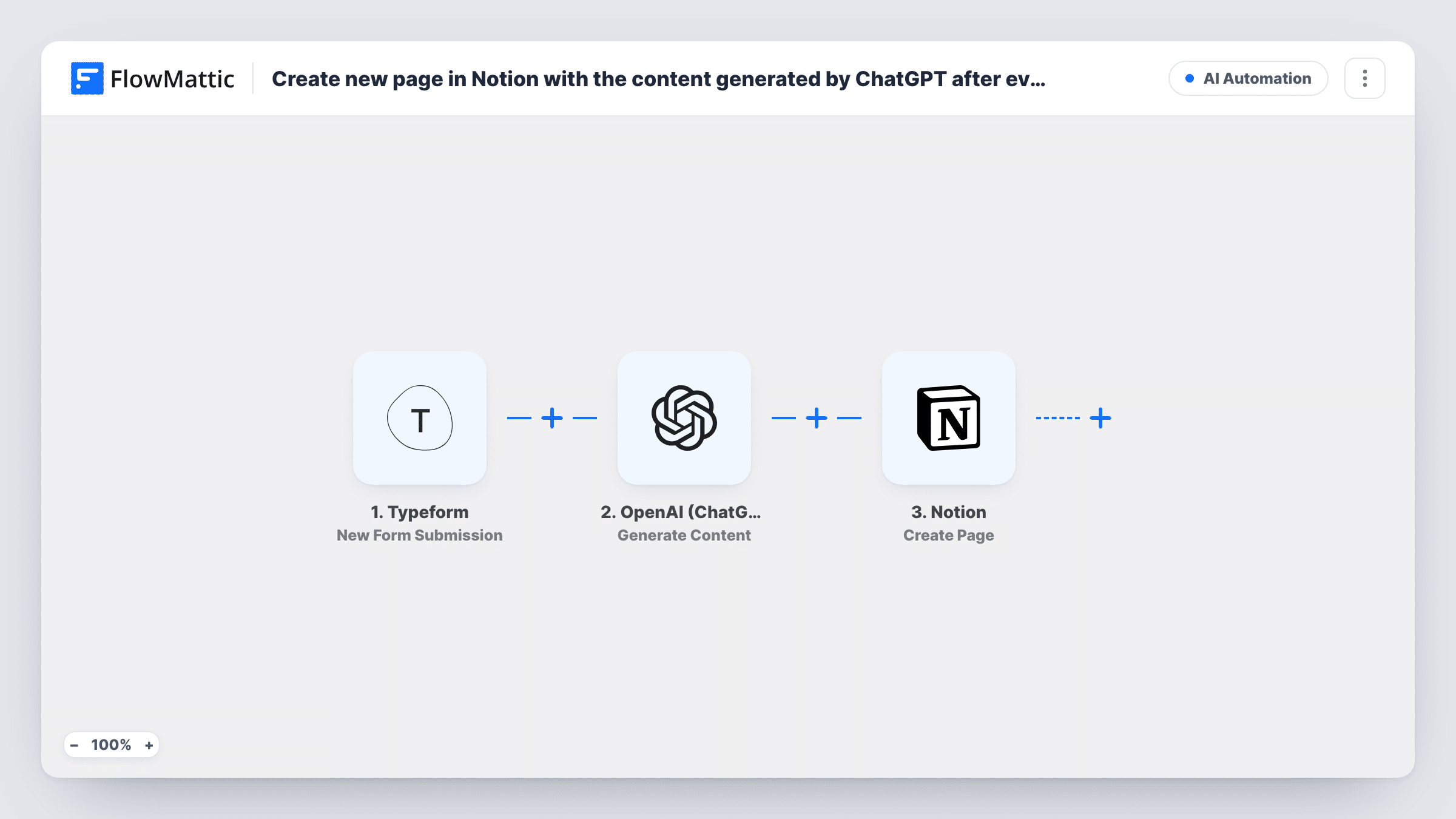
The Typeform trigger runs on each new form submission. FlowMattic then calls OpenAI (ChatGPT) with the Generate Content action, using a prompt you write and the answers you map into it. The text that comes back goes to Notion, where the Create Page action adds a page inside the parent page you pick.
The prompt decides what the page says, so spend your setup time there. Tell ChatGPT what kind of document you want and which answers to use. Every response goes through all three steps, and the generated text is a draft: read it before you share or publish it.
Blog post briefs from a content form
Writers or clients fill in a Typeform with topic, audience and key points. ChatGPT turns the answers into a structured outline, saved as a Notion page under your content calendar.
Client onboarding summaries
A new client completes your intake Typeform, and ChatGPT writes a short summary of their goals and constraints as a Notion page your team reads before the kickoff call.
Product feedback write-ups
Feedback answers are rewritten as a clear summary with the main request and pain points, and each one lands under a Notion page your product team reviews.
How this workflow runs
What happens at each step once the workflow is on, and what you need before you import it.
 Typeform New Form Submission
Starts each time a respondent completes and submits your Typeform. Each answer is available to map into the ChatGPT prompt and the Notion page.
- OpenAI (ChatGPT) Generate Content
Sends your prompt to OpenAI with the Generate Content action and returns the generated text. Write the prompt and insert the Typeform answers it should work from.
- Notion Create Page
Creates a new page inside the Notion parent page you choose. Map the text from ChatGPT into the page, and a Typeform answer such as the topic into the title if you want one.
What you need
- FlowMatticCore
- Typeform AccountAccount
- OpenAI (ChatGPT) AccountAccount
- Notion AccountAccount
After importing, map your own data. To keep the template universal, not every step is pre-filled. Open each step in the builder and connect your accounts and fields (channels, lists, sheets, recipients) before you switch the workflow on.
Make it yours
Changes worth making after you import it.
- Put the structure you want in the prompt, for example headings for summary, goals and next steps, so every Notion page follows the same layout.
- Add a Filter after the trigger that continues only when a key answer is filled in, so short or empty responses don't use up an OpenAI request.
- Share the Notion parent page with your FlowMattic connection before the first run, or the Create Page step can't add pages under it.
Questions about this workflow
Do I need a paid OpenAI account for the ChatGPT step?
You need an OpenAI API key to connect the step. API usage is billed by OpenAI separately from a ChatGPT subscription, so check your OpenAI account before turning the workflow on.
Where in Notion are the pages created?
Inside the parent page you pick in the Create Page step. Every Typeform response adds a new page under that same parent.
Can I edit the ChatGPT text before it reaches Notion?
Not as imported; the text goes straight onto the page. Edit the page in Notion afterwards, or add a Human in the Loop step between ChatGPT and Notion to review it first.
Will old Typeform responses be turned into pages?
No. Typeform responses that arrived before you switched the workflow on are left as they are.
More AI Automation workflows
Other ready-to-import templates from the same category.





Import this workflow into your WordPress site
Download the JSON, import it from the Workflows screen and connect your accounts. Every run stays on your server, with no per-task fees.
30-day money-back guarantee Unlimited workflows and runs Self-hosted