

Create new records in Airtable when invoices are paid in Razorpay
Each time a Razorpay invoice is paid, this workflow creates a new record in your Airtable base with the invoice details you map, building a log of paid invoices you can sort, filter and share.
 Razorpay
 Airtable
2 steps Setup ~5 min Used on 3.5k sites Free to import
What this workflow does
Razorpay shows your paid invoices, but your team may plan work, track clients or report revenue in Airtable. Moving each paid invoice across by hand takes time and is easy to skip. This workflow adds a record whenever an invoice is settled.
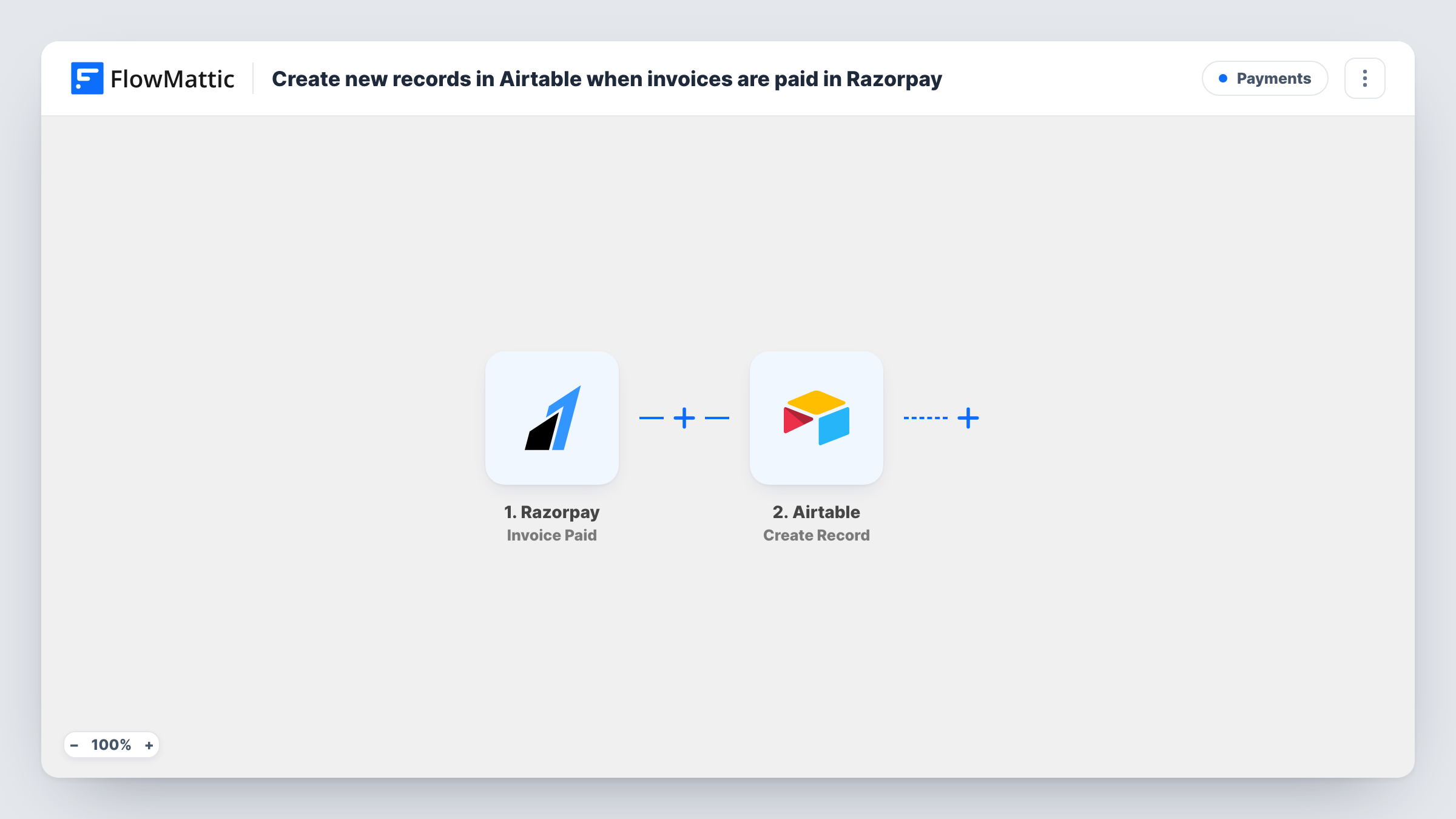
The Razorpay trigger fires when an invoice is paid. FlowMattic hands the invoice data to the Create Record action in Airtable, where you pick the base and table and map invoice details to its fields.
Each paid invoice becomes one new record. The workflow does not look for an existing record first, so it adds rather than updates. Plan the table as a log of payments, one row per invoice. Task History lists each run with the data Airtable received, which is useful when you check your field mapping.
Freelancer income log
Every invoice a client pays through Razorpay appears in an Airtable table, so you can see monthly income with a simple grouped view.
Agency billing tracker
Paid invoices land in the same Airtable base the account managers use, so they see which clients have settled before starting the next phase.
Accounting hand-off
An accountant gets read access to the Airtable table and works from a current list of paid invoices without needing a Razorpay login.
How this workflow runs
What happens at each step once the workflow is on, and what you need before you import it.
 Razorpay Invoice Paid
Fires when an invoice in your Razorpay account is paid. The invoice data becomes available to map into the Airtable record.
- Airtable Create Record
Adds one row-like record per paid invoice to the base and table you point it at. Map the Razorpay invoice details to your table's fields, using a test run to see which values come through.
What you need
- FlowMatticCore
- Razorpay AccountAccount
- Airtable AccountAccount
After importing, map your own data. To keep the template universal, not every step is pre-filled. Open each step in the builder and connect your accounts and fields (channels, lists, sheets, recipients) before you switch the workflow on.
Make it yours
Changes worth making after you import it.
- Create the Airtable table with its fields before you map the step, so each piece of invoice data has a field ready to receive it.
- Pay a small test invoice, or wait for a real payment, before going live, so the Razorpay data is captured and visible while you map the Airtable fields.
- Add a Gmail or Slack step after Airtable if someone on your team should also hear about each paid invoice.
Questions about this workflow
Does this update an existing Airtable record when a Razorpay invoice is paid?
No. The step is Create Record, so every paid invoice adds a new record. To update a record you already keep, replace it with a search step and an update step.
Are other Razorpay payments added to Airtable too?
No. The trigger only fires for paid invoices. Payments collected without an invoice don't start this workflow.
Will invoices paid before setup appear in Airtable?
No. Only invoices paid while the workflow is on are sent. Add older ones to the table by hand or with an import.
More Payments workflows
Other ready-to-import templates from the same category.






Import this workflow into your WordPress site
Download the JSON, import it from the Workflows screen and connect your accounts. Every run stays on your server, with no per-task fees.
30-day money-back guarantee Unlimited workflows and runs Self-hosted