

Create a HubSpot CRM contact from Emarsys webhook data
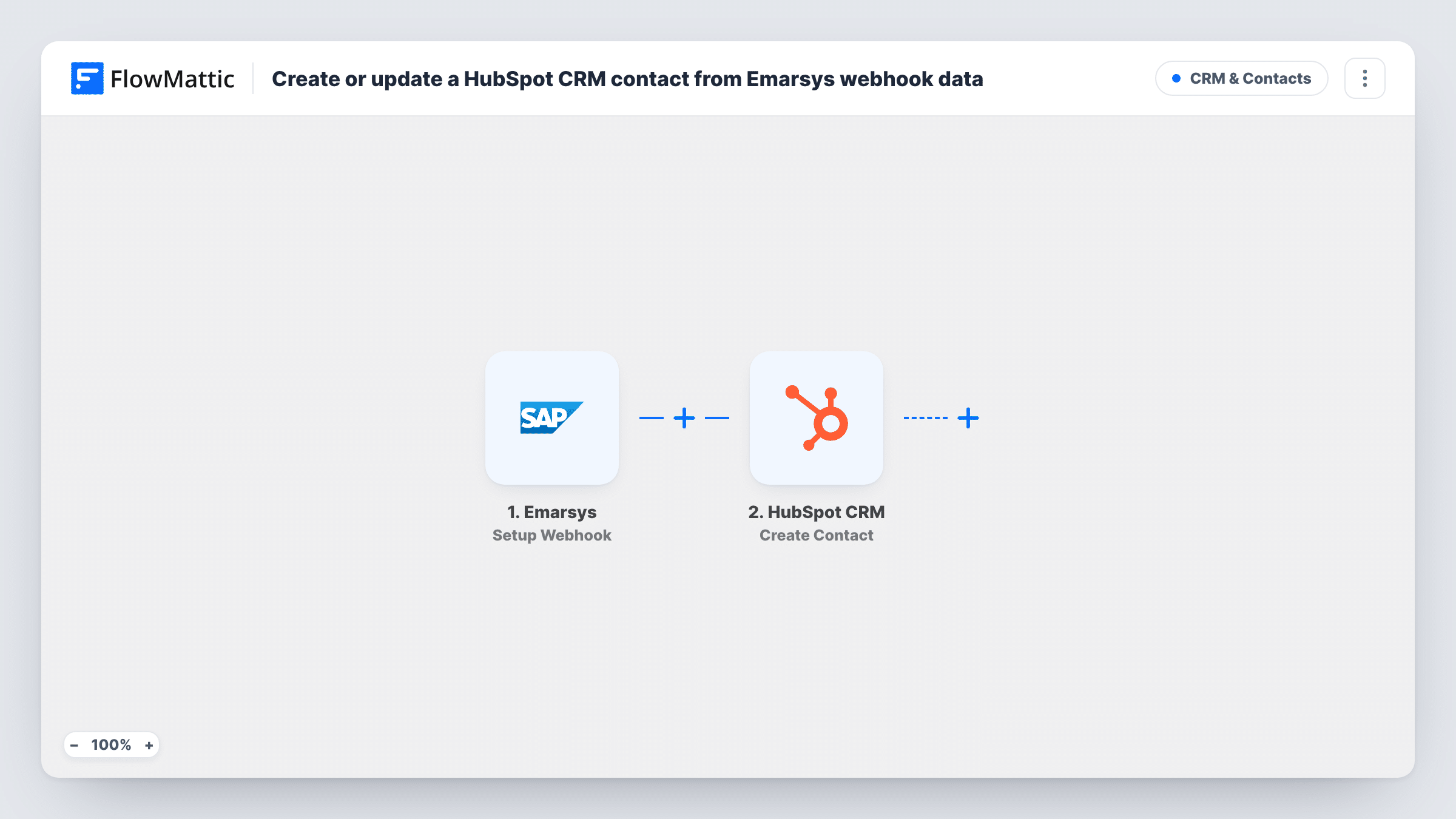
Emarsys posts the events you select to a FlowMattic webhook, and each one becomes a new contact in HubSpot CRM, built from the customer data the Emarsys event carries.
 Emarsys
 HubSpot CRM
2 steps Setup ~5 min Used on 1.8k sites Free to import
What this workflow does
If your email and campaign work runs in Emarsys but your sales or account team lives in HubSpot, the people engaging with campaigns rarely make it across. This workflow listens for Emarsys events and adds a HubSpot CRM contact for each one, so the CRM gets the person while the interest is fresh.
The Emarsys trigger is a webhook. FlowMattic describes it as firing for the events you specify inside Emarsys, so the choice of events happens in your Emarsys webhook settings, not in FlowMattic. Select only the events that should produce a contact, for example a form opt-in, and each one that arrives starts a run with the contact data Emarsys attaches.
The second step uses HubSpot CRM to create the contact. It arrives unmapped: once imported, connect HubSpot and map the email from the Emarsys payload, plus any name or other properties the event includes. A test event shows you exactly which fields Emarsys sends.
Create Contact in HubSpot never edits an existing record. A person who triggers several Emarsys events produces several create attempts, and HubSpot may decline those that repeat an email it already holds. Each run's HubSpot response sits in Task History, which is where to check what happened to a given event.
Opt-ins handed to account managers
A B2B brand sends Emarsys opt-in events to the webhook, so each new subscriber also exists in HubSpot CRM for the account team to qualify.
Campaign responders in the CRM
A retailer forwards one chosen Emarsys campaign event, giving its HubSpot users a contact record for every responder to follow up.
One customer record for support
A service company puts Emarsys contacts into HubSpot so its support staff can look up people from email campaigns in the CRM they already use.
How this workflow runs
What happens at each step once the workflow is on, and what you need before you import it.
 Emarsys Setup Webhook
Receives the events you specify in Emarsys at a FlowMattic webhook URL. Each event starts one run and makes the contact data in it available to the HubSpot step.
- HubSpot CRM Create Contact
Creates the person as a HubSpot CRM contact. Nothing is preset after import: connect HubSpot, then map the Emarsys email and any other properties you want stored.
What you need
- FlowMatticCore
- Emarsys AccountAccount
- HubSpot CRM AccountAccount
After importing, map your own data. To keep the template universal, not every step is pre-filled. Open each step in the builder and connect your accounts and fields (channels, lists, sheets, recipients) before you switch the workflow on.
Make it yours
Changes worth making after you import it.
- In Emarsys, enable the webhook for a single event type first, such as opt-in, and check a few runs before adding more events.
- Put a Filter between the Emarsys trigger and the HubSpot Create Contact step that continues only when the email field is not empty, so events without an address don't reach HubSpot.
- For a simple audit trail, add a Google Sheets Add New Row step after Create Contact and log the email, the Emarsys event and the date of each run.
Questions about this workflow
Where do I choose which Emarsys events create HubSpot contacts?
In Emarsys, when you set up the webhook. FlowMattic runs for every event posted to the URL, so select only the ones that should create contacts.
Does this update HubSpot contacts that already exist?
No. The step only creates. If the email is already in HubSpot, HubSpot may refuse the request, and Task History shows the response.
Which Emarsys fields can I map into HubSpot CRM?
Whatever the Emarsys event includes. Send a test event after import, look at the received data, and map those fields into the contact properties.
More CRM & Contacts workflows
Other ready-to-import templates from the same category.





Import this workflow into your WordPress site
Download the JSON, import it from the Workflows screen and connect your accounts. Every run stays on your server, with no per-task fees.
30-day money-back guarantee Unlimited workflows and runs Self-hosted