

Add new Eventin attendees to a Sender group
Each person who registers for an Eventin event is created as a subscriber in Sender and then placed in the Sender group you pick, ready for event emails and reminders.
 Eventin
 Sender
3 steps Setup ~5 min Used on 951 sites Free to import
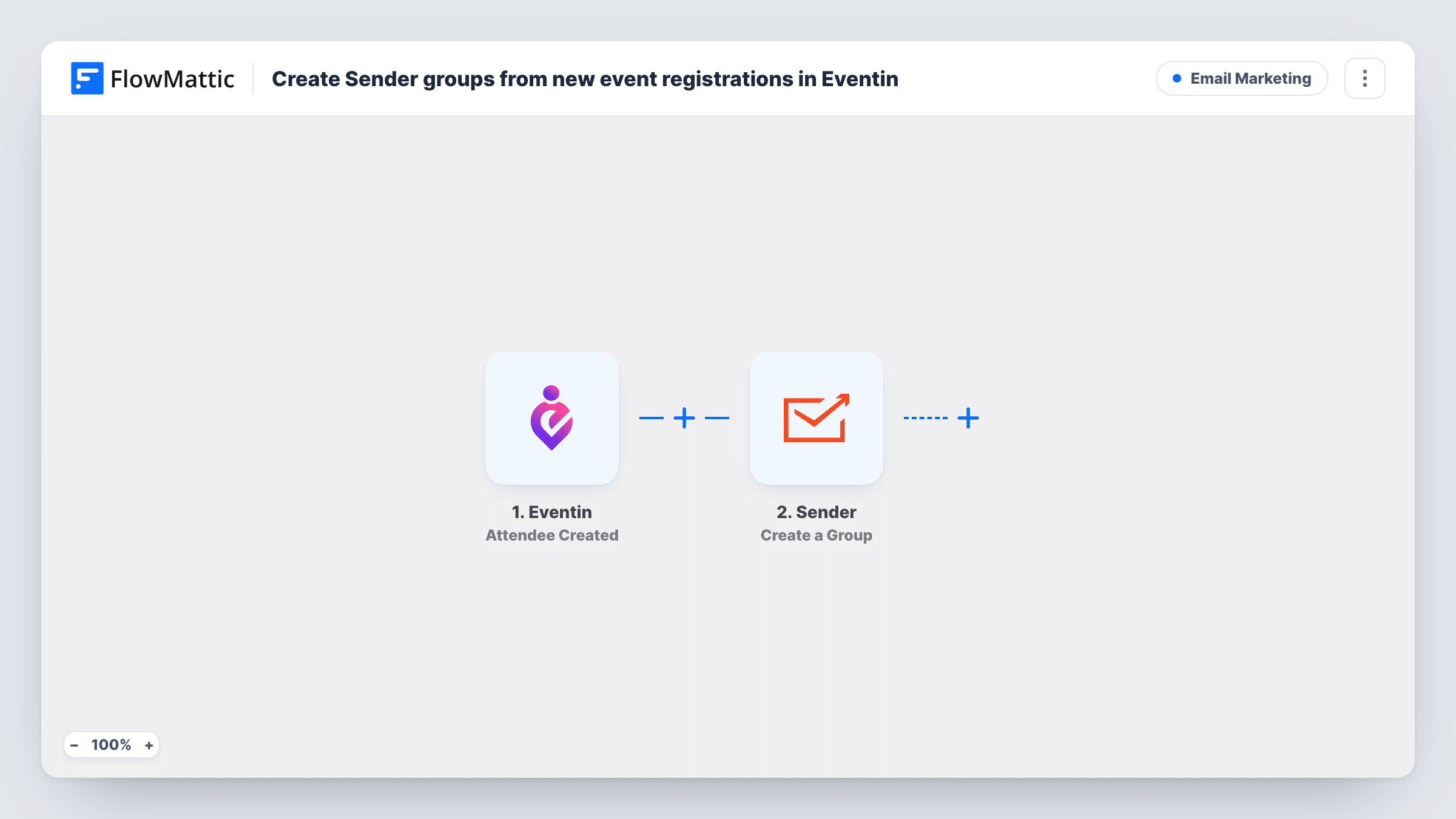
What this workflow does
Event registrants expect to hear from you before and after the day: joining details, schedule changes, a thank-you and the recordings. Keeping them in their own email group makes those messages easy to send. This workflow moves each new Eventin attendee into Sender and files them in a group.
The Eventin trigger starts a run when a new attendee registers for an event. FlowMattic passes the attendee's details on, such as their name and email. The first Sender step creates a subscriber from those details. The second Sender step assigns that subscriber to a group; FlowMattic describes it as working on an existing subscriber, which is why the template creates one first.
Neither Sender step has any mapping in the template. After import you connect Sender, map the attendee's email and name into Create New Subscriber, then choose the group and map the subscriber from step 2 into Add Subscriber to a Group.
All events feed the one group you choose. If you run several events, consider a group per event, set up with a Router as described in the tips. Register a test attendee and check Task History to see what Sender returned at each step.
Webinar reminders from Sender
A software company hosting monthly webinars in Eventin sends registrants a reminder series from the Sender group the day before and an hour before.
Workshop follow-up materials
A training provider emails slides and a feedback survey to the Sender group of everyone who registered for a workshop.
Meetup community list
A local meetup organiser builds a Sender group of everyone who has ever registered, and announces the next date to that group.
How this workflow runs
What happens at each step once the workflow is on, and what you need before you import it.
 Eventin Attendee Created
Starts the workflow when a new attendee registers for an Eventin event. The attendee's details, such as name and email, are passed on to the two Sender steps.
- Sender Create New Subscriber
Creates a new subscriber in Sender from the attendee's details. Connect your Sender account after import and map the attendee's email address and name, since the template leaves this step empty.
- Sender Add Subscriber to a Group
Puts the subscriber created in step 2 into a Sender group. Choose the group and map the subscriber from the previous step's result, then confirm with a test registration that it appears there.
What you need
- FlowMatticCore
- Eventin PluginPlugin
- Sender AccountAccount
After importing, map your own data. To keep the template universal, not every step is pre-filled. Open each step in the builder and connect your accounts and fields (channels, lists, sheets, recipients) before you switch the workflow on.
Make it yours
Changes worth making after you import it.
- For a separate group per event, add a Router between the Create New Subscriber step and the Add Subscriber to a Group step. Move the group step into one route and copy it into the others, each with its own event condition and group, using conditions that can't both match.
- Create the Sender group before you import the workflow, so it is ready to pick in the Add Subscriber to a Group step.
- Before your first real event, register yourself as an attendee, then open the group in Sender to confirm your name and email arrived as you mapped them.
Questions about this workflow
Why does the workflow create the Sender subscriber before adding them to a group?
The Add Subscriber to a Group action assigns a subscriber who already exists in Sender. Step 2 makes sure the attendee exists before step 3 places them in the group.
What if the Eventin attendee is already a Sender subscriber?
Sender decides how to treat an email it already holds in Create New Subscriber. Register with a known subscriber's address once and check Task History for Sender's response.
Do attendees who cancel get removed from the Sender group?
No. This workflow only reacts to new registrations. Eventin has an Attendee Deleted trigger and Sender has a Remove Subscriber from a Group action, which you could combine in a second workflow.
Which attendee details reach Sender?
Only the ones you map. A test registration shows the attendee data Eventin sends, and you pick the email, name and any other fields from it.
More Email Marketing workflows
Other ready-to-import templates from the same category.





Import this workflow into your WordPress site
Download the JSON, import it from the Workflows screen and connect your accounts. Every run stays on your server, with no per-task fees.
30-day money-back guarantee Unlimited workflows and runs Self-hosted