

Create Zoho Campaigns campaigns from new Notion database entries
Plan your emails in a Notion database and let this workflow create a matching campaign in Zoho Campaigns for each new item, so the content calendar and the email tool start from the same entry.
 Notion
 Zoho Campaigns
2 steps Setup ~5 min Used on 871 sites Free to import
What this workflow does
Many teams plan newsletters and announcements in a Notion database, then rebuild each one in their email tool. That second step is easy to forget, and details drift between the plan and the campaign. This workflow creates the Zoho Campaigns campaign from the Notion entry itself.
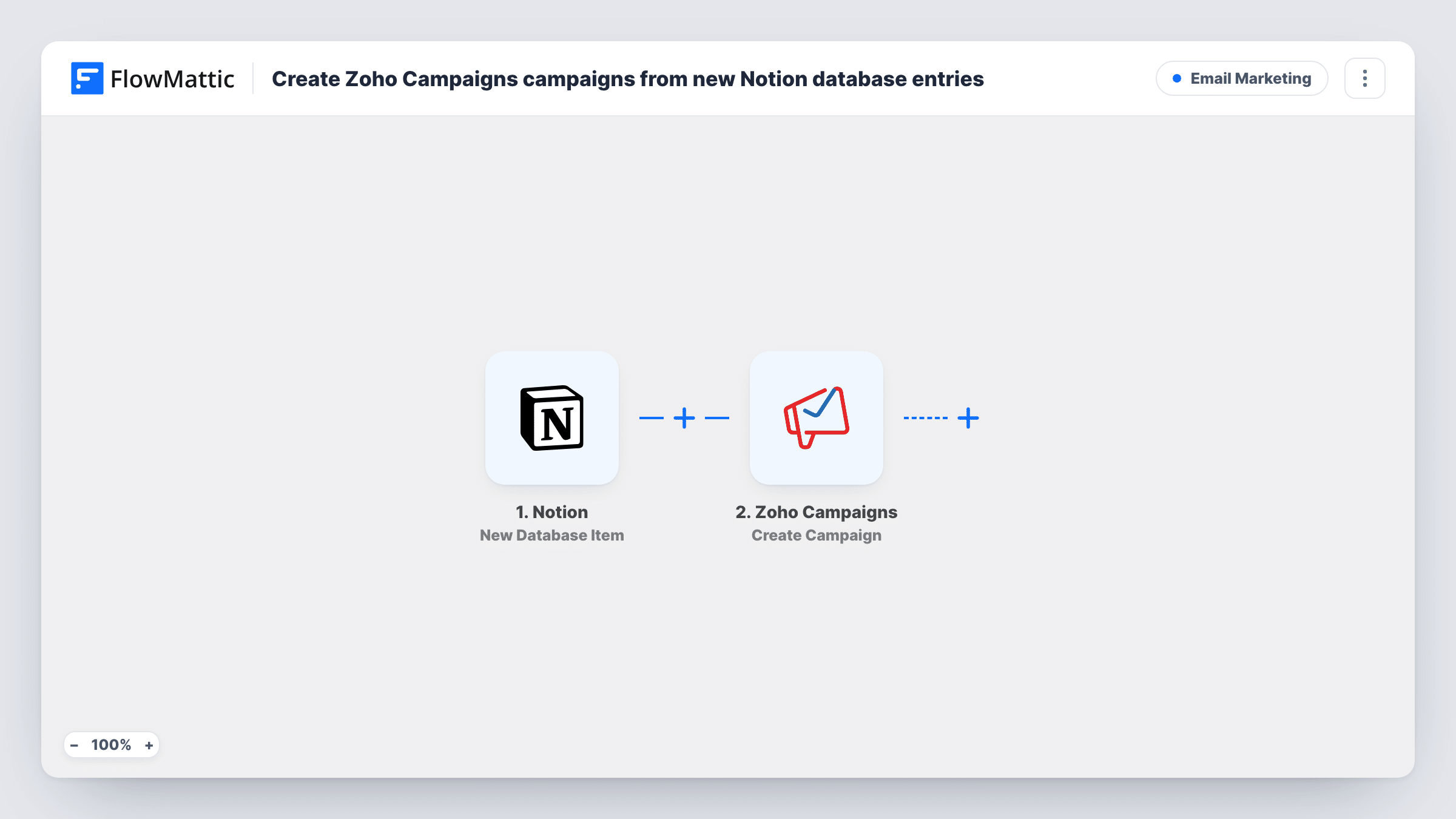
The Notion trigger fires when a new item is created in the database you choose. FlowMattic passes that item's properties to Zoho Campaigns, where Create Campaign makes a new email campaign. You map Notion properties, such as a title or subject, into the campaign.
The workflow only creates the campaign. It does not send or schedule it, so you still review content and recipients in Zoho Campaigns. Each new Notion item makes one campaign, and Task History shows the result.
Newsletter content calendar
Each issue planned in a Notion database gets its own Zoho Campaigns campaign, ready for the writer to fill with the final copy.
Product launch emails
The marketing team adds launch emails as Notion items, and matching campaigns appear in Zoho Campaigns for design and review.
Agency client requests
Clients log email requests in a shared Notion database, and the agency sees a campaign created for each request in Zoho Campaigns.
How this workflow runs
What happens at each step once the workflow is on, and what you need before you import it.
 Notion New Database Item
Fires when a new item is created in the Notion database you pick. The item's properties are passed to Zoho Campaigns for mapping.
- Zoho Campaigns Create Campaign
Creates a new email campaign in Zoho Campaigns from the Notion item. Map the item's properties into the campaign and check the result with a test item.
What you need
- FlowMatticCore
- Notion AccountAccount
- Zoho Campaigns AccountAccount
After importing, map your own data. To keep the template universal, not every step is pre-filled. Open each step in the builder and connect your accounts and fields (channels, lists, sheets, recipients) before you switch the workflow on.
Make it yours
Changes worth making after you import it.
- Fill in the Notion item's key properties as you create it. The workflow runs once per new item, so details added later won't reach the campaign.
- To send or schedule from the workflow, add Zoho Campaigns' Send Campaign or Schedule Campaign action after this step and map the new campaign from its result.
- Add a Filter after the trigger on a property such as Type, so only items marked as email create a campaign.
Questions about this workflow
Does the Zoho Campaigns campaign get sent automatically?
No. Create Campaign only creates it. Sending needs a separate action, such as Send Campaign, or a manual send in Zoho Campaigns.
What if I edit the Notion item after the campaign is created?
Nothing changes in Zoho Campaigns. The trigger reacts to new items only, so edits to existing items don't start a run.
Which Notion database does the workflow watch?
The one you select in the trigger after import. Items added to other databases in your workspace are ignored.
More Email Marketing workflows
Other ready-to-import templates from the same category.







Import this workflow into your WordPress site
Download the JSON, import it from the Workflows screen and connect your accounts. Every run stays on your server, with no per-task fees.
30-day money-back guarantee Unlimited workflows and runs Self-hosted