

Email the client via Gmail when a Gripp quote is created
When a quote is created in Gripp, this workflow sends an email from your Gmail account built from the quote’s details, so the client hears about it without you writing the message each time.
 Gripp
 Gmail
2 steps Setup ~5 min Used on 2.1k sites Free to import
What this workflow does
Creating a quote in Gripp is only half the job. Someone still has to write to the client to say it is ready, and that note is easy to forget when the day is busy. This workflow sends that email for you from Gmail each time a quote is created.
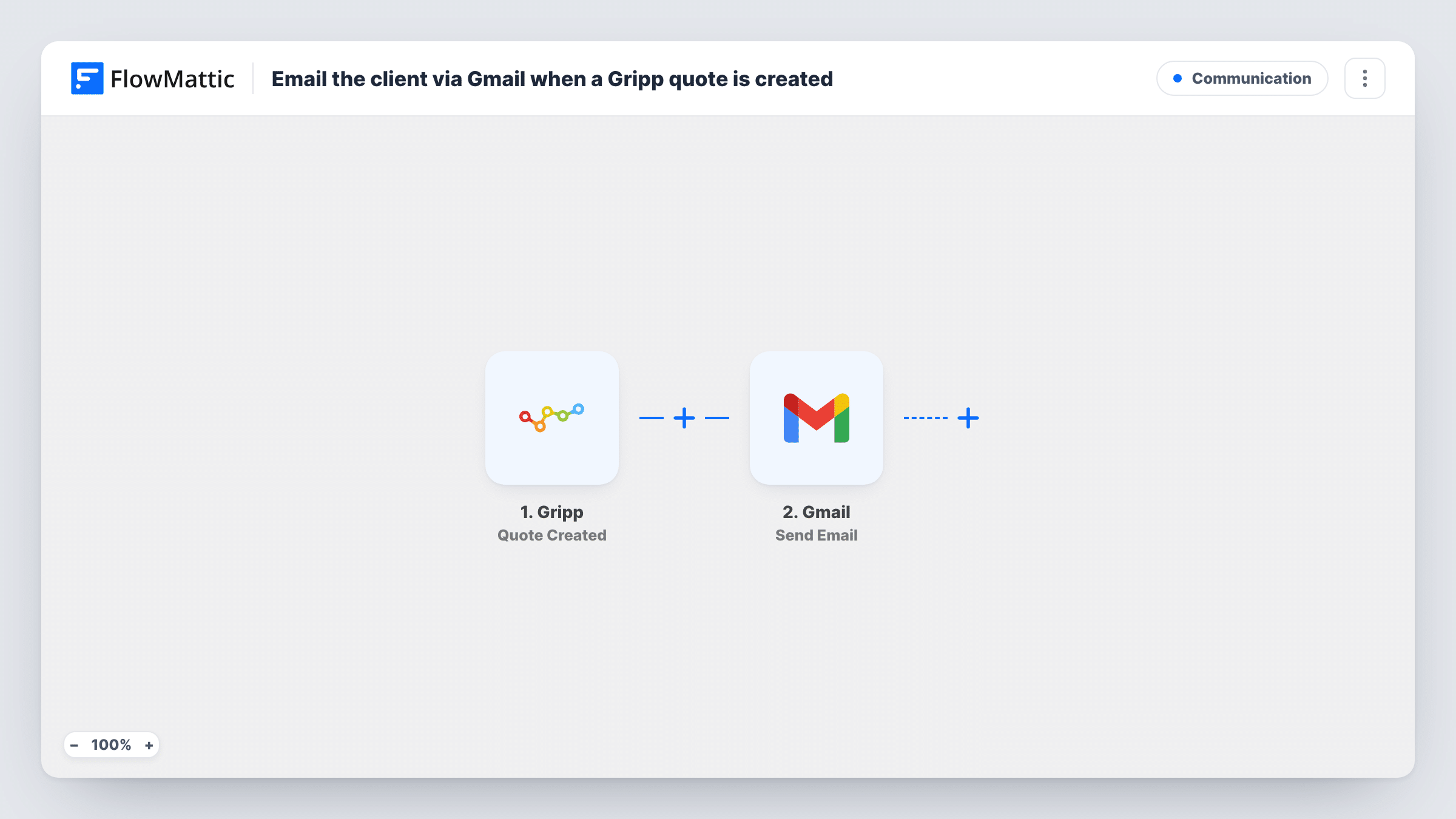
The Gripp trigger fires on Quote Created and passes the new quote's details to FlowMattic. The second step uses Gmail Send Email. You map the recipient from the quote data and write a subject and body that pull in values from the quote, so each email matches the quote it is about.
The email goes out as soon as the quote exists in Gripp, and the template has no Filter or Delay. If your team creates quotes as drafts and checks them before they go to a client, add a step to hold the email back, as the tips explain. Create a test quote after import to see which details Gripp sends and confirm a client address is among them.
Agency proposals
Your account manager builds a quote in Gripp, and the client gets a short Gmail message saying the proposal is ready, written in your agency's own words.
Repeat work for regular clients
Small follow-on jobs are quoted in Gripp throughout the month. Each one triggers a consistent note to the client, so none slips through.
Internal copy for account managers
Send the email to your own team inbox instead of the client, giving everyone a heads-up whenever a new quote is created.
How this workflow runs
What happens at each step once the workflow is on, and what you need before you import it.
 Gripp Quote Created
Starts the workflow when a new quote is created in your connected Gripp account. The quote's details are passed on for the Gmail step to use.
- Gmail Send Email
Gmail sends the email from the account you connect here. Map the recipient from the quote data, then write the subject and body using values from the quote.
What you need
- FlowMatticCore
- Gripp AccountAccount
- Gmail AccountAccount
After importing, map your own data. To keep the template universal, not every step is pre-filled. Open each step in the builder and connect your accounts and fields (channels, lists, sheets, recipients) before you switch the workflow on.
Make it yours
Changes worth making after you import it.
- Add a Delay before the Gmail step if you want time to review or correct a quote in Gripp before the client is emailed.
- Add a Filter after the trigger so only quotes that match a rule you set, based on a value in the quote data, send an email.
- Create a test quote for your own address first. Check that the Gripp data includes the client's email address before pointing the step at real clients.
Questions about this workflow
Does the email include the quote as an attachment?
The template sends an email built from the quote data you map in, not a file. Check with a test run what Gripp provides that you can add to the text.
Will the client get an email for a quote I'm still drafting?
Yes, as imported. The trigger fires when the quote is created, not when it is sent or approved. Add a Filter or Delay if drafts should wait.
Which Gmail account sends the message?
The Gmail account you connect in the step. Replies from the client come back to that inbox.
What if a quote has no contact email in Gripp?
The Gmail step has no address to send to, so the send fails and Task History shows the error on that step. Check with a test quote that the data Gripp sends includes the client's address.
More Communication workflows
Other ready-to-import templates from the same category.







Import this workflow into your WordPress site
Download the JSON, import it from the Workflows screen and connect your accounts. Every run stays on your server, with no per-task fees.
30-day money-back guarantee Unlimited workflows and runs Self-hosted