

Email the onboarding team via Gmail when a Greenhouse candidate is hired
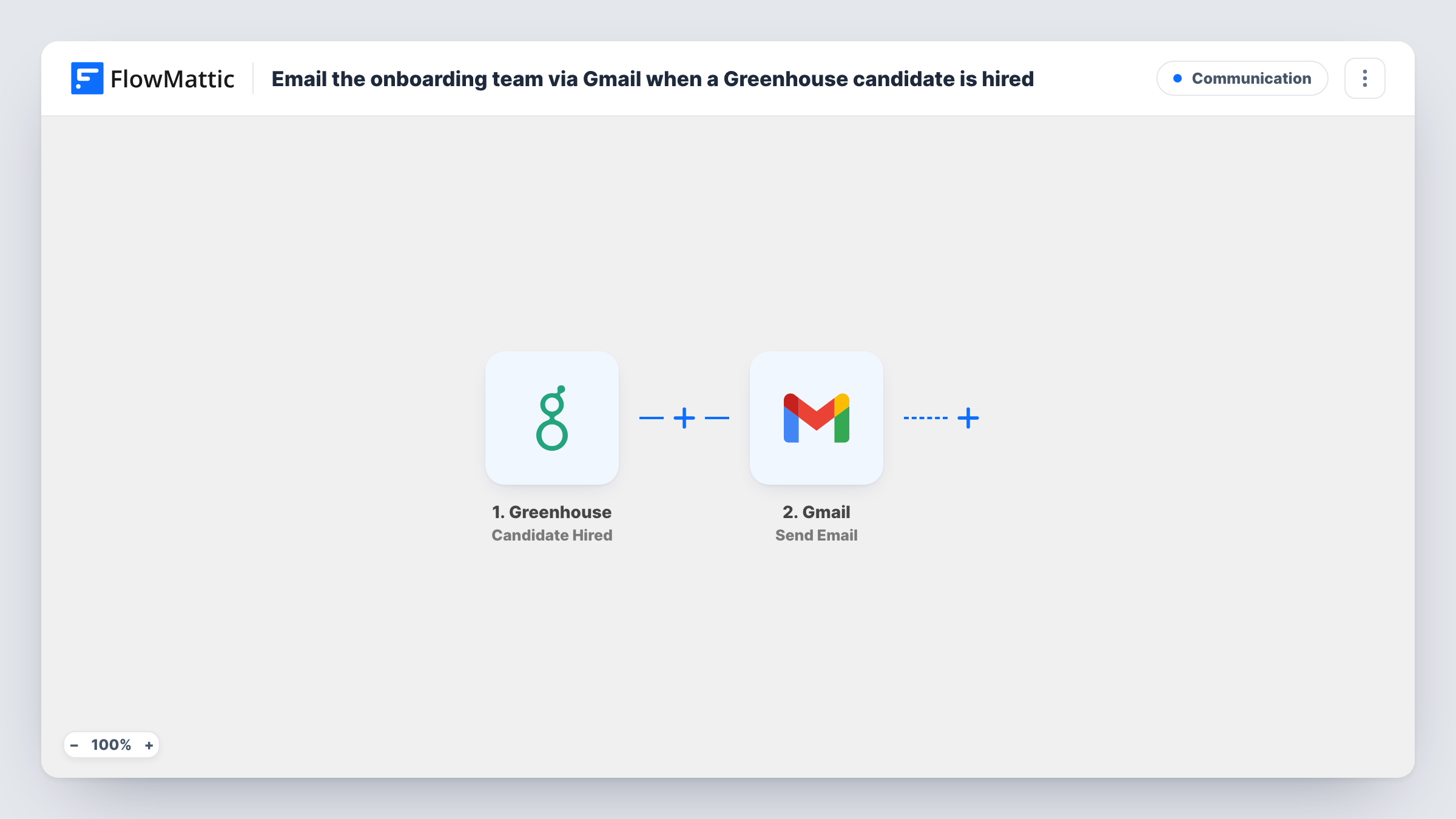
Each time a candidate is marked hired in Greenhouse, this workflow emails your onboarding team from Gmail with the hire’s details, so accounts, equipment and a first-day plan can be prepared before the start date.
 Greenhouse
 Gmail
2 steps Setup ~5 min Used on 1.2k sites Free to import
What this workflow does
A signed offer starts a list of jobs outside recruiting: a laptop, system accounts, a desk, a buddy, a welcome plan. Onboarding staff often hear about new hires late because the news stays in Greenhouse. This workflow sends them an email the moment a candidate is marked hired.
The Greenhouse trigger runs when a candidate is hired and passes their details to FlowMattic. Next, Gmail delivers a message to your onboarding team from whichever Google mailbox you link. You write the message and place Greenhouse values in it, such as the candidate's name and the job, so the team knows who is joining and for which role.
Every hire produces one email to the address you set, which works well for a shared onboarding inbox. Mark a test candidate hired after import and read the run in Task History to see which details Greenhouse includes before you finish the message.
IT and equipment setup
The IT team's shared inbox gets an email for each hire with the role, so they can order the right laptop and create accounts ahead of the first day.
People operations at a growing company
HR receives a note for every hire, which starts contracts, payroll setup and the welcome pack without waiting for a recruiter's handover.
Office managers preparing a desk
An office manager gets the hire email and sets up a desk, building access and a welcome lunch for the new starter.
How this workflow runs
What happens at each step once the workflow is on, and what you need before you import it.
 Greenhouse Candidate Hired
Runs when a candidate is marked hired in your Greenhouse account. The candidate and job details Greenhouse sends become available to map into the email.
- Gmail Send Email
Emails your onboarding team through the Gmail account you connect. Set their address, write the message, and insert Greenhouse values such as the hire's name and role. Confirm the result with a test hire.
What you need
- FlowMatticCore
- Greenhouse AccountAccount
- Gmail AccountAccount
After importing, map your own data. To keep the template universal, not every step is pre-filled. Open each step in the builder and connect your accounts and fields (channels, lists, sheets, recipients) before you switch the workflow on.
Make it yours
Changes worth making after you import it.
- Send the email to a shared onboarding address or Google Group rather than one person, so the message still reaches the team when someone is away.
- Add an Asana, Trello or ClickUp step after Gmail that creates an onboarding task for each hire, so the work is tracked as well as announced.
- If different offices have different onboarding teams and the Greenhouse data names the office, add a Router with a route per office value, each with its own Gmail step.
Questions about this workflow
Which Greenhouse details can go into the onboarding email?
Any value the Candidate Hired trigger receives. Mark a test candidate hired after import and check Task History to see what is available to map.
Does the Gmail email come from my own address?
Yes. Send Email uses the Google account you connect in FlowMattic, so it is sent from that mailbox.
Will candidates hired before I import this trigger an email?
No. Only hires made after the workflow is switched on start a run.
Can the onboarding email go to more than one team?
Use a shared address that reaches everyone, or add a second Gmail step after the first with a different recipient.
More Communication workflows
Other ready-to-import templates from the same category.






Import this workflow into your WordPress site
Download the JSON, import it from the Workflows screen and connect your accounts. Every run stays on your server, with no per-task fees.
30-day money-back guarantee Unlimited workflows and runs Self-hosted