

When a new message is created in Harvestr, send email using Gmail
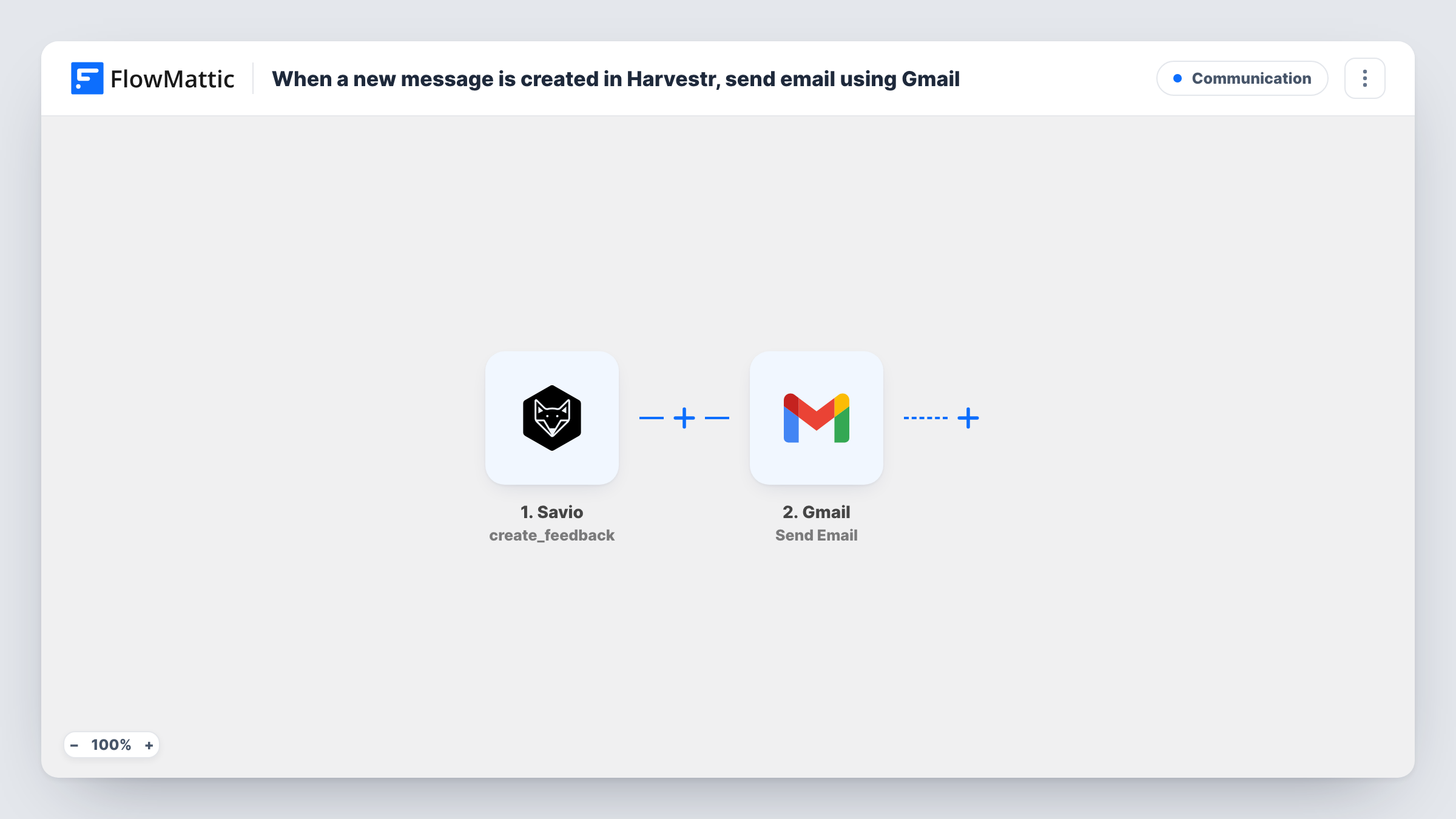
Each new message in Harvestr sends an email from your Gmail account, either to your team as an alert or to the person who sent the feedback, with the message details you map in.
 Harvestr
 Gmail
2 steps Setup ~5 min Used on 891 sites Free to import
What this workflow does
In Harvestr, messages are the raw feedback coming in from customers and colleagues before anyone sorts it. Product managers who aren't in Harvestr all day can miss them for a while. This workflow sends an email the moment a message is created, so new feedback reaches an inbox someone actually reads.
The Harvestr Message Created trigger starts a run when a new message is created. The message content and the details Harvestr includes about it, such as who sent it, are passed on.
The Gmail step then sends an email. The template leaves the recipient, subject and body empty, which lets you decide what the email is for. Send it to yourself or a product inbox as an alert, with the message text mapped into the body. Or, if Harvestr includes the requester's email, send a short note thanking them for the feedback.
Every new message sends one email, because nothing in the workflow narrows which messages count. Updates to an existing message don't start a run, since Harvestr has a separate Message Updated trigger. Create a test message, then check Task History for the fields you can map.
Feedback alerts for a product lead
A product lead who lives in email gets each new Harvestr message in their Gmail inbox and opens Harvestr only when one needs triage.
Thank-you notes to feedback senders
A SaaS founder emails customers who send feedback through Harvestr, thanking them and saying the team reads every request.
Shared inbox for a feedback rota
A team forwards new Harvestr messages to a shared mailbox, and whoever is on the weekly rota processes them from there.
How this workflow runs
What happens at each step once the workflow is on, and what you need before you import it.
 Harvestr Message Created
Fires when a new message is created in Harvestr. The message text and the information Harvestr sends with it become available to the Gmail step.
- Gmail Send Email
Emails the alert or note through the Gmail account you connect. Nothing is set in the template: choose the recipient, write the subject and body, and map the Harvestr message content and sender details you want to include.
What you need
- FlowMatticCore
- Harvestr AccountAccount
- Gmail AccountAccount
After importing, map your own data. To keep the template universal, not every step is pre-filled. Open each step in the builder and connect your accounts and fields (channels, lists, sheets, recipients) before you switch the workflow on.
Make it yours
Changes worth making after you import it.
- Put the message source or sender in the Gmail subject line, so you can sort feedback alerts at a glance in your inbox.
- Put a Filter between the Harvestr trigger and the Gmail step that continues only when the requester's email is not empty, if you send thank-you notes. Messages without an address then stop there.
- Make a Gmail filter on the subject you set here, so feedback alerts get their own label instead of filling the main inbox.
Questions about this workflow
Who receives the email when a Harvestr message is created?
You pick the recipient when you set up the Gmail step. The template leaves it empty, so use a fixed address for team alerts or map the requester's email from the message for replies to customers.
Does editing a Harvestr message send another email?
No. Message Created only runs for new messages. Harvestr also has a Message Updated trigger in FlowMattic if you want emails on changes too.
Can I email feedback only for certain Harvestr sources?
Yes, if the trigger data includes the source. Put a Filter between the Message Created trigger and the Gmail step that checks that field, after seeing its name in a test run.
More Communication workflows
Other ready-to-import templates from the same category.






Import this workflow into your WordPress site
Download the JSON, import it from the Workflows screen and connect your accounts. Every run stays on your server, with no per-task fees.
30-day money-back guarantee Unlimited workflows and runs Self-hosted